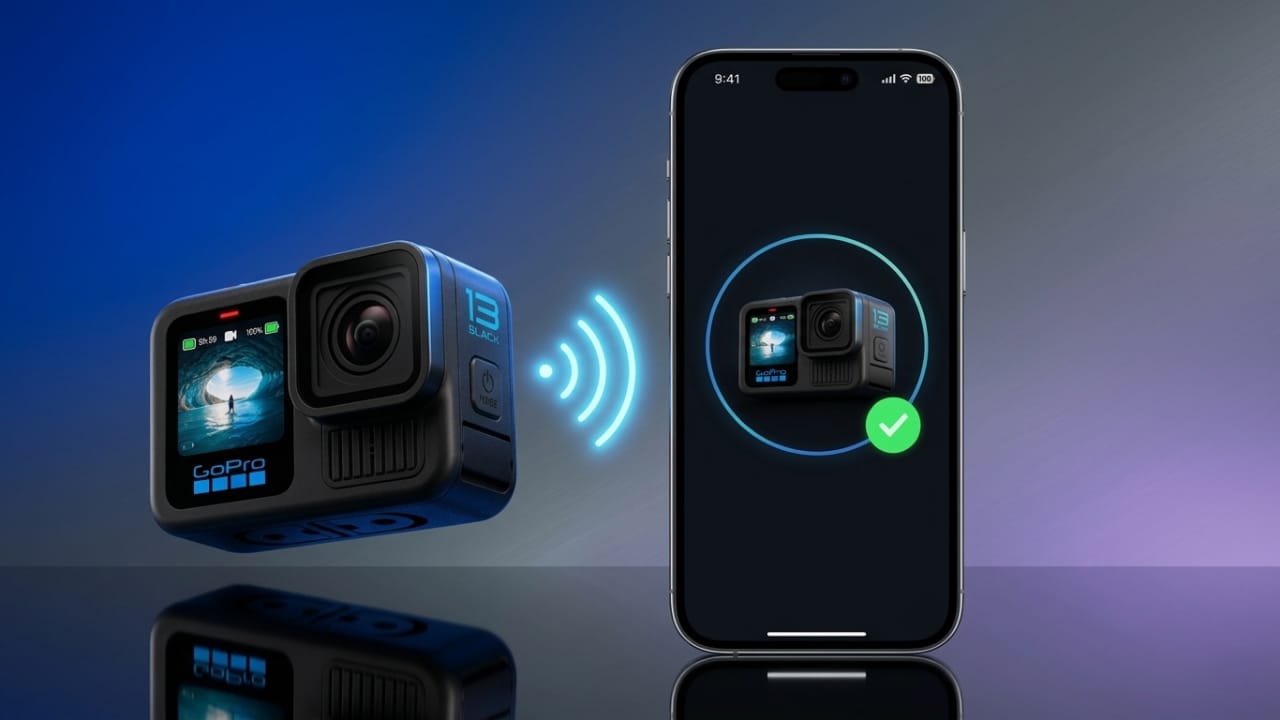
Connecting your GoPro camera to your smartphone makes it much easier to control the camera, preview recordings, and transfer photos or videos without using a computer. With the GoPro Quik app, you can manage your camera directly from your Android device in just a few steps.
Also read: How to Use Your Android Phone as a Webcam on a Windows PC
Advertisements
What You’ll Need
Before you begin, make sure you have the following:
- A charged GoPro camera
- An Android smartphone
- The GoPro Quik app installed
- Bluetooth and Wi-Fi turned on
- A microSD card inserted in the camera
Step 1: Install the GoPro Quik App
Download the GoPro Quik app from the Google Play Store and install it on your phone. After installation, open the app and sign in with your GoPro account. If you don’t have an account, you can create one or continue using the available guest option if supported.
Step 2: Prepare Your Devices
Turn on your GoPro camera and make sure it has enough battery power.
Next, enable both Bluetooth and Wi-Fi on your phone. These two connections are required for pairing and transferring files.
Step 3: Put the GoPro in Pairing Mode
On your GoPro camera, open the settings menu.
Go to the wireless or connection settings and select the option to connect to the Quik app. The camera will switch to pairing mode and wait for your phone to connect.
The exact menu names may vary slightly depending on your GoPro model, but the process is generally similar.
Step 4: Connect the Camera to Your Phone
Open the GoPro Quik app on your phone.
Tap the option to add or connect a GoPro camera. The app will search for nearby devices automatically.
When your camera appears on the screen, select it and follow the instructions to complete the pairing process.
Once the connection is successful, the camera usually confirms it with a sound or an on-screen message.
Step 5: Control Your GoPro Remotely
After pairing, the Quik app allows you to control many camera functions directly from your phone.
You can:
- Start or stop video recording
- Capture photos remotely
- View a live camera preview
- Change supported camera settings
- Browse saved media
The live preview helps you frame your shots more accurately before recording.
Step 6: Transfer Videos and Photos
Open the media section in the Quik app and choose the files you want to copy.
Select the download or save option to transfer them to your phone. Depending on the file size, the transfer may take a few moments.
Once downloaded, you can organize, edit, or share your videos directly from your smartphone while keeping the original files on the camera if you choose.
Tips to Avoid Connection Problems
If your phone cannot detect the camera or the connection keeps failing, try these simple solutions:
- Make sure Bluetooth and Wi-Fi are enabled.
- Keep the camera close to your phone.
- Restart both the camera and the smartphone.
- Ensure the GoPro Quik app is updated.
- Confirm the camera has sufficient battery charge.
- Repeat the pairing process if necessary.
- Check the app’s Help section for additional guidance.
Most connection issues are resolved by restarting the devices and pairing them again.
Also read: How to Reset Your GoPro Camera: Complete Guide for HERO, Fusion, and Session Models
Final Thoughts
Connecting your GoPro camera to your Android phone is a quick process that unlocks several useful features. After the initial setup, you can control the camera remotely, watch a live preview, and transfer your photos and videos without needing a computer.
If you ever experience connection issues, simply follow the troubleshooting steps above and repeat the pairing process. In most cases, the camera reconnects without any difficulty.

Abhi Rajput, founder of EarnAbhi.in, is a tech lover with 6+ years of experience in SEO, digital tools, and smartphone troubleshooting. He writes simple, clear, and useful guides to help people solve real tech problems.