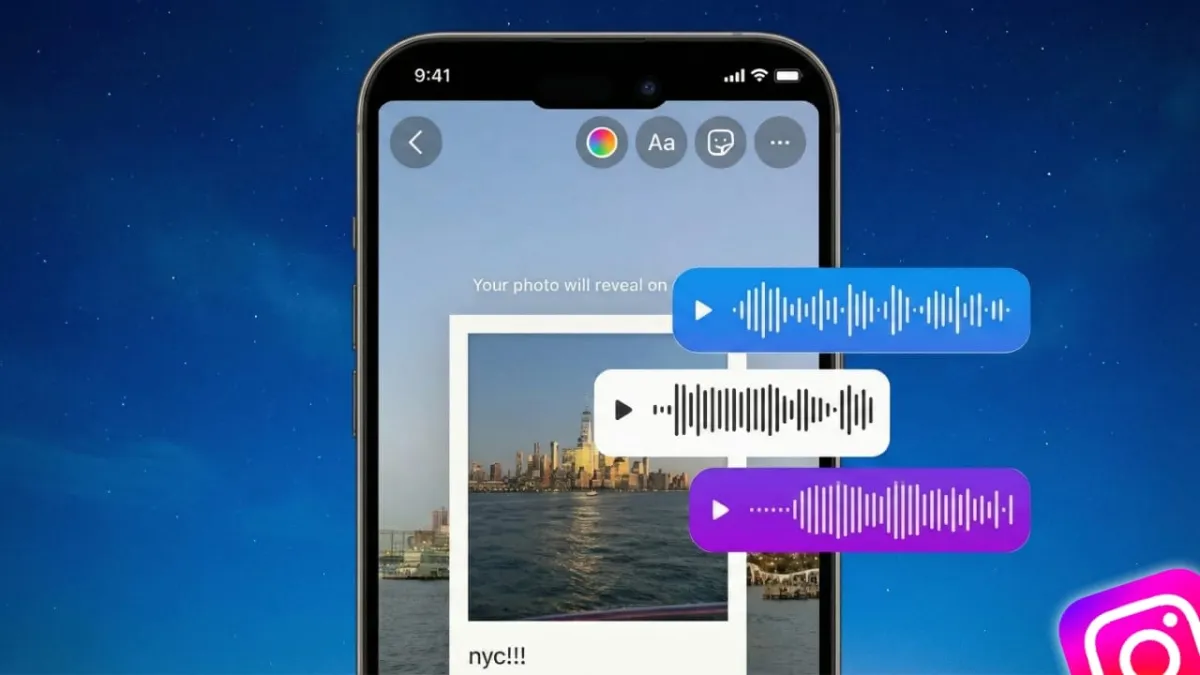
Adding your own voice to an Instagram Story is a great way to make your posts feel more genuine and expressive. Instead of relying only on text or visuals, a short voice note lets you speak directly to your audience—whether you’re sharing a quick update, explaining something, or simply adding a personal touch.
Advertisements
Instagram offers built-in tools to help you record your voice, and if you want more polished audio, you can also use external editing apps. Below is a clear, step-by-step guide to help you create voice-enhanced stories with ease.
Also read: WAPro App for WhatsApp – All Features & Hidden Tips and Tricks
Why Use Voice Notes in Instagram Stories?
- They make your stories feel more personal and relatable.
- Instagram provides fun audio effects and stickers you can use instantly.
- External apps let you record cleaner, more professional voiceovers before uploading.
Adding Voice Notes Using Instagram’s Built-In Features
Instagram’s Story tools are designed to be simple, so you can start recording your voice within seconds. You can even apply effects and add background music to make your story more engaging.
Step 1: Open the Story Camera
Launch the Instagram app and head to the Story section by tapping your profile picture or swiping left. You can record something on the spot or pick a photo/video from your gallery.
Step 2: Try Voice Effects for Creative Audio
Instagram includes several voice effects that instantly change how your voice sounds.
Tap the Filters icon and search for Voice Effects to explore them.
Common effects include:
- Announcer – adds a bold, dramatic tone
- Helium – makes your voice high-pitched and funny
- Giant – gives your voice a deep, echo-like sound
- Robot – adds a mechanical, futuristic style
- Vocalist – smoothens your voice with a musical vibe
Choose an effect you like and start recording. The filter will automatically apply while you speak.
Step 3: Add Background Music
To make your story more lively or emotional, tap the Sticker icon and select Music.
You can browse tracks based on mood, genre, or popularity. Pick the portion of the song you want and adjust how the sticker appears on your story.
Step 4: Review and Post
Once your audio and visuals look good, preview the story. If everything sounds clear, tap Your Story to publish it.
Adding Voice Notes Using External Apps
If you prefer cleaner audio or want more control over editing, external apps are a great option. They allow you to record, trim, and enhance your voice before uploading it to Instagram.
Step 1: Pick an Easy-to-Use Editor
Popular choices include:
- FlexClip – beginner-friendly and simple
- GarageBand – excellent for iPhone users
- Lexis Audio Editor – good for trimming and noise reduction
Step 2: Record and Edit Your Voice
Start a new project in your chosen app. Add the image or video you want to use, then press the microphone button to record your voice.
Most apps allow you to:
- Remove unwanted noise
- Cut or trim mistakes
- Adjust the volume
- Add background music, text, or small visual effects
Step 3: Save and Upload to Instagram
After editing, export the final video to your phone.
Open Instagram → go to Your Story → upload the clip.
Your story will now feature a polished voiceover with your chosen effects.
Troubleshooting: Quick Fixes for Common Audio Issues
If something isn’t working, here are simple solutions:
- Audio not playing: Check your device volume or re-upload the story.
- Voice effects not showing: Update your Instagram app; some filters are region-specific.
- Poor sound quality: Record in a quiet space or use a better microphone.
- Music sticker missing: Music availability varies by location due to licensing rules.
Also read: Google Maps Introduces Power-Saving Mode for Pixel 10 Users
Final Thoughts
Adding voice notes to your Instagram Stories is an easy way to connect more deeply with your followers. Whether you use Instagram’s built-in tools or edit your audio in another app, your stories can feel more expressive and unique.
Experiment with effects, add music, and let your personality shine through every story you share.

Abhi Rajput, founder of EarnAbhi.in, is a tech lover with 6+ years of experience in SEO, digital tools, and smartphone troubleshooting. He writes simple, clear, and useful guides to help people solve real tech problems.
Advertisements