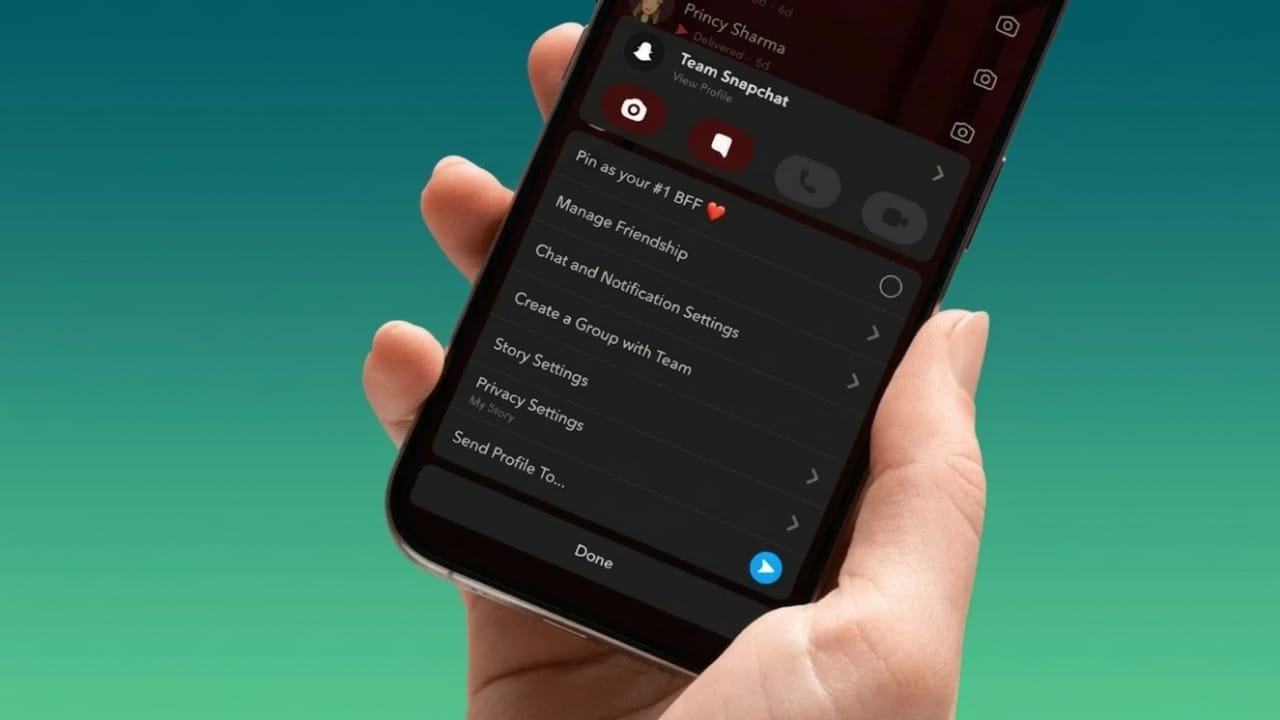
If you often receive snaps or messages from Team Snapchat, you might feel like your inbox is getting cluttered. Many users wonder if there’s a way to stop these messages completely.
Snapchat sends updates through this official account to share new features, announcements, and helpful tips. While some people find these updates useful, others may find the frequent messages distracting.
If you’re looking for a way to stop these alerts, here’s what you should know and the best way to manage them.
Also read: How to Remove Someone From Your Snapchat Friends List (Easy Methods)
Can You Block Team Snapchat?
No, Snapchat does not allow users to block the Team Snapchat account.
Unlike regular profiles, Team Snapchat works as a system account built into the platform. Because of this, the normal block option that works for friends or other users doesn’t apply here.
Sometimes you might see a “Block” option in certain menus. However, choosing it usually doesn’t stop the messages. The account remains active and can still send updates.
Snapchat uses this account to communicate important information, including:
- App feature updates
- Announcements and tips
- Safety notifications
- Occasional promotions
For this reason, the account cannot be removed or blocked like a normal contact.
Also read: How to Fix Snapchat Login Problems: A Simple Step-by-Step Guide
Best Alternative: Mute Team Snapchat
Although blocking isn’t possible, you can mute the chat.
Muting prevents notifications from appearing on your phone. The messages will still exist in your chat list, but they won’t interrupt you with alerts.
For most users, this is the easiest and most practical solution.
How to Mute Team Snapchat (Android & iPhone)
Follow these steps to silence notifications:
- Open the Snapchat app.
- Swipe right to go to the Chat screen.
- Find the Team Snapchat conversation.
- Press and hold the chat.
- Tap Chat and Notification Settings.
- Select Notification Settings.
- Turn on Mute Chat.
- Choose “Until I unmute them.”
Once this setting is enabled, you will no longer receive alerts from Team Snapchat.
What Happens After You Mute the Chat?
Muting the conversation only affects notifications. It does not remove the chat or block the account.
Here’s what you can expect:
No notifications: Your phone will stop sending alerts when new snaps or messages arrive.
Messages still appear in chat: The conversation will remain visible in your chat list.
You can check messages anytime: If you want to view the updates, simply open the chat.
Your account stays unchanged: Muting does not affect friends, streaks, or other chats.
Also read: Easy Guide to Making Group Chats on Snapchat
Are There Any Tricks to Block Team Snapchat?
At the moment, there is no reliable method to fully block Team Snapchat.
Some users claim that reporting the account or trying certain settings may reveal a temporary block option. However, these methods are inconsistent and often stop working after Snapchat updates the app.
Other actions, such as clearing the chat or removing the conversation, only hide it temporarily. New messages can still appear later.
Because of this, muting the chat remains the most dependable way to avoid interruptions.
Why Snapchat Uses Team Snapchat
Snapchat keeps the Team Snapchat account active because it serves as a direct communication channel with users. Through it, the platform can quickly share important updates, including:
- New features
- Platform announcements
- Safety reminders
- Promotional information
This is why the account cannot be disabled like a regular user profile.
Also read: How to Hide Your Location on Snapchat Using Ghost Mode
Final Thoughts
While it’s not possible to block Team Snapchat completely, muting the chat offers a simple way to stop notifications. This keeps your Snapchat experience calm and distraction-free while still allowing you to check updates whenever you want.
For most users, muting the conversation is enough to keep the app organized without constant alerts.

Abhi Rajput, founder of EarnAbhi.in, is a tech lover with 6+ years of experience in SEO, digital tools, and smartphone troubleshooting. He writes simple, clear, and useful guides to help people solve real tech problems.