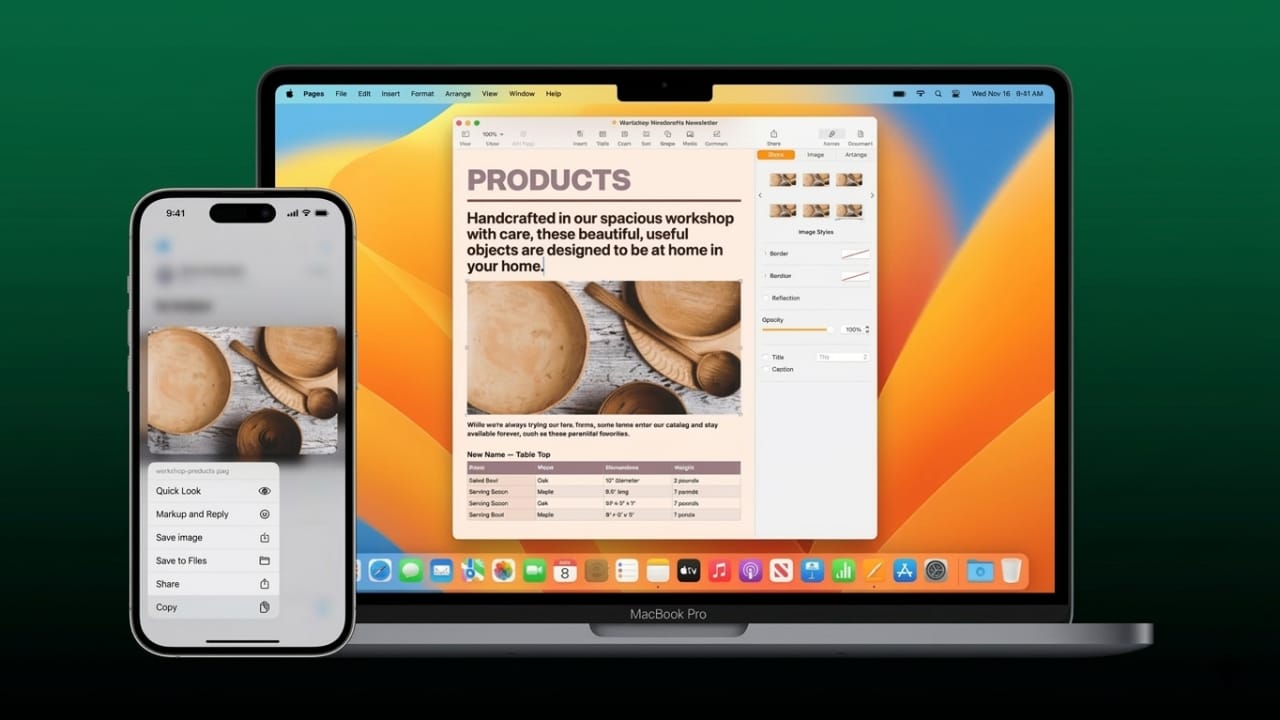
Moving text or images between Apple devices is easier than many people think. Apple includes a feature called Universal Clipboard that allows you to copy something on one device and paste it on another.
For example, you can copy a message on your iPhone and paste it directly on your Mac. This feature works across several Apple devices and helps save time when switching between them.
Once everything is set up, the process becomes almost automatic.
Also read: How to Hide Your Location on Snapchat Using Ghost Mode
Key Points to Know
- Universal Clipboard lets you share copied items between Apple devices.
- It works with text, links, and images.
- Your devices must have Wi-Fi, Bluetooth, iCloud, and Handoff enabled.
- The feature works on many modern iPhone, iPad, and Mac models.
What Is Universal Clipboard?
Universal Clipboard is part of Apple’s Continuity system. It allows multiple Apple devices connected to the same account to share clipboard data.
Apple first introduced this feature during the Apple Worldwide Developers Conference 2016.
When you copy something on one device, it stays temporarily in the clipboard. If you move to another device that is connected to the same account, you can paste that content there.
For example:
- Copy a link on your iPhone
- Switch to your Mac
- Paste it instantly
The copied content remains available until you copy something new.
Supported iPhone and iPad Devices
Most modern Apple mobile devices support Universal Clipboard, including:
- iPhone 5 and later models
- iPad Pro models
- iPad (4th generation and newer)
- iPad Air models
- iPad mini 2 and newer
- iPod touch (6th generation or later)
Your device should also run iOS 10 or a newer version for the feature to work correctly.
Supported Mac Computers
Many Mac computers released in recent years also support this feature, such as:
- MacBook (Early 2015 or newer)
- MacBook Pro (2012 or newer)
- MacBook Air (2012 or newer)
- Mac mini (2012 or newer)
- iMac (2012 or newer)
- Mac Pro (Late 2013)
These computers need macOS Sierra or later.
Keeping your system updated helps ensure everything works smoothly.
Settings You Must Enable First
Before using Universal Clipboard, a few basic settings must be turned on.
Basic Requirements
Make sure the following are enabled on all devices:
- Sign in with the same iCloud account on every device.
- Turn on Wi-Fi.
- Turn on Bluetooth.
- Keep the devices close to each other.
Your devices do not have to be connected to the same Wi-Fi network, but Wi-Fi and Bluetooth must remain turned on.
Turn On Handoff
Another important feature called Handoff allows Apple devices to communicate with each other.
Enable Handoff on Mac
- Open System Settings.
- Go to General.
- Turn on “Allow Handoff between this Mac and your iCloud devices.”
Enable Handoff on iPhone or iPad
- Open Settings.
- Tap General.
- Select AirPlay & Handoff.
- Turn on Handoff.
After enabling these options, Universal Clipboard should start working automatically.
How to Copy From iPhone and Paste on Mac
Once everything is set up, transferring content is very simple.
- Tap and hold the text, image, or link on your iPhone.
- Select Copy.
- Open an app on your Mac where you want the content.
- Press Command + V.
The copied content should appear instantly.
Copy From Mac and Paste on iPhone
You can also move content the other way.
- Highlight text or an image on your Mac.
- Press Command + C to copy it.
- Open the desired app on your iPhone.
- Tap and hold in the text area.
- Select Paste.
The copied item will appear on your iPhone within seconds.
Copy Between iPhone and iPad
Universal Clipboard also works between mobile devices like iPad and iPhone.
Steps are simple:
- Copy content on one device.
- Move to the second device.
- Tap and hold where you want the content.
- Select Paste.
Just make sure both devices stay close to each other.
Managing Clipboard History With Apps
Universal Clipboard only keeps the most recently copied item. If you need to store multiple copied items, some third-party apps can help.
For example, Paste allows you to:
- Save multiple copied items
- Search through clipboard history
- Organize frequently used content
These tools can be useful if you often copy links, templates, or notes during your work.
Also read: How to Share Your Screen on WhatsApp (iPhone, Android, and Desktop)
Final Thoughts
Using Universal Clipboard makes switching between Apple devices much easier. Instead of sending messages or emails to yourself, you can simply copy content on one device and paste it on another.
Once Wi-Fi, Bluetooth, iCloud, and Handoff are enabled, the feature works quietly in the background.
For anyone using multiple Apple devices, this small feature can make everyday tasks faster and more convenient.

Abhi Rajput, founder of EarnAbhi.in, is a tech lover with 6+ years of experience in SEO, digital tools, and smartphone troubleshooting. He writes simple, clear, and useful guides to help people solve real tech problems.