Artificial intelligence has made visual creation much easier than it used to be. In the past, designing high-quality images required advanced tools and strong design skills. Today, AI tools allow anyone to generate impressive visuals just by writing a simple description.
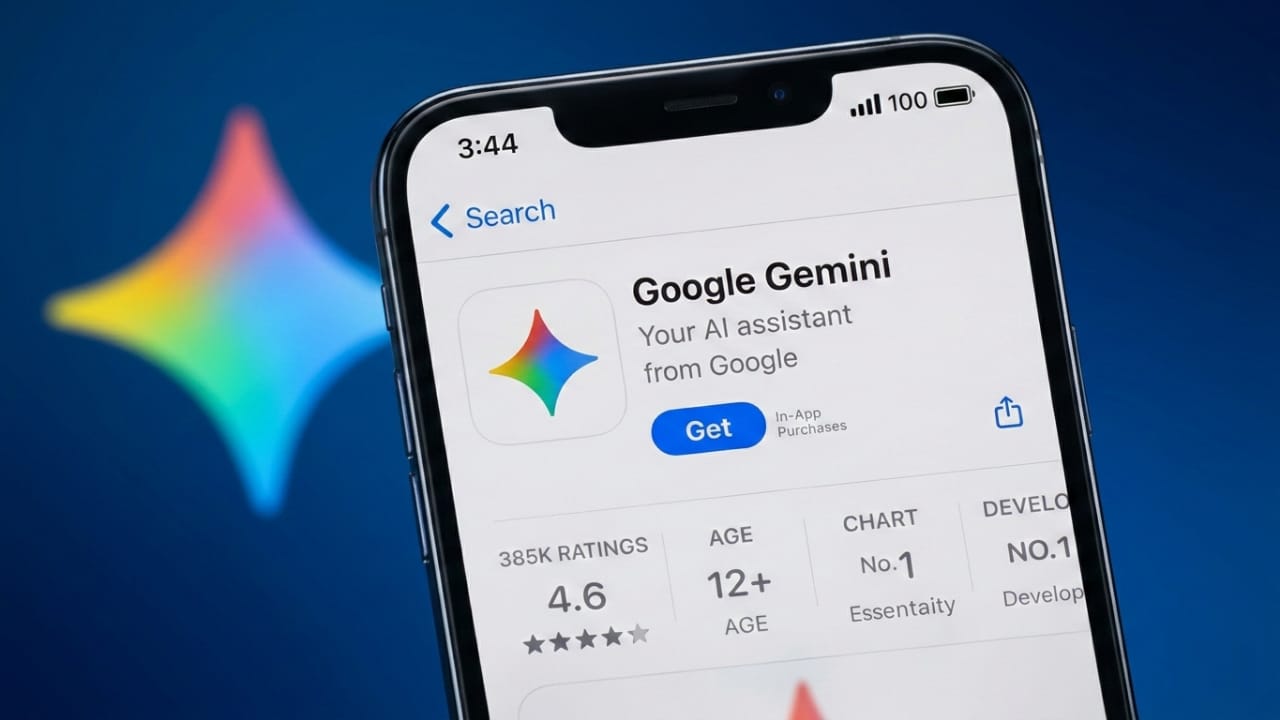
One of these tools is Google Gemini Pro. It can turn text instructions into images that match your idea. If you are new to AI image generation, this guide will help you understand how to use Gemini Pro in a clear and practical way.
Also read: How to Make AI Images with Sora on Mobile or Desktop
Understanding Google Gemini Pro
Google Gemini Pro is an advanced AI model created to understand written instructions and respond intelligently. Besides answering questions and helping with tasks, it can also create images when the feature is available.
Instead of opening a design program and building graphics step by step, you simply describe what you want. The AI reads your description and generates an image based on the details you provide.
Where You Can Use Gemini Pro
Gemini can be accessed through several official platforms, including:
- The Gemini website
- Your Google account through a web browser
- Some supported apps and tools that integrate Gemini features
Keep in mind that image generation options may change over time depending on updates or platform availability.
Step 1: Sign In to Gemini
Start by opening your browser and visiting the official Gemini page. Log in using your Google account.
After signing in, you will see a text box where you can type your request or prompt. This is where you describe the image you want the AI to generate.
Step 2: Write a Clear and Detailed Prompt
The result you get depends heavily on how well you describe the image.
A very short request usually produces basic results. For example:
Basic prompt:
“Beach”
A more detailed description helps the AI understand your vision better. For example:
Improved prompt:
“A quiet tropical beach during sunset with golden sunlight reflecting on calm water, soft clouds in the sky, realistic style, high detail.”
Adding more context allows the AI to generate a more accurate and visually appealing image.
Step 3: Include Creative Details
If you want the image to look more professional, include extra details in your prompt. These can describe the style, lighting, or mood of the scene.
You can add elements such as:
Art style
- Realistic
- Watercolor
- Digital illustration
- 3D render
Lighting
- Soft lighting
- Golden hour
- Dramatic shadows
Camera perspective
- Close-up
- Wide shot
- Aerial view
Mood or atmosphere
- Minimal
- Vibrant
- Dark
- Warm
Example prompt:
“A modern workspace with neon lighting, a sleek desk setup, glowing monitors, soft ambient light, highly detailed, high resolution.”
These details help the AI create a more polished result.
Step 4: Improve the Result by Adjusting the Prompt
The first image may not always match your expectations perfectly. That is normal when working with AI.
You can refine your prompt by adding small adjustments such as:
- Make the lighting brighter
- Increase background blur
- Add stronger contrast
- Use more vibrant colors
Even small changes in wording can significantly improve the final image.
Tips for Better Image Generation
To get the best results from Gemini Pro, follow these simple practices.
Be Specific
Short prompts often lead to generic images. Adding clear details improves accuracy.
Mention Colors
Color descriptions help the AI visualize the scene more effectively.
Describe Materials or Texture
Words like metallic, smooth, glossy, or rough can add realism.
Keep Instructions Simple
Avoid mixing too many unrelated ideas in one prompt. Clear instructions usually work better.
What You Can Create with Gemini Pro
AI image generation can be useful for many creative tasks. Some common uses include:
- Blog or website images
- Social media graphics
- Concept art ideas
- Product presentation visuals
- Wallpapers
- Illustrated designs
Because of this, the tool can be helpful for creators, marketers, and designers looking to produce visuals quickly.
Is Gemini Pro Free?
Gemini generally offers free access with certain usage limits. Some advanced features or higher usage levels may require a subscription plan.
Since pricing and features can change, it is best to check the details directly in your Gemini account.
Mistakes to Avoid
When generating images with AI, beginners often make a few common mistakes.
These include:
- Writing prompts that are too short
- Expecting perfect results on the first try
- Forgetting to mention style or lighting
- Adding too many conflicting instructions
Learning to adjust and refine prompts usually leads to better outcomes.
Also read: Automate Your Workflows With n8n — No Coding Required
Final Thoughts
Creating high-quality images with Google Gemini Pro is simpler than ever. The most important skill is learning how to write clear and descriptive prompts.
Start with a basic idea, experiment with different styles, and refine your instructions step by step. With a little practice, you can generate impressive AI-created visuals for blogs, projects, and creative content.

Abhi Rajput, founder of EarnAbhi.in, is a tech lover with 6+ years of experience in SEO, digital tools, and smartphone troubleshooting. He writes simple, clear, and useful guides to help people solve real tech problems.