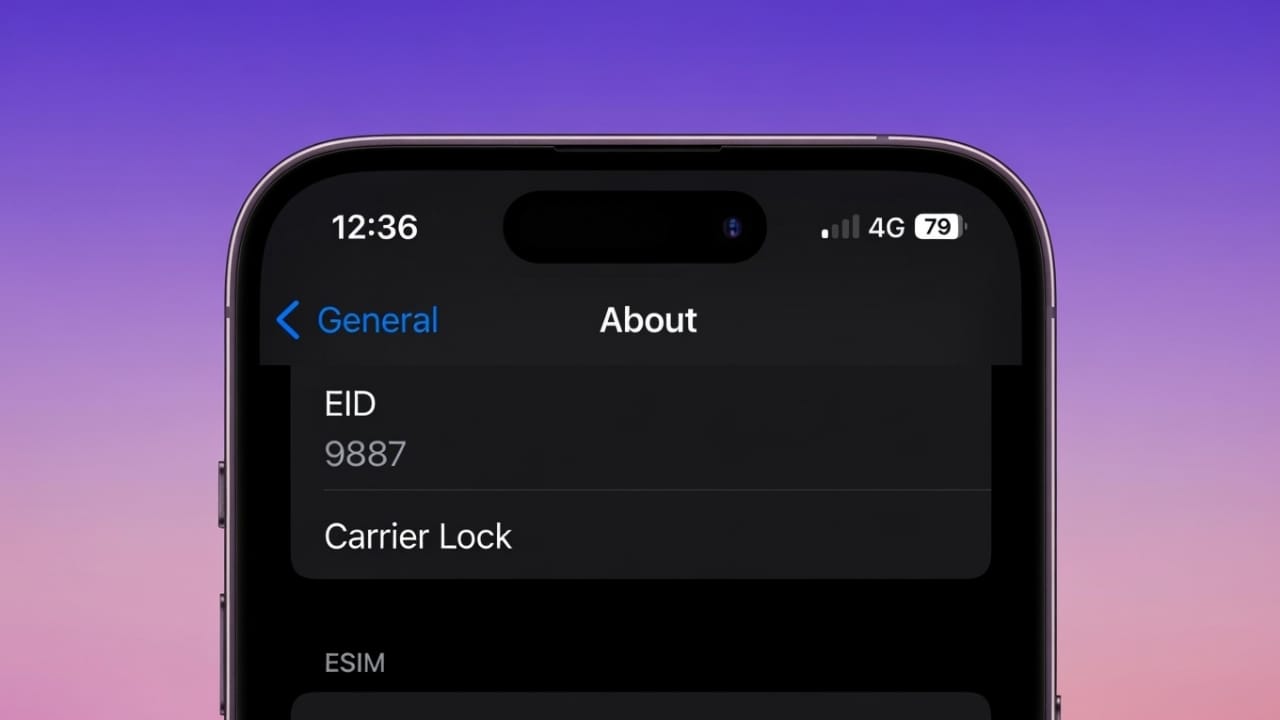
If you use an eSIM on your iPhone, you may be asked for something called an EID. This number is important for activating mobile plans, switching carriers, or setting up an international eSIM. The good news is that finding it is simple, even if you are not tech-savvy.
This guide explains what an EID is, why it matters, and all the easy ways to locate it on an iPhone.
Also read: How to Convert iPhone Live Photos into GIFs (Simple Step-by-Step Guide)
What Is an EID on an iPhone?
EID stands for Embedded Identity Document. It is a unique 32-digit number built into your iPhone. This number is linked to your phone’s eSIM, which is a digital SIM card stored inside the device.
Unlike a physical SIM card, an eSIM cannot be removed. The EID stays fixed to your iPhone for its entire lifetime. Apple assigns this number during manufacturing, and every eSIM-compatible iPhone has its own EID.
Mobile carriers use the EID to:
- Activate an eSIM plan
- Identify the correct device
- Help with network or activation issues
Most people never need this number daily. It is usually required only when setting up a new eSIM, changing carriers, or using travel eSIM services.
EID is not the same as IMEI or serial number.
- IMEI identifies the phone itself
- Serial number is used for warranty and support
- EID is used only for eSIM identification
How to Find Your EID Using iPhone Settings
This is the quickest and most common method.
- Open Settings
- Tap General
- Select About
- Scroll down until you see EID
The EID will appear as a long 32-digit number.
You can press and hold the number to copy it if you need to share it with your carrier.
This method works on all modern iPhones that support eSIM and usually takes less than a minute.
Finding EID Before iPhone Setup Is Complete
If your iPhone is brand new and not set up yet, you can still view the EID.
- Turn on the iPhone
- Stay on the Hello welcome screen
- Look for a small ⓘ (information) icon at the bottom
- Tap the icon
A screen will appear showing important device details, including the EID. This is helpful if you need to activate an eSIM before finishing setup.
Other Ways to Find Your EID on an iPhone
Sometimes you may not be able to access the Settings app. In those cases, these alternative options can help.
Using a Computer
- Connect your iPhone to a Mac or Windows PC
- On macOS:
- Open Finder (or iTunes on older versions)
- On Windows:
- Open iTunes or Apple Devices app
Select your iPhone from the sidebar. Click on the device information until different identifiers appear. Keep clicking until the EID is shown.
Using Your Apple ID Account Online
This method works even if the iPhone is not with you.
- Open a web browser
- Go to account.apple.com
- Sign in with your Apple ID
- Open the Devices section
- Select your iPhone from the list
The EID will be displayed in the device details.
Using Another Apple Device
If you have another iPhone or iPad signed in with the same Apple ID:
- Open Settings
- Tap your Apple ID name
- Scroll down to see your devices
- Select the iPhone you need
The EID will appear in the device information.
Checking the Original iPhone Box
If your iPhone does not turn on, check the retail box.
- Look at the label on the back of the box
- Along with the serial number and IMEI, the EID may also be printed there
This is why it is always a good idea to keep your iPhone box safe.
What to Do If EID Does Not Appear
If you cannot find the EID:
- Restart your iPhone and check again
- Make sure the phone supports eSIM
- Connect to Wi-Fi and try once more
- Update to the latest version of iOS
If the number still does not show up, contacting Apple Support or your mobile carrier is the safest option.
Also read: How to Change the Bluetooth Name on iPhone, iPad, and Mac (Simple Guide)
Final Thoughts
Finding your EID on an iPhone is straightforward once you know where to look. It plays a key role in eSIM activation and helps carriers connect your plan to the right device.
The Settings app is the fastest way, but backup methods like Apple ID, computer access, or the original box can save you in tricky situations. Keep this guide handy for the next time your carrier asks for your EID.

Abhi Rajput, founder of EarnAbhi.in, is a tech lover with 6+ years of experience in SEO, digital tools, and smartphone troubleshooting. He writes simple, clear, and useful guides to help people solve real tech problems.