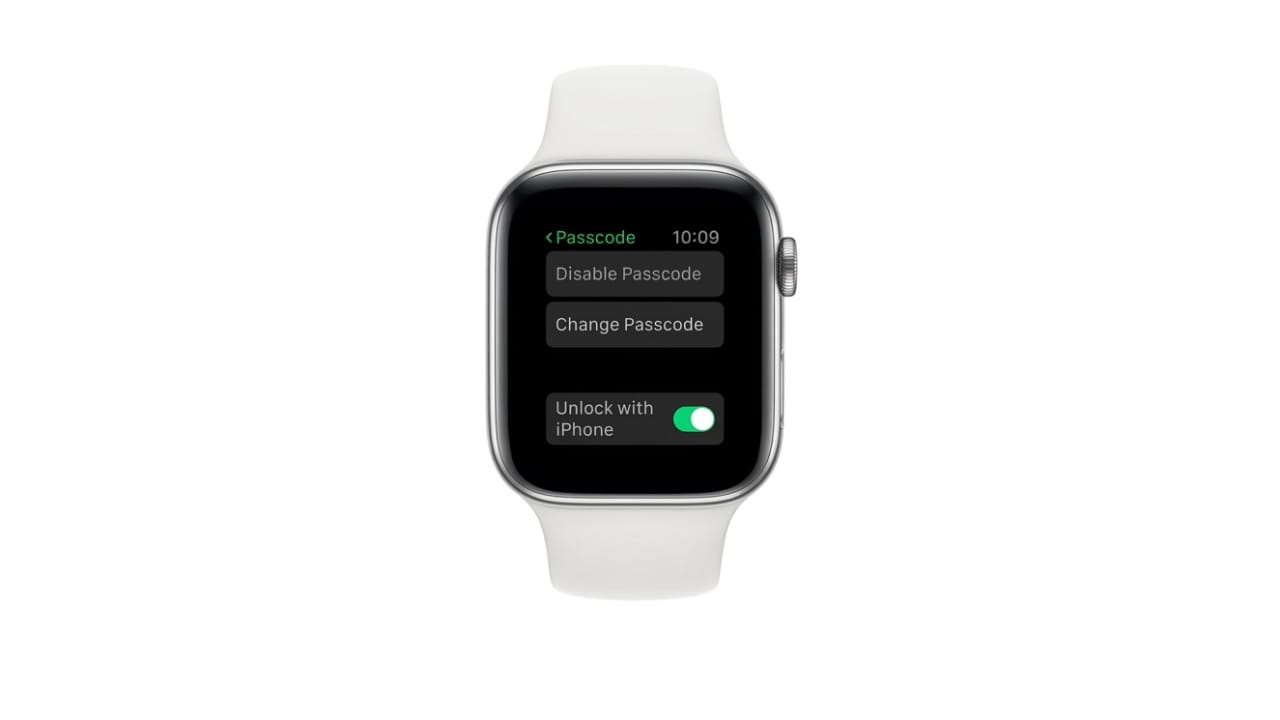
Getting locked out of your Apple Watch can feel annoying, especially when you use it every day. Since you enter the passcode often, it’s easy to rely on habit. But if you haven’t worn it for a while, recently changed the code, or entered the wrong passcode too many times, the watch can lock completely.
The important thing to know is this: there’s no way to view or recover a forgotten passcode. The only solution is to reset the watch and set it up again. Don’t worry—it’s a straightforward process.
Also read: Team Snapchat Keeps Sending Messages? Here’s How to Deal With It
What Happens When You Reset Your Apple Watch
Before you start, it’s good to understand what a reset actually does.
- All data, apps, and settings are erased
- The passcode is removed permanently
- The watch disconnects from your iPhone
- You’ll need to pair it again like a new device
- Activation Lock may ask for your Apple ID and password
- Data can only be restored if a backup exists
If you reset the watch using your iPhone, a backup is created automatically during the process. This helps you restore your data later.
If you reset directly from the watch, no new backup is made at that moment. You can still restore from an older backup if available.
Method 1: Reset Using Your iPhone (Recommended)
This is the easiest and safest method because it creates a backup and removes Activation Lock during the process.
Steps:
- Open the Watch app on your iPhone
- Go to the My Watch tab
- Tap All Watches
- Tap the info (i) icon next to your watch
- Select Unpair Apple Watch
- Confirm your choice
- Enter your Apple ID password
Your iPhone will now back up and erase the watch. After that:
- Bring the watch close to your iPhone
- Follow the on-screen steps to pair again
- Choose Restore from Backup when asked
Method 2: Reset Without an iPhone
If your iPhone isn’t available, you can reset the watch directly.
Steps:
- Place your Apple Watch on its charger
- Press and hold the Side button until you see the power screen
- Press and hold the Digital Crown
- When you see the reset option, tap Reset
- Confirm your action
After the reset:
- Pair the watch again using an iPhone
- Set a new passcode during setup
If Activation Lock is active, you’ll need your Apple ID and password when pairing.
How to Restore Your Data
While setting up your watch again, you’ll see two options:
- Restore from Backup
- Set Up as New Apple Watch
Choose the backup option to get your apps, settings, and watch faces back. Health and fitness data will also return if it was previously synced with iCloud.
Also read: iMessage vs SMS: What’s the Real Difference on iPhone?
Can You Reset Without Apple ID?
No. If Activation Lock is turned on, you must enter the original Apple ID and password. This security feature is designed to protect your device if it’s lost or stolen.
If you don’t remember your account details, recover them through Apple’s official account recovery process before continuing.
Common Problems and Quick Fixes
Here are some issues you might face and how to solve them:
- Stuck on Activation Lock: Enter the correct Apple ID and password
- Watch not pairing: Restart both devices and check Bluetooth and Wi-Fi
- No backup available: Set up as new (old data won’t return)
- Reset option not showing: Make sure the watch is on its charger
- Stuck during pairing: Restart both the watch and iPhone
- Forgot Apple ID password: Recover your account first
Tips to Avoid Forgetting Your Passcode Again
To prevent this situation in the future, try these simple habits:
- Turn on Unlock with iPhone
- Don’t change your passcode too often
- Choose a code that’s easy to remember but secure
- Wear your watch regularly
- Keep backups enabled
- Store your Apple ID details safely
Also read: How to Record With Front and Back Cameras Together on iPhone
Final Thoughts
Forgetting your Apple Watch passcode isn’t common, but it does happen. The good news is that resetting the watch is simple and gets you back up and running quickly.
If your iPhone is available, use it to reset the watch—it’s faster and keeps your data safe. If not, the manual reset option still works as long as you remember your Apple ID.
Once done, you’ll be able to use your Apple Watch like before—just with a new passcode.

Abhi Rajput, founder of EarnAbhi.in, is a tech lover with 6+ years of experience in SEO, digital tools, and smartphone troubleshooting. He writes simple, clear, and useful guides to help people solve real tech problems.