Snapchat includes a feature called Snap Map that allows friends to see where you are when you open the app. Some users enjoy sharing their location, but many people prefer to keep that information private.
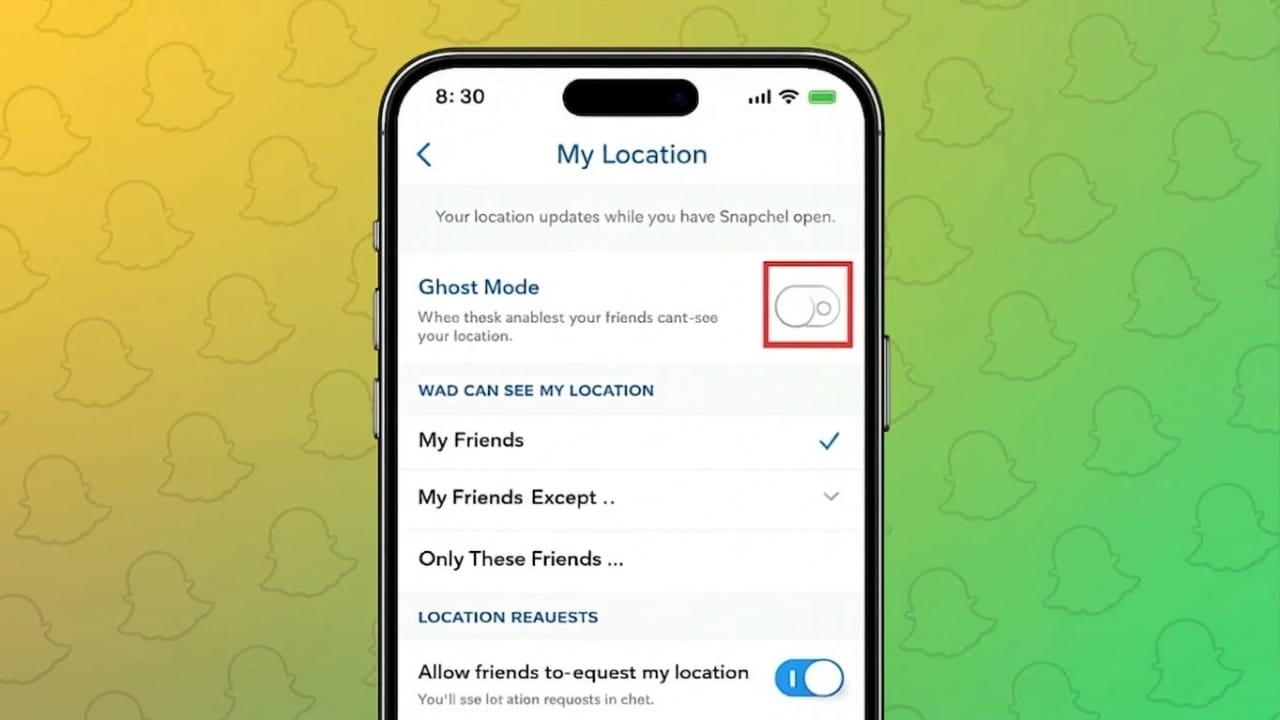
If you want more privacy, Snapchat provides a simple option called Ghost Mode. When this setting is turned on, your location will not appear on the map for other users.
This guide explains how Snap Map works and shows different ways to hide or control your location on Snapchat using Android or iPhone.
Also read: How to Silence WhatsApp Calls From Someone Without Blocking Them
What Is Snap Map on Snapchat?
Snap Map is a feature inside Snapchat that displays users on a map based on their location. When location sharing is active, your Bitmoji avatar appears on the map to show your last known position when you opened the app.
Besides showing friends on the map, Snap Map may also highlight public stories, popular spots, or events happening nearby.
However, sharing your location is not required. Snapchat allows you to decide who can see your location or to turn location sharing off completely.
What Is Ghost Mode?
Ghost Mode is Snapchat’s built-in privacy setting designed to hide your location from other users.
When Ghost Mode is enabled:
- Your Bitmoji disappears from Snap Map
- Friends cannot view your location
- Your position stays private while you continue using Snapchat normally
You can turn Ghost Mode on for a few hours, a full day, or keep it active until you decide to turn it off.
Steps to Turn On Ghost Mode on Snapchat
Follow these simple steps to hide your location using Snap Map.
1. Open the Snapchat App
Start Snapchat on your Android or iPhone.
2. Access Snap Map
From the main camera screen, place two fingers on the screen and pinch inward. This gesture opens Snap Map.
3. Open Map Settings
Look for the settings icon in the top-right corner of the map and tap it.
4. Enable Ghost Mode
Turn on the Ghost Mode switch.
5. Choose the Duration
Snapchat lets you select how long Ghost Mode should stay active:
- 3 Hours
- 24 Hours
- Until Turned Off
Once enabled, your location will no longer be visible to other Snapchat users.
How to Share Your Location With Only Certain Friends
You may want to keep your location private but still allow a few trusted friends to see it. Snapchat offers flexible privacy options for that.
Here’s how to adjust these settings:
- Open Snap Map
- Tap the settings icon
- Select Who Can See My Location
You will see several options:
- My Friends – All friends can see your location
- My Friends Except… – Hide your location from specific people
- Only These Friends – Share your location with selected friends only
These controls allow you to decide exactly who can view your location on Snap Map.
How to Stop Snapchat From Accessing Your Location
Another way to hide your location is by changing your phone’s permission settings. This prevents Snapchat from accessing location data completely.
On Android
- Open Settings
- Tap Apps
- Select Snapchat
- Go to Permissions
- Turn off Location
On iPhone
- Open Settings
- Scroll down and tap Snapchat
- Select Location
- Choose Never
After disabling this permission, Snapchat will not be able to use your device’s location.
Why Many Users Turn Off Snapchat Location
Keeping location sharing disabled can help improve online privacy. Some common reasons include:
- Avoiding unwanted location tracking
- Keeping real-time whereabouts private
- Reducing exposure of personal location information
- Maintaining better control over who can see you on Snap Map
Also read: How to Fix Snapchat Login Problems: A Simple Step-by-Step Guide
Final Thoughts
Snapchat offers several tools to help users manage their privacy. Features like Ghost Mode and customizable Snap Map settings make it easy to control who can view your location.
Whether you want to hide your location from everyone or share it only with trusted friends, adjusting these settings allows you to use Snapchat while keeping your personal location information private.

Abhi Rajput, founder of EarnAbhi.in, is a tech lover with 6+ years of experience in SEO, digital tools, and smartphone troubleshooting. He writes simple, clear, and useful guides to help people solve real tech problems.