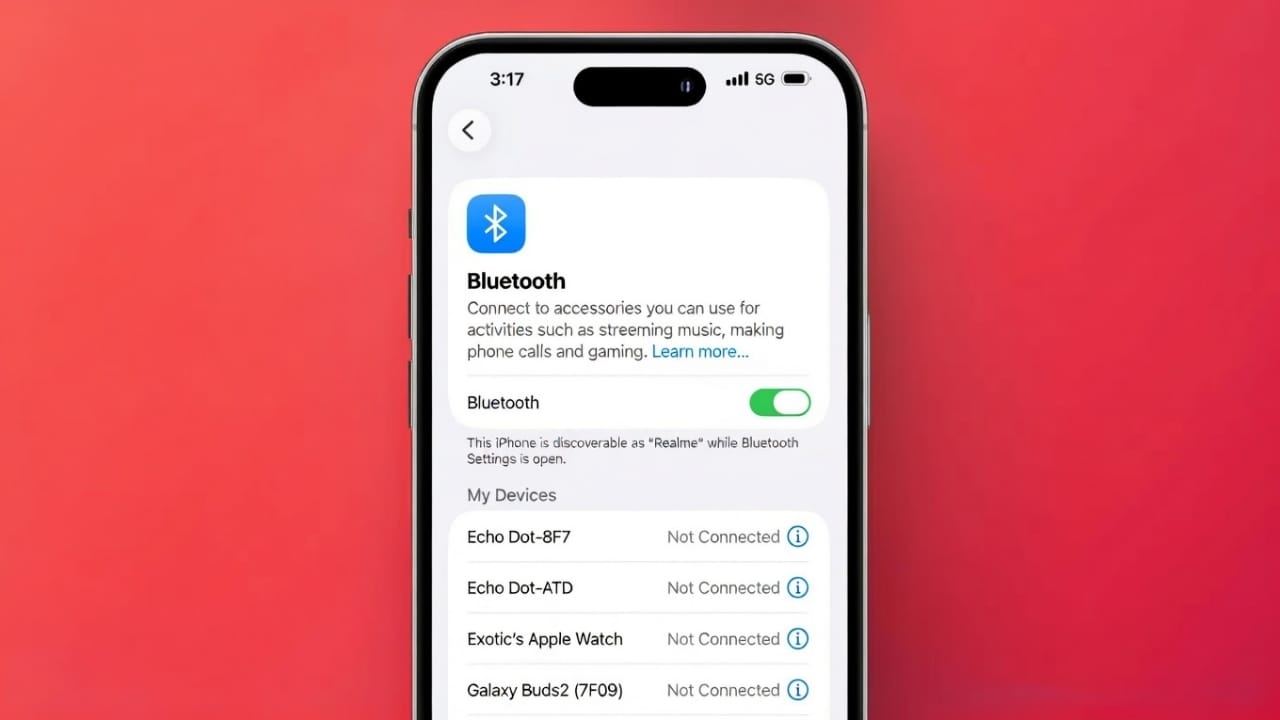
Bluetooth is used every day to connect headphones, speakers, keyboards, mice, and many other devices. When several devices are nearby, default Bluetooth names can look similar and confusing. This often leads to pairing the wrong device by mistake.
Changing your Bluetooth name makes it easier to recognize your devices instantly. It also helps keep things private by removing personal details from the default name. Apple allows users to rename their iPhone, iPad, Mac, and even connected accessories with just a few steps.
Also read: How to Edit Videos Inside WhatsApp on Android and iPhone
Why Renaming Your Bluetooth Device Is Useful
A custom Bluetooth name saves time and avoids confusion, especially in places where many people use Apple devices.
Main advantages include:
- Faster identification of your device in crowded areas
- Fewer errors while pairing Bluetooth accessories
- A cleaner and more organized device list
- Better personalization across Apple products
- Easier management if you own multiple Apple devices
When you change the device name, Apple updates it across several services. The new name appears in AirDrop, Personal Hotspot, Find My, and even in cars or speakers after reconnecting.
How to Change the Bluetooth Name on iPhone or iPad
- Open Settings
- Tap General
- Select About
- Tap Name
- Enter the new name and tap Done
This name will now be shown anywhere your iPhone or iPad uses Bluetooth, including AirDrop and Hotspot.
How to Change the Bluetooth Name on Mac
- Click the Apple menu
- Open System Settings
- Go to General
- Select About
- Click Name and type a new one
Your Mac will immediately use the updated name for Bluetooth and sharing features.
Renaming Bluetooth Accessories
You can also rename connected accessories like headphones, keyboards, or controllers.
On iPhone or iPad
- Open Settings → Bluetooth
- Make sure the accessory is connected
- Tap the (i) icon next to the device
- Select Name
- Enter a new name
On Mac
- Open System Settings → Bluetooth
- Ensure the accessory is connected
- macOS Ventura or newer:
Click the info icon, choose Name, and rename it - Older macOS versions:
Right-click the accessory and select Rename
On Apple TV
- Open Settings
- Go to Remotes and Devices
- Select Bluetooth
- Choose the connected accessory
- Tap Rename Device and enter a new name
What to Do If Renaming Doesn’t Work
Sometimes the rename option may not appear or save correctly. Try the following fixes:
- Make sure the accessory is actively connected
- Remove USB cables or wireless receivers
- Unpair and forget the device, then reconnect it
- Restart the accessory by removing batteries (if possible)
- Wait a few minutes before reconnecting
- Check the manufacturer’s app for renaming options
- Install any available firmware updates
Keep in mind that some Bluetooth accessories do not support custom names.
Also read: How to Convert iPhone Live Photos into GIFs (Simple Step-by-Step Guide)
Final Thoughts
Renaming Bluetooth devices on iPhone, iPad, and Mac helps keep everything clear and organized. It reduces pairing mistakes and improves visibility across Apple services. Accessories become easier to spot, especially when many devices are nearby.
The process is quick and similar across Apple platforms. Most issues can be fixed with basic troubleshooting. While a few accessories may have limits, changing Bluetooth names overall creates a smoother and cleaner experience.

Abhi Rajput, founder of EarnAbhi.in, is a tech lover with 6+ years of experience in SEO, digital tools, and smartphone troubleshooting. He writes simple, clear, and useful guides to help people solve real tech problems.