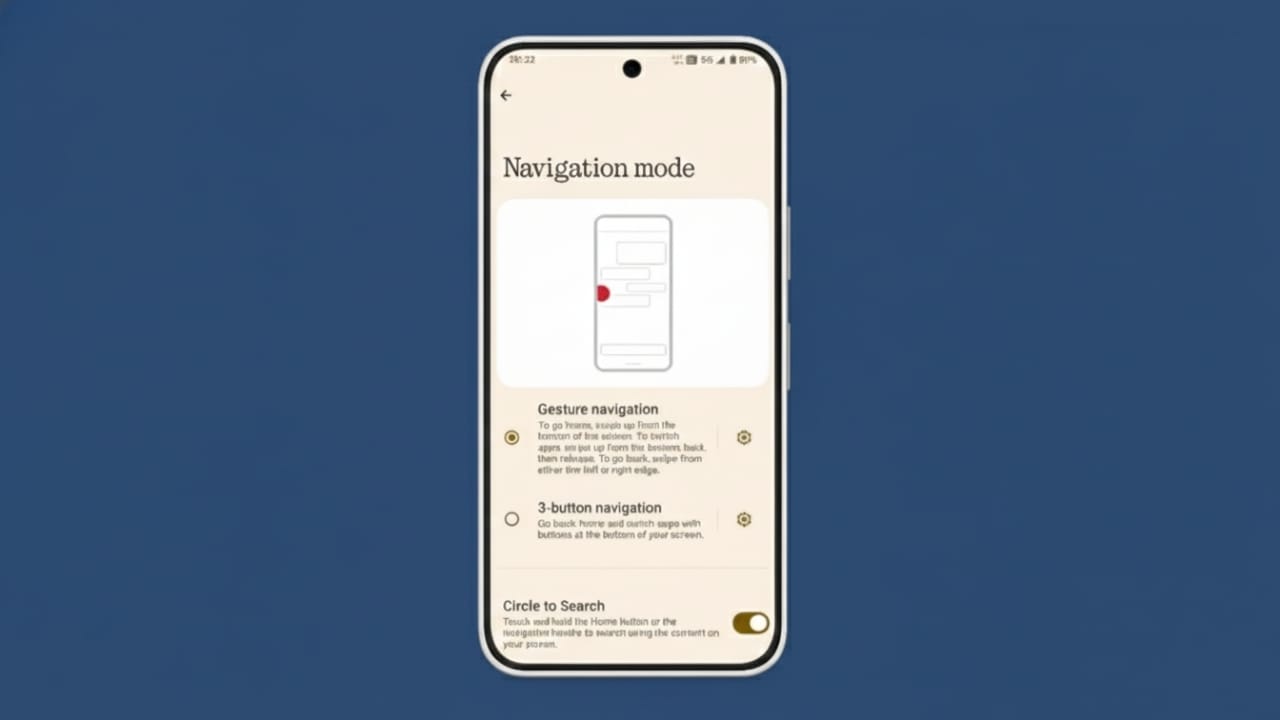
Custom gestures can make your Android phone faster and more comfortable to use. Instead of tapping buttons, you can move around your phone with simple swipes. Many users prefer gestures because they feel smooth and save screen space.
Android already includes several gesture options. On top of that, phone brands add their own features, and extra apps can unlock even more control. This guide explains all the available methods in a clear and beginner-friendly way.
Also read: How to Use Password Manager Apps Safely
Customize Android Gestures Using Phone Settings
The easiest way to customize gestures on Android is through the Settings app. Most phones running Android 9 or newer support gesture navigation.
Gesture controls replace the traditional back, home, and recent buttons. This gives apps more space and makes the screen look cleaner. Since every brand designs Android differently, menu names may change slightly.
Start by opening Settings on your phone.
- On Pixel phones, gesture options are usually found under System.
- On Samsung devices, they appear under Display > Navigation bar.
- On LG phones, gesture controls are often inside the Display section.
Once you reach the gesture menu, you may see options like System Navigation, Swipe Gestures, or Navigation Gestures. Here, you can turn gestures on or off and adjust how sensitive they feel.
Some phones let you swipe from the sides and bottom of the screen. Others only allow bottom swipes. You can choose what feels most comfortable for daily use.
If you cannot find gesture settings easily, use the search bar inside Settings. Typing the word “gesture” usually brings up the correct option instantly.
Understanding Android’s Modern Gesture System
Android 10 introduced a full gesture navigation system that removed physical and on-screen buttons. Many newer phones use this system by default.
Here’s how it works:
- Swipe up from the bottom to go to the Home screen
- Swipe from the left or right edge to go back
- Swipe up and hold to see recent apps
This setup creates more screen space, which is useful for watching videos, reading articles, or using apps without distractions.
Gesture Options on Different Android Brands
Gesture settings vary depending on your phone brand. Each company offers its own style and flexibility.
Pixel Phones
Pixel devices keep gesture options simple. You can adjust gesture sensitivity in System Navigation, but you cannot change what each gesture does without using extra apps. Pixels also allow switching back to the classic three-button layout if you prefer buttons.
Samsung Phones
Samsung provides multiple navigation styles:
- Traditional three buttons
- Android’s modern swipe gestures
- Samsung’s older swipe system with three bottom zones
All options are available under Display > Navigation bar. If you use buttons, Samsung also lets you change their order.
OnePlus Phones
OnePlus devices run OxygenOS, which offers smooth and responsive gestures. Inside Buttons & Gestures, you can choose between button navigation and gesture navigation. Some models also show a small navigation bar similar to iPhone-style controls.
Use Gesture Apps for Extra Customization
If built-in gesture options feel limited, third-party apps can unlock advanced controls. Android allows more customization through apps compared to many other platforms.
Apps like Navigation Gestures help older phones support swipe navigation. You can assign actions like opening Google Assistant, switching apps, or returning to the previous screen.
Another popular option is Full Screen Gestures, which offers detailed control over edge and bottom swipes. While some features require payment, the free versions still provide useful tools for daily use.
These apps are helpful if your phone lacks modern gesture features or if you want deeper customization.
Also read: How to Use Google Assistant Routines for Daily Smart Comfort
Final Thoughts
Custom gestures can make your Android phone faster, cleaner, and easier to use. They reduce button clutter and give apps more screen space.
Every Android brand offers its own gesture tools, so you can choose what fits your style. If default options feel limited, gesture apps can add more flexibility.
Try different gesture settings and see what feels natural. With the right setup, navigating your Android phone becomes smooth and effortless.

Abhi Rajput, founder of EarnAbhi.in, is a tech lover with 6+ years of experience in SEO, digital tools, and smartphone troubleshooting. He writes simple, clear, and useful guides to help people solve real tech problems.