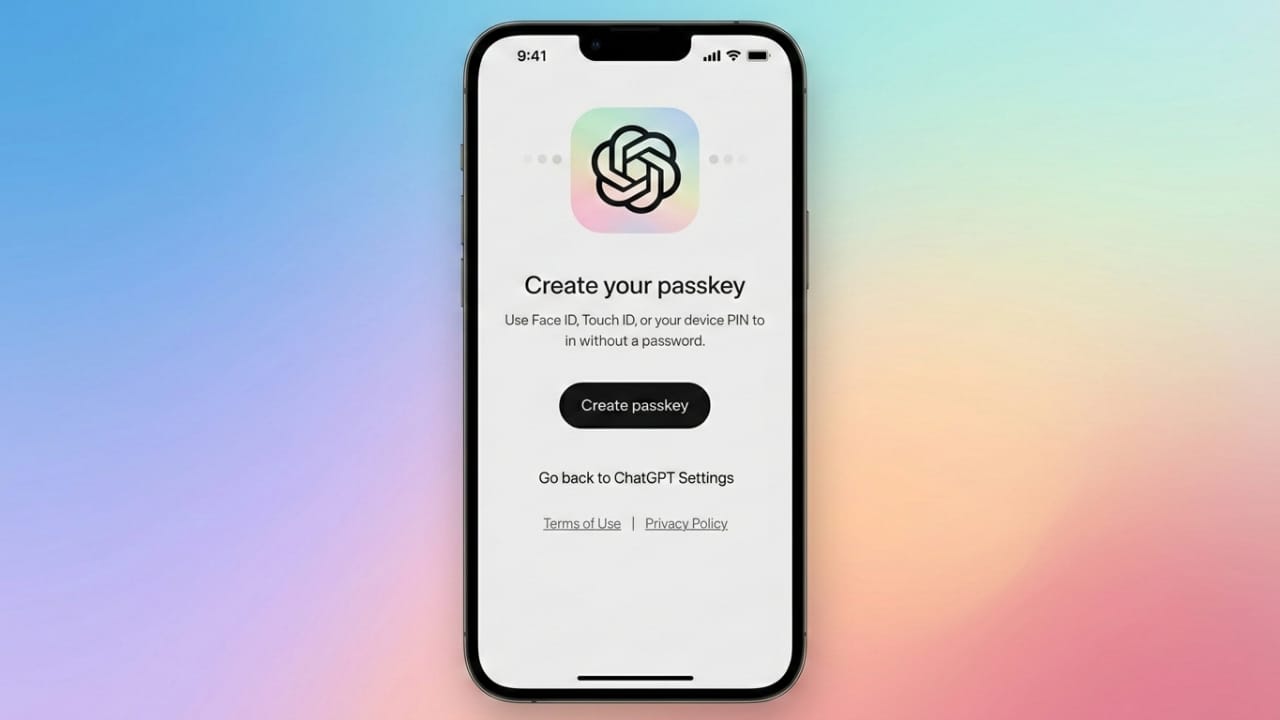
Keeping your online accounts safe has become more important than ever. Many people still rely on passwords, but passwords can be guessed, reused, or stolen through phishing attacks. Because of this, many platforms are moving toward a safer login system called passkeys.
If you use services from OpenAI, enabling passkeys can make your account more secure while also making the login process faster and easier.
This guide explains what passkeys are, how they work, and how you can activate them for your account.
Also read: Automate Your Workflows With n8n — No Coding Required
What Are Passkeys?
Passkeys are a newer way to sign in without using a traditional password. Instead of typing a password each time, your identity is confirmed through your device.
Common verification methods include:
- Fingerprint scan
- Face recognition
- Device PIN or screen lock
- Physical security key
Behind the scenes, passkeys use public-key cryptography. Your device keeps a private key, while the service stores a matching public key. Since the private key never leaves your device, your login information is much harder for attackers to steal.
Why Passkeys Are Safer Than Passwords
Passkeys offer several benefits compared to standard password logins.
Protection From Phishing
With passwords, users can accidentally enter their login details on fake websites. Passkeys cannot be used this way because authentication only works with the legitimate service.
No Need to Remember Passwords
You no longer need to create or memorize complex passwords. Your device handles the verification automatically.
Faster Sign-In
Logging in takes just a few seconds. A fingerprint or face scan is usually all that is required.
Credentials Stay on Your Device
The login key remains stored securely on your trusted device instead of being transmitted during every login attempt.
What You Need Before Setting Up Passkeys
Before enabling passkeys, make sure your device meets a few basic requirements:
- Your phone or computer supports biometric authentication or a screen lock.
- You are using an updated browser such as Chrome, Safari, Edge, or Firefox.
- Your device’s operating system is up to date.
Most modern smartphones, tablets, and laptops already support passkeys.
Steps to Enable Passkeys for Your OpenAI Account
Setting up passkeys usually takes only a few minutes.
1. Sign In to Your Account
Visit the official OpenAI website and log in using your existing method.
2. Open Account Settings
Click your profile icon and access the account settings page.
3. Find the Security Section
Look for the security or login settings area.
4. Add a Passkey
Select the option to create or enable a passkey.
Your device will ask you to verify your identity using one of the following:
- Fingerprint
- Face recognition
- Device PIN
5. Finish the Setup
Once verification is completed, the passkey will be stored securely on your device.
The next time you sign in, you can authenticate using your biometric method instead of entering a password.
Can Passkeys Work on Multiple Devices?
Yes. You can add passkeys on several devices, such as:
- Smartphone
- Laptop or desktop computer
- Tablet
Some systems, like iCloud Keychain or Google Password Manager, can safely sync passkeys across devices that are connected to the same account.
What If You Lose Your Device?
If you lose access to a device that stores a passkey, you can still manage your account.
Here’s what you can do:
- Log in using another registered device or backup method.
- Go to your account’s security settings.
- Remove the lost device from the passkey list.
Keeping a backup sign-in method enabled can help prevent account access issues.
Should You Still Use Two-Factor Authentication?
Passkeys already provide strong security, but additional protection can still be helpful. Using multiple verification methods creates an extra layer of safety for your account.
Also read: How to Create Professional Images Using Google Gemini Pro
Final Thoughts
Switching to passkeys is one of the easiest ways to improve your account security. They remove many of the risks associated with passwords while making the login process faster and more convenient.
If you want a modern and safer way to sign in to your OpenAI account, enabling passkeys is a smart step. It helps protect your account while simplifying the way you access your services.

Abhi Rajput, founder of EarnAbhi.in, is a tech lover with 6+ years of experience in SEO, digital tools, and smartphone troubleshooting. He writes simple, clear, and useful guides to help people solve real tech problems.