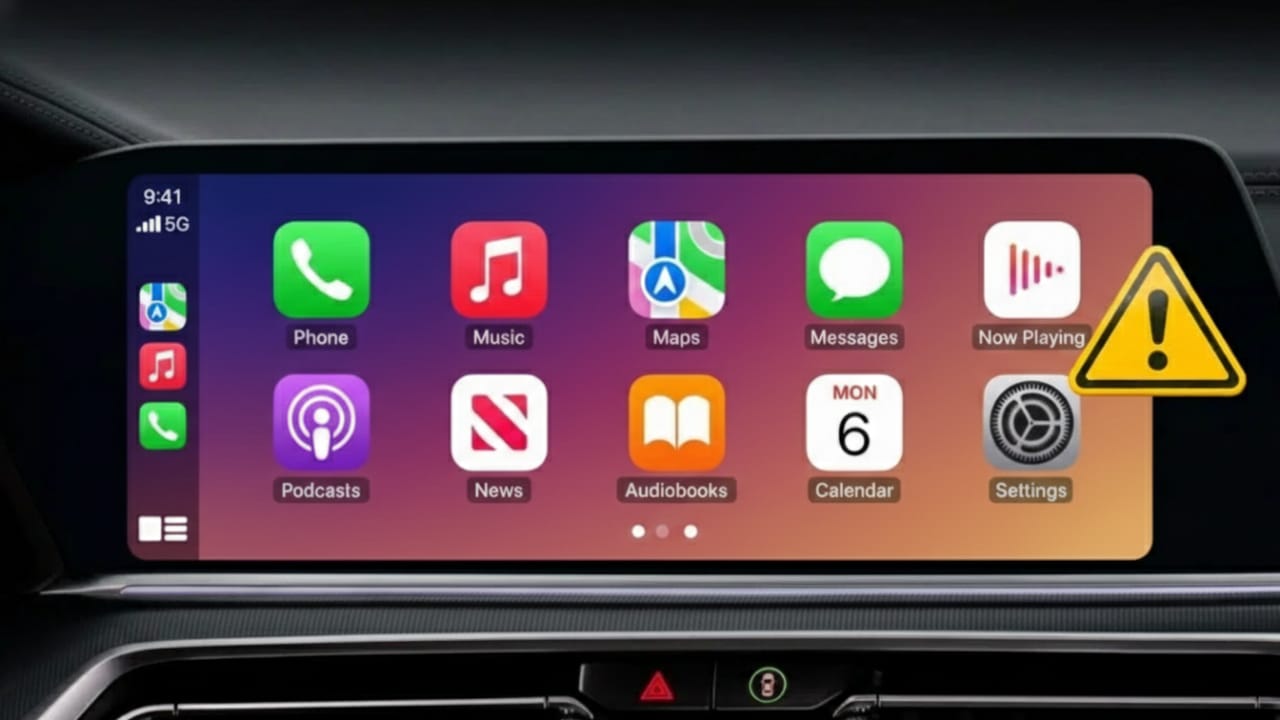
When Apple CarPlay stops working, it can be frustrating—especially when you rely on it for calls, music, and navigation while driving. The good news is that most CarPlay issues are caused by small setting changes or connection problems. With the right checks, you can usually fix it in minutes.
This guide explains everything in clear, simple steps. No technical language. No risky advice. Just practical solutions that actually help.
Also read: How to Recover a Deactivated ChatGPT Account in 2026 (Step-by-Step Guide)
Why Apple CarPlay Stops Working
Apple CarPlay is designed to make driving safer by letting you use key phone features on your car’s screen. But sometimes it may:
- Fail to connect
- Disconnect randomly
- Have no sound
- Refuse to work wirelessly
In most cases, the issue is related to compatibility, cables, wireless settings, or outdated software.
Start With Compatibility Checks
Before changing settings, make sure everything supports CarPlay.
1. Check Country Availability
Apple CarPlay is not available in every country. If it’s restricted in your region, it may not work at all. Always confirm that your country is officially supported by Apple.
2. Check iPhone Support
Most modern iPhones support CarPlay without issues. Very old iOS versions can cause problems, so using updated software is important.
3. Check Car Support
Not all cars support CarPlay, and not all models support wireless CarPlay. Support can vary by:
- Car brand
- Model
- Manufacturing year
- Infotainment system version
If you are unsure, check your car manual or confirm with the dealer.
Fix Connection Problems First
Restart Both Devices
Restart your iPhone and turn your car off completely. Start the car again after a minute. This simple step often clears temporary bugs.
For Wireless CarPlay
Make sure:
- Wi-Fi is turned on
- Bluetooth is enabled
- Airplane Mode is turned off
Wireless CarPlay needs both Wi-Fi and Bluetooth to work properly.
For Wired CarPlay
- Use an original or high-quality USB cable
- Avoid loose or damaged cables
- Try another USB port in the car
A faulty cable is one of the most common reasons CarPlay fails.
Reset the CarPlay Connection
If CarPlay was working earlier but now fails:
- Open Settings on your iPhone
- Go to General → CarPlay
- Select your car
- Tap Forget This Car
Now reconnect and set it up again from scratch.
If the problem continues, resetting the car’s infotainment system (from its settings menu) can also help.
Check Important iPhone Settings
Make Sure Siri Is On
CarPlay depends on Siri.
Go to Settings → Siri & Search and ensure Siri is enabled.
Check Screen Time Restrictions
Sometimes CarPlay gets blocked accidentally.
- Open Settings → Screen Time
- Go to Content & Privacy Restrictions
- Open Allowed Apps
- Make sure CarPlay is turned on
Allow CarPlay on Lock Screen
- Open Settings → General → CarPlay
- Select your car
- Enable Allow CarPlay While Locked
Disable VPN and Update Software
Turn Off VPN
If you are using a VPN, disable it before connecting. VPNs can interfere with CarPlay’s network connection.
Update Software
- Install the latest iOS update on your iPhone
- Check for firmware updates for your car’s infotainment system
Updates often fix bugs and improve compatibility.
Also read: How to Install OpenClaw (Clawdbot) on a Mac Mini – Step-by-Step Guide
Final Thoughts
Most Apple CarPlay problems are easy to fix once you check the basics. Start with compatibility, then move to connections and settings. Avoid damaged cables, keep your software updated, and turn off VPN or Airplane Mode when connecting.
If you follow these steps calmly and in order, CarPlay usually starts working again without needing professional help.

Abhi Rajput, founder of EarnAbhi.in, is a tech lover with 6+ years of experience in SEO, digital tools, and smartphone troubleshooting. He writes simple, clear, and useful guides to help people solve real tech problems.