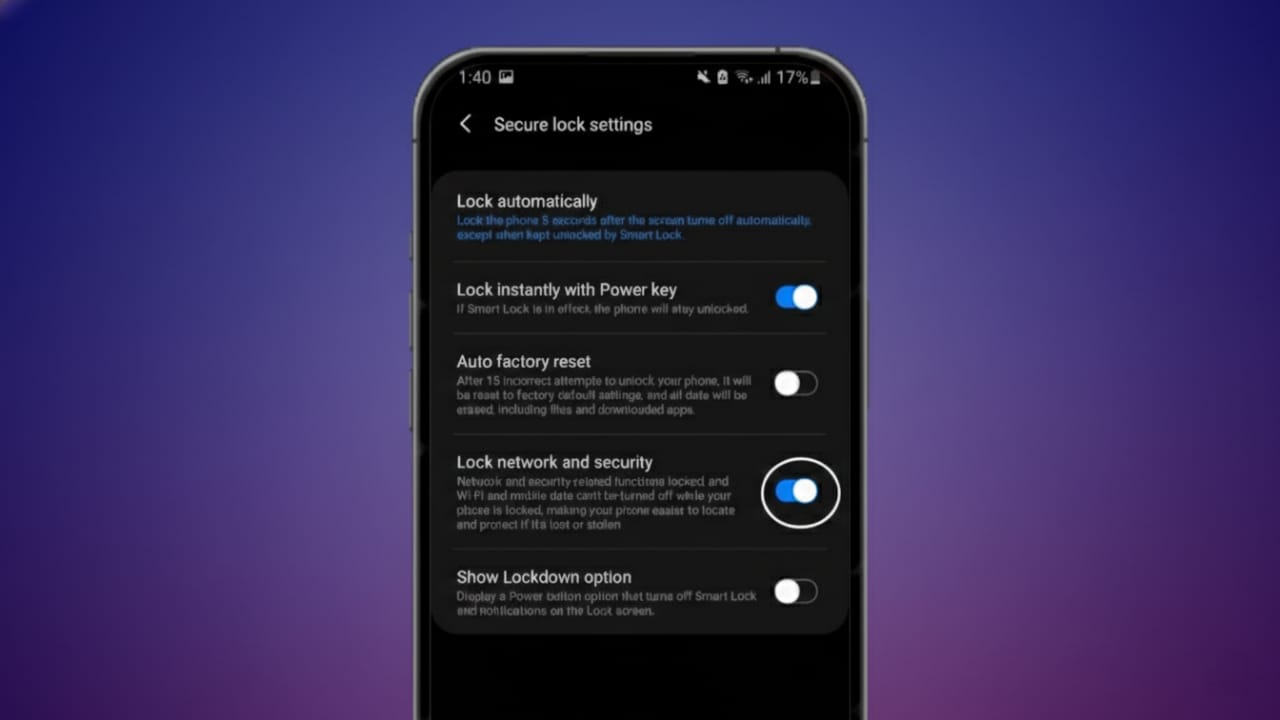
Android phones are powerful, but one small setting can make a big difference in security. By default, anyone can swipe down the Quick Settings panel even when your phone is locked. From there, they can turn off Wi-Fi, Location, Bluetooth, or enable Airplane Mode—without knowing your PIN.
This may sound harmless, but it creates a serious risk if your phone is lost or stolen.
The good news? Android already includes simple tools to stop this. You just need to turn them on.
Also read: Mico – Turn Your Android Screen Into Something Truly Smart
Why Locking Quick Settings Really Matters
When your phone is locked, you might assume everything is protected. But Quick Settings remain accessible on many devices. That means a stranger can disable internet access in seconds.
Once Wi-Fi or mobile data is turned off, features like phone tracking and remote data erase stop working. You lose the chance to locate your device or protect your personal data.
This is exactly what thieves rely on.
Locking Quick Settings prevents this. It ensures that network and security options cannot be changed unless the phone is unlocked. Your phone stays connected, trackable, and under your control.
What the “Lock Network and Security” Setting Does
Android includes a built-in option called Lock Network and Security. When enabled:
- Wi-Fi cannot be turned off from the lock screen
- Bluetooth settings stay protected
- Location access remains active
- Airplane Mode cannot be enabled
- Changes require your PIN, pattern, or password
This feature runs quietly in the background. It does not affect daily use, but it adds a strong layer of protection when your phone is not in your hands.
How to Lock Quick Settings on Android
You can enable this setting in less than a minute. The steps may look slightly different depending on your phone brand, but the process is similar on most devices running Android 9 or newer.
- Open Settings
- Go to Lock Screen
- Tap Secure Lock Settings
- Enter your PIN, pattern, or password
- Find Lock Network and Security
- Turn it ON
That’s it. Now, no one can change important network settings without unlocking your phone.
What Changes After You Enable It
After turning this on:
- Swiping down Quick Settings still works
- But network and security toggles are locked
- Any change asks for authentication
There are no alerts or pop-ups. Everything feels normal—except your phone is now far more secure.
Using Lockdown Mode for Extra Privacy
Along with locking Quick Settings, Android also offers Lockdown Mode. This feature is designed for moments when you need maximum privacy.
Lockdown Mode temporarily disables:
- Fingerprint unlock
- Face unlock
- Smart Lock
- Lock screen notifications
- Voice commands
Only your PIN or password can unlock the phone.
This is useful in public places, during travel, or in any situation where you want complete control over access.
How to Turn On Lockdown Mode
On Pixel Phones
- Press and hold the power button
- Tap Lockdown
- The phone locks instantly
On Samsung Galaxy Phones
- Open Settings
- Go to Lock Screen
- Tap Secure Lock Settings
- Enter your lock screen password
- Enable Show Lockdown Option
After this, hold the power button and select Lockdown anytime you need it.
On Other Android Phones
Brands like Motorola, OnePlus, Realme, and others may place this option in different menus. Use the Settings search bar and type Lockdown, or check under Security, Lock Screen, or Privacy settings.
Once enabled, Lockdown Mode appears in the power menu.
Important Thing to Know About Lockdown Mode
Lockdown Mode is temporary. As soon as you unlock your phone with your PIN or password, everything returns to normal. Fingerprint and face unlock start working again.
This makes it perfect for short-term, high-privacy situations.
Best Protection: Use Both Features Together
For the strongest Android security, use both options:
Lock Network and Security
- Protects Wi-Fi, Bluetooth, Location, and Airplane Mode
- Keeps tracking and remote erase features active
Lockdown Mode
- Blocks biometric unlock
- Hides notifications
- Stops voice access
- Requires password only
Together, they turn your phone into a private vault—without installing any apps or paying for extra tools.
Also read: How to Stop iPhone Calls from Ringing on Your Mac and iPad
Final Thoughts
Android already gives you powerful security features. Most people simply don’t use them.
Locking Quick Settings protects your phone even when it’s locked. Lockdown Mode gives instant privacy when you need it most. Both are free, easy to enable, and safe to use.
Take one minute today to turn them on. That small step can protect your data, photos, messages, and peace of mind later.

Abhi Rajput, founder of EarnAbhi.in, is a tech lover with 6+ years of experience in SEO, digital tools, and smartphone troubleshooting. He writes simple, clear, and useful guides to help people solve real tech problems.