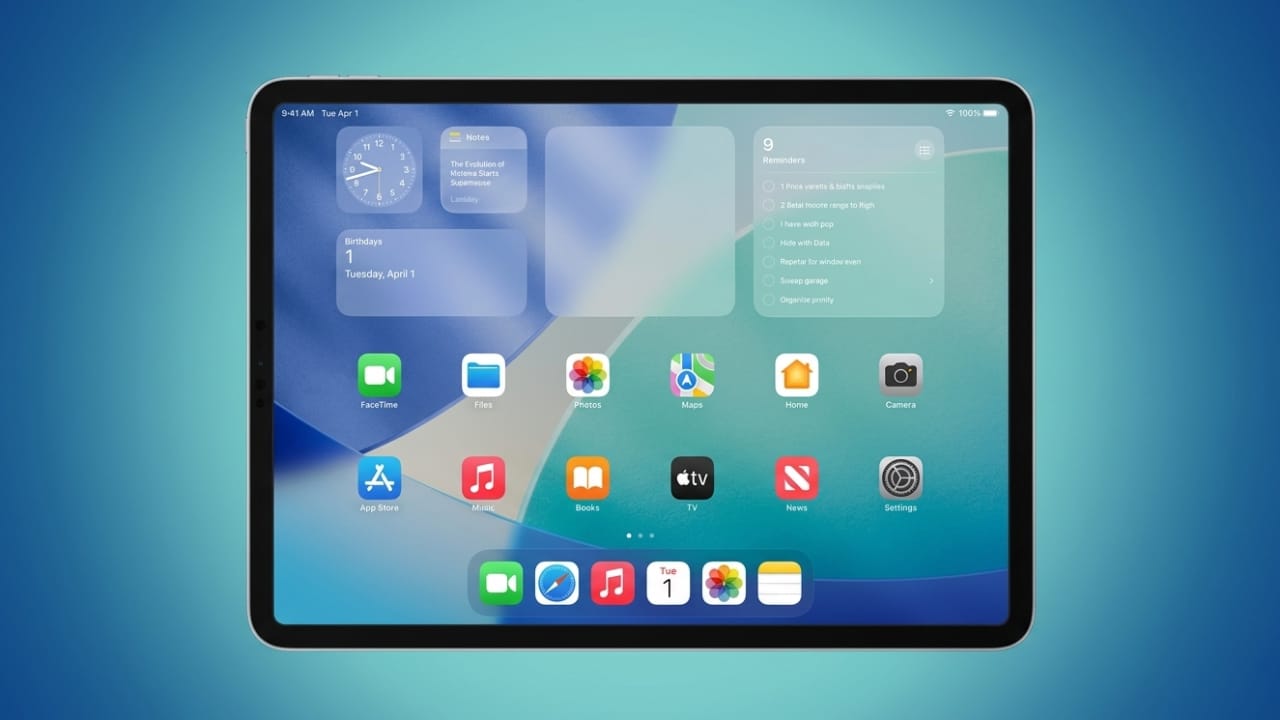
Getting a new iPad is exciting, but the setup process can feel a bit confusing at first. You’ll see many options on the screen, and it’s not always clear what each one does. Don’t worry—this guide explains everything in a simple and easy way so you can set up your iPad without stress.
By following these steps, your device will be ready, secure, and personalized in no time.
Also read: How to Set Up an Apple Recovery Key (Simple & Complete Guide)
Step 1: Get Things Ready First
Before turning on your iPad, it’s a good idea to prepare a few things. This will make the process smoother and faster.
Keep these items nearby:
- A working Wi-Fi connection (and password)
- Your Apple ID and password (or be ready to create one)
- A debit/credit card (only if you want to use Apple Pay)
- Your old phone, tablet, or backup (if you want to transfer data)
If you’re moving from another Apple device and don’t have enough iCloud space, Apple usually provides temporary storage so you can complete the transfer safely.
Step 2: Turn On Your iPad
Press and hold the top button until the Apple logo appears. If nothing happens, charge your iPad for a few minutes and try again.
When the screen turns on, you’ll see a “Hello” message.
- If your iPad has a Home button, press it
- If it doesn’t, swipe up from the bottom
You can also enable accessibility features here if needed, like VoiceOver or Zoom.
Step 3: Select Language and Region
Next, your iPad will ask for basic preferences:
- Choose your language
- Select your country or region
- Adjust text size and display appearance
If you’re unsure, just go with the default settings—you can change them later anytime.
Step 4: Choose Setup Method
Now you’ll decide how to start using your iPad.
Option 1: Quick Start (Recommended)
If you already have an iPhone or iPad, bring it close to your new device. Follow the instructions, and your settings will transfer automatically.
Option 2: Manual Setup
If you don’t have another Apple device, choose manual setup. It takes a bit more time but works just as well.
Step 5: Connect to the Internet
Pick your Wi-Fi network and enter the password. If your iPad supports cellular, you can also use mobile data.
Once connected, your iPad may check for updates. This can take a few minutes, so just wait patiently.
Step 6: Set Up Security (Very Important)
Your iPad will now ask you to set up security features:
- Face ID (face recognition) or
- Touch ID (fingerprint)
Follow the instructions on screen carefully.
You’ll also need to create a passcode. A longer passcode is always safer, so choose something secure but easy to remember.
Step 7: Transfer Your Data
Now decide how you want to set up your content:
- From iCloud backup → Restores apps, photos, and settings
- From another Apple device → Transfers data directly
- From computer backup → Uses iTunes or Finder
- From Android → Moves basic data like contacts and photos
- Set up as new → Starts fresh with no old data
There’s no right or wrong choice—pick what suits you best. If you’re transferring data, keep your device connected to power until it finishes.
Step 8: Sign In with Apple ID
Your Apple ID connects everything—apps, photos, backups, and more.
Sign in using your existing ID or create a new one. After that, you’ll see a few settings:
- Automatic Updates → Keep this ON for security
- Location Services → Useful for maps and apps
- Apple Pay → Optional
- Screen Time → Optional usage tracking
- Analytics Sharing → Your choice
If you’re unsure, the default options are usually safe.
Step 9: Choose Final Settings
You’ll now adjust a few more preferences:
- Screen Time (usage tracking)
- Light or Dark Mode (appearance)
- Data sharing options
Again, don’t stress—everything can be changed later in Settings.
Step 10: Start Using Your iPad
That’s it! You’ll now see the Home Screen.
Take a few minutes to explore:
- Open Settings to customize your device
- Change wallpaper
- Set up Siri
- Adjust brightness and text size
- Add email or social accounts
- Download apps from the App Store
Give your screen a quick wipe, and it’ll feel brand new.
Also read: Forgot Your Apple Watch Passcode? Here’s a Simple Way to Reset It
Final Thoughts
Setting up an iPad isn’t about choosing perfect options—it’s about understanding what works for you. Once you know what each step does, the whole process becomes simple and smooth.
Now your iPad is ready. Explore it, customize it, and enjoy using it your way.

Abhi Rajput, founder of EarnAbhi.in, is a tech lover with 6+ years of experience in SEO, digital tools, and smartphone troubleshooting. He writes simple, clear, and useful guides to help people solve real tech problems.