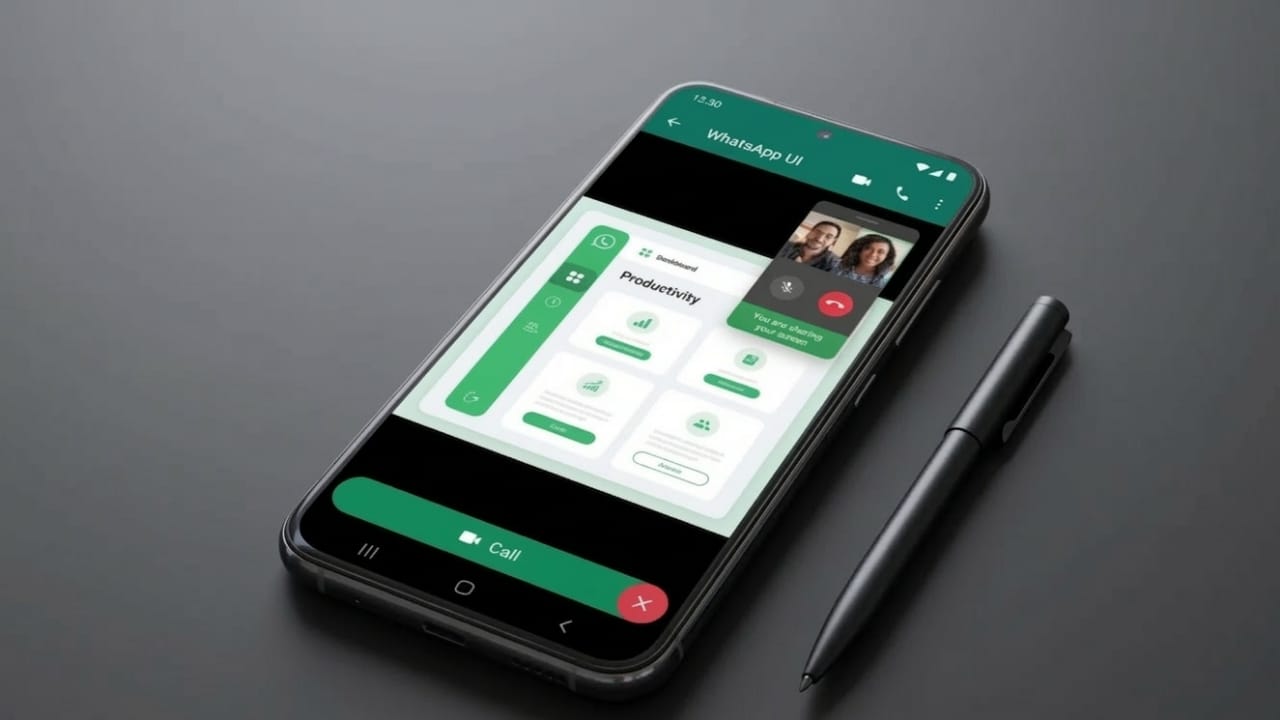
Screen sharing on WhatsApp helps you show exactly what is happening on your device. Instead of explaining things step by step, you can simply display your screen while on a video call. This can be useful when helping someone fix a problem, showing a document, or guiding a friend through an app.
WhatsApp offers this feature on mobile devices as well as on its desktop application. Below is a simple guide explaining how to use screen sharing on iPhone, Android, and computer.
Also read: How to Silence WhatsApp Calls From Someone Without Blocking Them
Important Things to Know Before Using Screen Sharing
Before you start sharing your screen, there are a few points you should keep in mind:
- Screen sharing works only during a video call on WhatsApp. It is not available during audio calls.
- The feature is supported on Android, iPhone, and the WhatsApp Desktop app for Windows and Mac.
- WhatsApp states that calls, including screen sharing, are protected with end-to-end encryption, so only participants in the call can see the shared screen.
- Everything visible on your phone or computer screen will appear to others in the call. This includes notifications, messages, or other personal information. To avoid interruptions, turning on Do Not Disturb mode can help.
How to Share Your Screen on WhatsApp (Mobile)
On iPhone
Follow these steps to share your screen from an iPhone or iPad:
- Open WhatsApp and start a video call with the contact you want.
- On the call screen, tap the three-dot menu in the controls.
- Select Share Screen.
- Tap Start Broadcast to begin sharing your display.
To stop sharing your screen, tap Stop Broadcast on the call screen.
On Android
Sharing your screen on Android devices is very similar:
- Start or join a video call in WhatsApp.
- Tap the three dots at the bottom of the screen.
- Choose Share Screen.
- A warning message will appear explaining that your screen will be visible.
- Tap Start Now to begin.
When you want to stop, tap Stop Sharing on the call interface.
How to Share Your Screen on WhatsApp Desktop
Screen sharing is not available on WhatsApp Web in browsers. However, it works on the WhatsApp Desktop application for both Windows and Mac.
On Mac
Steps to share your screen on a Mac:
- Open the WhatsApp Desktop app.
- Start a video call with a contact.
- Click the Screen Sharing icon in the call controls.
- Allow the required permissions if macOS asks for them.
- Select the screen or application window you want to share.
- Click Share.
To stop sharing, either press Stop Sharing inside WhatsApp or end it from the macOS menu bar.
On Windows
If you are using a Windows computer:
- Open WhatsApp Desktop.
- Start a video call.
- Click the Screen Sharing icon.
- Choose the screen or window you want to show.
- Click Share.
To finish, click Stop Sharing in the call window.
Why the Screen Share Option May Not Appear
If you cannot find the screen sharing button, a few common issues might be the reason:
- The call started as an audio call instead of a video call.
- The WhatsApp app is outdated and needs updating.
- Required permissions such as screen recording or microphone access are disabled.
- On desktop, restricted camera permissions may prevent the feature from appearing.
How to Fix WhatsApp Screen Sharing Problems
If screen sharing does not work properly, try these quick fixes:
- Update WhatsApp from the App Store, Google Play Store, or Microsoft Store.
- Check that camera, microphone, and screen recording permissions are enabled.
- Turn off strict battery optimization settings that may limit app functions.
- Restart or reinstall the WhatsApp application.
- Use a stable internet connection, preferably Wi-Fi or strong mobile data.
Also read: WhatsApp Spoiler Messages Feature: What It Is and How It May Work
Final Thoughts
Screen sharing on WhatsApp is a simple way to show information directly from your device. It can help when explaining a task, guiding someone through an app, or presenting something quickly during a call.
For everyday communication, the feature works well and is easy to use. However, if you need advanced options like remote control, detailed presentations, or better meeting tools, platforms such as Zoom or Microsoft Teams may provide more features.

Abhi Rajput, founder of EarnAbhi.in, is a tech lover with 6+ years of experience in SEO, digital tools, and smartphone troubleshooting. He writes simple, clear, and useful guides to help people solve real tech problems.