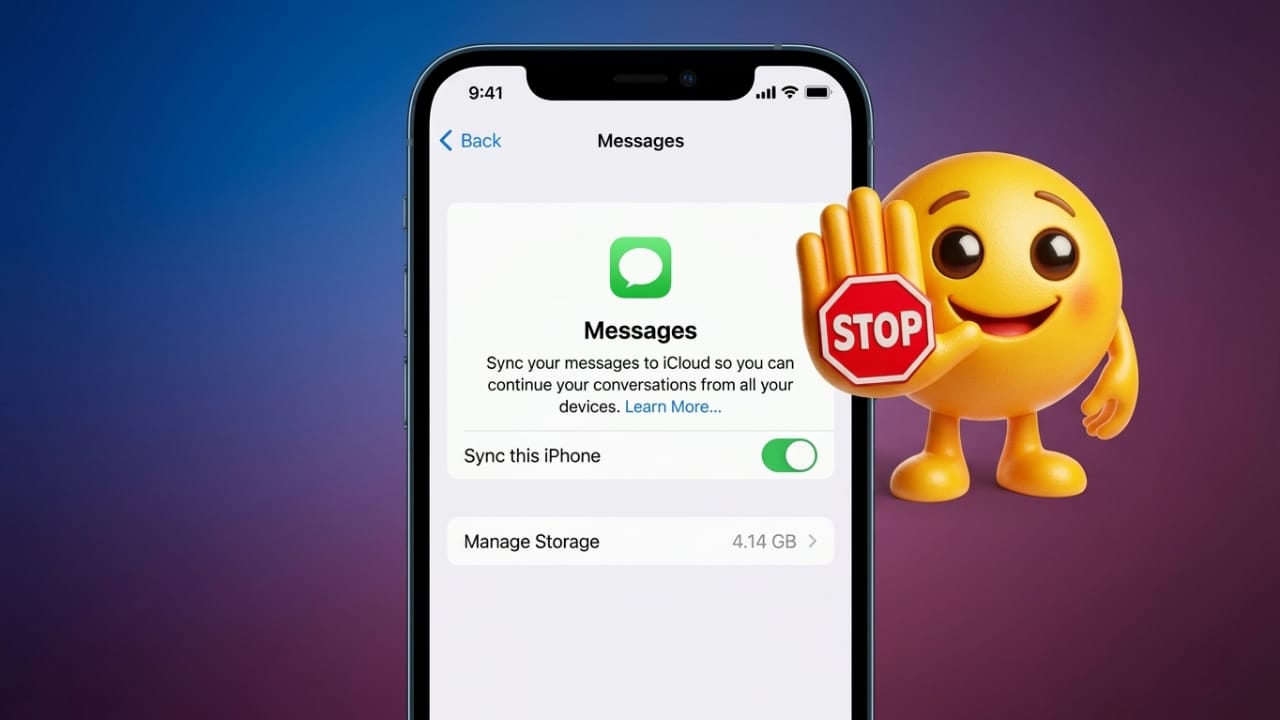
Apple devices are designed to work together. When you sign in with the same Apple ID on multiple devices, your messages automatically appear on all of them. This means a message sent from your iPhone can instantly show up on your iPad, Mac, or Apple Watch.
This feature is helpful if you want to continue conversations across different devices. However, it can also become distracting. Notifications may appear while you are working, watching a movie, or attending meetings. In some cases, people also share an Apple ID with family members, which can create privacy concerns.
The good news is that you can easily control or stop iMessage syncing between devices. This guide explains simple methods to manage or disable it.
Also read: How to Use Live Speech on iPhone, Mac, and Apple Watch (Simple Guide)
Why iMessages Sync Across Devices
Apple uses iCloud and your Apple ID to keep messages updated across all connected devices. When a message is sent or received, iCloud updates the conversation everywhere.
For example:
- A text sent from your iPhone may appear on your iPad or Mac.
- Your Apple Watch can also show the same notifications.
- Conversations remain updated no matter which device you use.
While this system helps users stay connected, constant alerts can interrupt daily activities.
Common Issues Caused by Message Syncing
Some users experience small problems related to message syncing. A few common examples include:
Too many notifications
Messages may appear on every device at the same time, which can be distracting.
Privacy concerns
If multiple people share the same Apple ID, they may see each other’s messages.
Messages turning green instead of blue
Sometimes messages switch from iMessage (blue) to SMS (green). This usually happens when iMessage temporarily disconnects from Apple’s servers or the internet.
Fortunately, most of these problems can be fixed through simple settings.
How to Stop iMessage Syncing on iPhone or iPad
If you do not want messages appearing on a specific device, you can disable iMessage directly from the settings.
Steps to Turn Off iMessage
- Open Settings on your device.
- Scroll down and tap Messages.
- Find the iMessage switch.
- Turn the switch off.
Once disabled, messages will no longer sync with that device.
Optional: Disable FaceTime
Sometimes turning off FaceTime along with iMessage can refresh Apple’s messaging services.
Steps:
- Open Settings.
- Tap FaceTime.
- Turn the FaceTime toggle off.
Restart iMessage if It Stops Working
If messages stop sending or receiving, restarting the service may help.
Follow these steps:
- Go to Settings → Messages.
- Turn iMessage off.
- Go to Settings → FaceTime and turn it off.
- Restart your device.
- Turn both services back on.
This simple reset often fixes temporary connection problems.
Check Your Internet Connection
iMessage requires a stable internet connection. If the connection is weak, messages may not sync properly.
Try these quick tips:
- Move closer to your Wi-Fi router.
- Place the router in an open space.
- Keep it away from devices like microwaves that can cause interference.
You can also test your internet speed using tools such as Fast.com or Speedtest by Ookla.
If the connection still seems unstable, restart your modem and router.
How to Restart Your Router
- Turn off your phone or tablet.
- Unplug the modem and router.
- Wait about 30 seconds.
- Plug them back in and wait for the lights to stabilize.
- Turn your device on again.
Make Sure Your Device Has Enough Storage
Low storage space can sometimes cause unexpected issues with apps and services.
To check storage:
- Open Settings.
- Tap General.
- Select Device Storage.
If storage is nearly full, remove unused apps, large files, or videos to free space.
Check Date and Time Settings
Incorrect time settings can interfere with some online services.
To fix this:
- Open Settings.
- Tap General.
- Select Date & Time.
- Enable Set Automatically.
If it is already enabled, turn it off and then enable it again.
Reset Network Settings (Optional)
If message syncing problems continue, resetting network settings may help.
This process removes saved Wi-Fi networks and reconnects your device to the internet.
After the reset, you will need to enter your Wi-Fi password again.
Deregister iMessage From an Old Device
If you no longer have access to an old Apple device but messages still appear linked to it, you can remove your number from iMessage online.
Steps:
- Visit Apple’s official iMessage deregistration page.
- Enter the phone number connected to iMessage.
- Apple will send a confirmation code through SMS.
- Enter the code on the webpage to complete the process.
How to Stop iMessage Syncing on Mac
Mac computers also receive messages when signed in with the same Apple ID.
If you want to stop syncing messages to your Mac, you can sign out of iMessage.
Steps to Sign Out
- Open the Messages app on your Mac.
- Click Messages in the top menu bar.
- Select Settings or Preferences.
- Open the iMessage tab.
- Click Sign Out.
After signing out, messages will no longer appear on your Mac.
Turn Off Message Notifications on Mac
If you still want messages on your Mac but without alerts, you can disable notifications.
Steps:
- Click the Apple menu.
- Open System Settings.
- Select Notifications.
- Choose Messages from the list.
- Turn off Allow Notifications.
Messages will still be available in the app, but alerts will stop.
Manage Message Alerts on Apple Watch
Apple Watch automatically mirrors message notifications from your iPhone. You cannot sign out of iMessage directly on the watch, but you can manage alerts.
Steps to Adjust Alerts
- Open the Watch app on your iPhone.
- Tap My Watch.
- Select Messages.
- Choose Custom notification settings.
- Turn off Show Alerts.
You can also mute notifications directly from the watch by swiping left on a notification and selecting the mute option.
Also read: How to Stop iPhone Calls from Ringing on Your Mac and iPad
Final Thoughts
iMessage is designed to keep conversations available across all Apple devices. While this can be convenient, it may also lead to constant notifications or privacy concerns.
Fortunately, Apple provides several simple ways to control message syncing. You can disable iMessage on specific devices, turn off notifications, or adjust network and system settings if syncing issues occur.
By using these options, you can decide exactly where your messages appear and reduce unnecessary interruptions.

Abhi Rajput, founder of EarnAbhi.in, is a tech lover with 6+ years of experience in SEO, digital tools, and smartphone troubleshooting. He writes simple, clear, and useful guides to help people solve real tech problems.