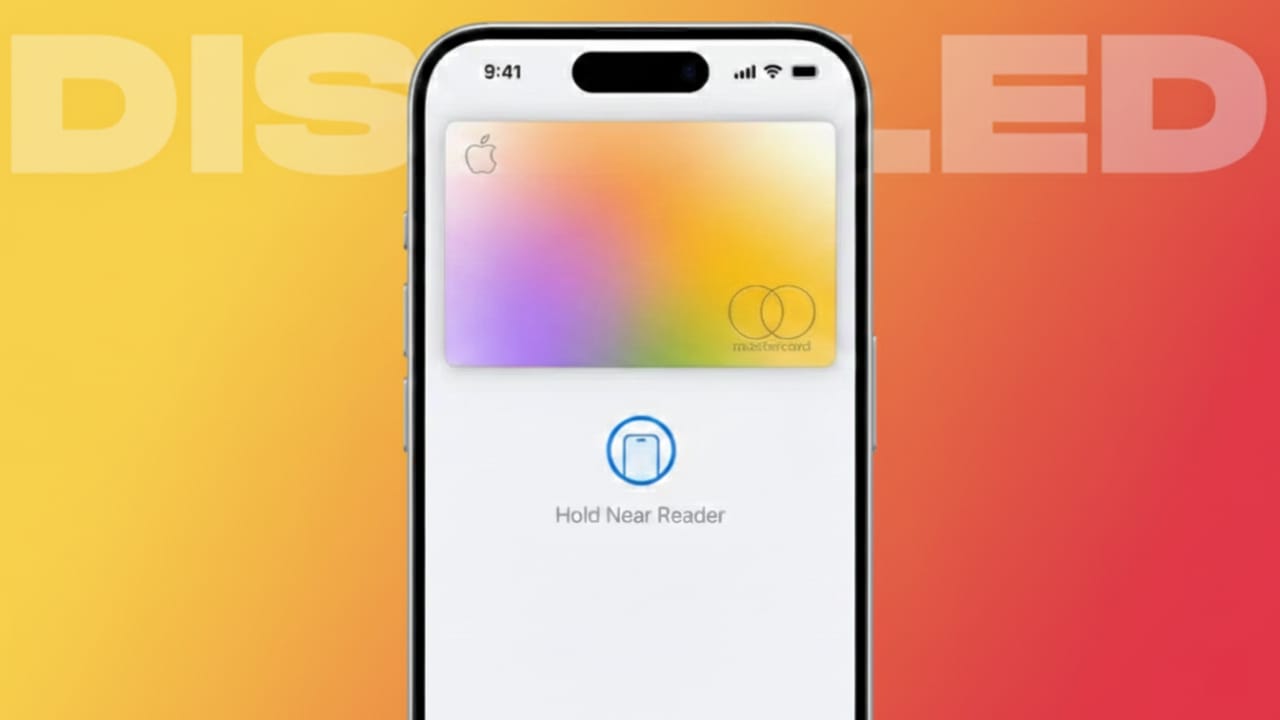
Losing an iPhone can be upsetting. Along with the cost of replacing the device, there is a real worry about personal data and payment information. Apple Pay stores your debit and credit cards, and if the phone falls into the wrong hands, you may fear misuse.
The good news is that Apple gives you reliable ways to protect your money. You can disable Apple Pay remotely within minutes. Acting fast helps prevent any unwanted payments and gives you peace of mind.
Also read: How to Turn On Live Captions on iPhone, iPad, and Mac (Beginner-Friendly Guide)
Why You Should Disable Apple Pay Immediately
Your Apple device holds sensitive details such as contacts, photos, and payment cards. While Apple uses strong security like passcodes and Face ID, it is still smart to take quick action if the device is lost or stolen.
Turning off Apple Pay stops all contactless payments on that device. Your physical cards will continue to work as usual, but no one can make payments using Apple Pay from the missing device.
Method 1: Use “Find My” to Suspend Apple Pay
Apple’s Find My feature is designed to help you locate missing devices and protect your data. When you enable Lost Mode, Apple Pay is automatically disabled on that device.
Steps to follow:
- Open the Find My app on another Apple device
or
visit iCloud.com/find from any web browser. - Sign in using your Apple ID.
- Choose the device that is missing.
- Turn on Lost Mode.
- Add a short message and contact number, if you want.
Once Lost Mode is active, all Apple Pay cards on that device are paused. No payments can be made until you unlock the phone with your passcode.
If you get your device back:
Simply unlock it using your passcode. Apple Pay will start working again automatically.
Method 2: Remove Cards Using Your Apple ID Account
If you prefer not to use Lost Mode or believe the device will not be recovered, you can remove all payment cards directly from your Apple ID account.
Steps to follow:
- Visit the Apple ID account page in a browser.
- Sign in with your Apple ID.
- Go to the Devices section.
- Select the missing device from the list.
- Find the Apple Pay section.
- Choose Remove All Cards and confirm.
This action instantly removes your cards from Apple Pay on that device. No transactions can be processed after this step.
If the device is recovered later:
You can add your cards again anytime using the Wallet app.
Why Quick Action Matters
Waiting too long increases stress and risk. Even with strong security, taking early action is the safest choice. Disabling Apple Pay right away blocks all payment attempts and protects your finances.
You have two effective options:
- Enable Lost Mode using Find My
- Remove cards through your Apple ID account
Both methods are easy, secure, and reversible.
Also read: How to Use Meta AI on Facebook, Instagram, and WhatsApp
Final Thoughts
If your iPhone is lost or stolen, do not delay. Disabling Apple Pay is one of the fastest ways to protect your money and personal information. Use Find My or your Apple ID account to secure your payment cards, then relax knowing your finances are safe.
Staying alert and acting quickly can save you from bigger problems later.

Abhi Rajput, founder of EarnAbhi.in, is a tech lover with 6+ years of experience in SEO, digital tools, and smartphone troubleshooting. He writes simple, clear, and useful guides to help people solve real tech problems.