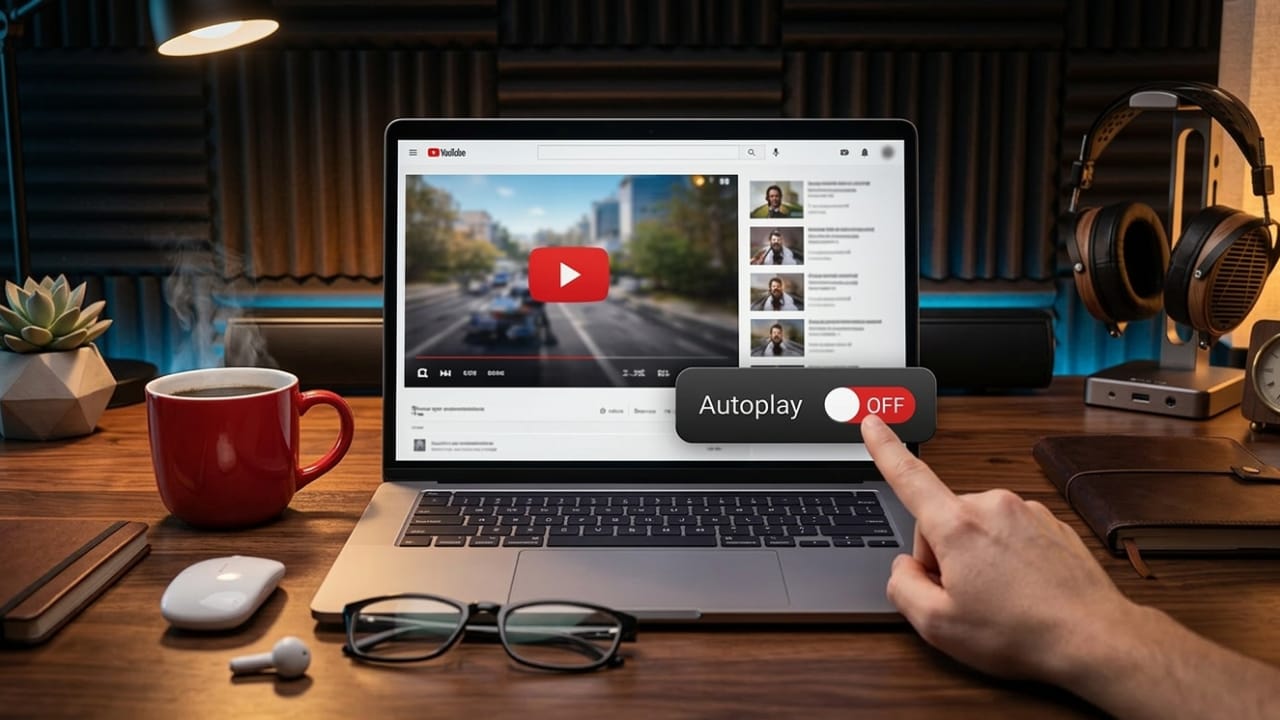
YouTube is designed to keep videos playing continuously. When one video ends, another recommended video often starts automatically. This feature is called Autoplay.
While Autoplay can help you discover new content, it can also make you watch longer than planned and use more mobile data. The good news is that you can easily turn it off on any device.
This guide explains how to disable YouTube Autoplay on iPhone, Android, computers, and smart TVs, along with tips to stop video previews as well.
Also read: YouTube Recap 2025 Now Live With Fresh Year-End Highlights
What Is YouTube Autoplay?
Autoplay is a built-in YouTube feature that automatically starts another video after the current one finishes.
Usually, when a video ends, a short countdown appears on the screen. If nothing is clicked during that time, the next suggested video begins playing automatically.
YouTube uses its recommendation system to decide which video comes next. It looks at things like:
- Videos you watched previously
- Topics you frequently search for
- Channels you follow or subscribe to
Based on this information, the platform suggests similar videos to keep you watching.
Note:
When using mobile data, YouTube usually stops Autoplay after about 30 minutes of inactivity. If you are connected to Wi-Fi, it may continue for up to four hours before stopping automatically.
Why Some People Turn Off YouTube Autoplay
Although Autoplay can be convenient, many users prefer to disable it. Here are some common reasons:
Better Control of Screen Time
When videos play one after another, it is easy to lose track of time. Turning off Autoplay helps you stop watching when a video finishes.
Save Mobile Data
If you watch videos using mobile data, automatic playback can quickly consume your data allowance.
Avoid Unwanted Recommendations
The next suggested video may not always match what you want to watch. Disabling Autoplay lets you choose the next video yourself.
Reduce Distractions
Unexpected videos starting automatically can interrupt your focus, especially while studying or working.
More Control While Browsing
With Autoplay off, you decide exactly what to watch next instead of relying on automatic recommendations.
How to Turn Off YouTube Autoplay on iPhone and Android
You can disable Autoplay directly from the video player or through the app settings.
Method 1: Turn Off Autoplay From the Video Player
- Open the YouTube app on your phone.
- Start playing any video.
- Look for the Autoplay switch near the top of the video screen.
- Tap the switch to turn Autoplay OFF.
Once the toggle is disabled, YouTube will stop automatically starting the next video.
Method 2: Disable Autoplay From Settings
- Open the YouTube app.
- Tap your profile icon.
- Open Settings.
- Select Playback.
- Turn off Auto-play next video.
This method disables the feature across the app.
How to Turn Off YouTube Autoplay on Desktop
If you watch YouTube from a web browser on your computer, the process is just as simple.
- Open YouTube in your browser.
- Play any video.
- On the right side of the video player, find the Autoplay toggle.
- Click the switch to turn it OFF.
After this change, YouTube will stop automatically loading the next video. Your preference is usually saved in the browser.
How to Turn Off YouTube Autoplay on Smart TVs and Streaming Devices
Many people watch YouTube on smart TVs or streaming devices such as Roku or Fire TV. You can also disable Autoplay from the TV app.
- Open the YouTube app on your TV.
- Go to Settings.
- Find the Autoplay option.
- Switch it Off.
Once disabled, recommended videos will no longer start automatically after the current one finishes.
How to Disable Video Previews on YouTube
Apart from Autoplay, YouTube also shows video previews when you hover over thumbnails or scroll through your feed. These previews play automatically and can sometimes be distracting.
You can turn them off as well.
Disable Previews on iPhone and Android
- Open the YouTube app.
- Tap your profile icon.
- Go to Settings.
- On iPhone, select Playback.
On Android, choose General. - Tap Playback in feeds.
- Select Off.
Now videos will not start previewing while you scroll through the feed.
Disable Previews on Desktop
- Click your profile icon on YouTube.
- Open Settings.
- Select Playback and Performance.
- Turn off Video previews.
After this, hovering over thumbnails will no longer play preview clips.
Disable Previews on TV
Some TV versions of YouTube also show preview clips.
To turn them off:
- Open the YouTube app on your TV.
- Go to Settings.
- Look for Previews or Autoplay previews.
- Turn the option Off.
What to Do if YouTube Autoplay Won’t Turn Off
Sometimes the next video may still start playing even after Autoplay is disabled. This usually happens due to temporary glitches or app issues.
Here are a few things you can try:
Toggle Autoplay again
Turn the setting on and then off again to refresh it.
Restart the app or refresh the page
Closing and reopening the app or refreshing your browser often fixes temporary bugs.
Clear browser cache and cookies
If you use YouTube in a browser, clearing stored data can resolve playback issues.
Check browser extensions
Some extensions may interfere with YouTube settings. Try disabling them temporarily.
Update the YouTube app
Using the latest version can help prevent glitches.
Sign out and sign back in
Logging out of your account and signing in again can reset syncing problems.
If the issue continues, try opening YouTube in another browser or on a different device to see if the behavior changes.
Also read: How to Block or Unblock Someone on WhatsApp
Final Thoughts
YouTube Autoplay can make it easy to discover new videos, but it can also lead to longer viewing sessions than intended.
Turning off this feature gives you full control over what plays next. You can also disable video previews to create a quieter and more focused browsing experience.
Taking a minute to adjust these settings can make watching YouTube more intentional and help you manage both screen time and data usage more effectively.

Abhi Rajput, founder of EarnAbhi.in, is a tech lover with 6+ years of experience in SEO, digital tools, and smartphone troubleshooting. He writes simple, clear, and useful guides to help people solve real tech problems.