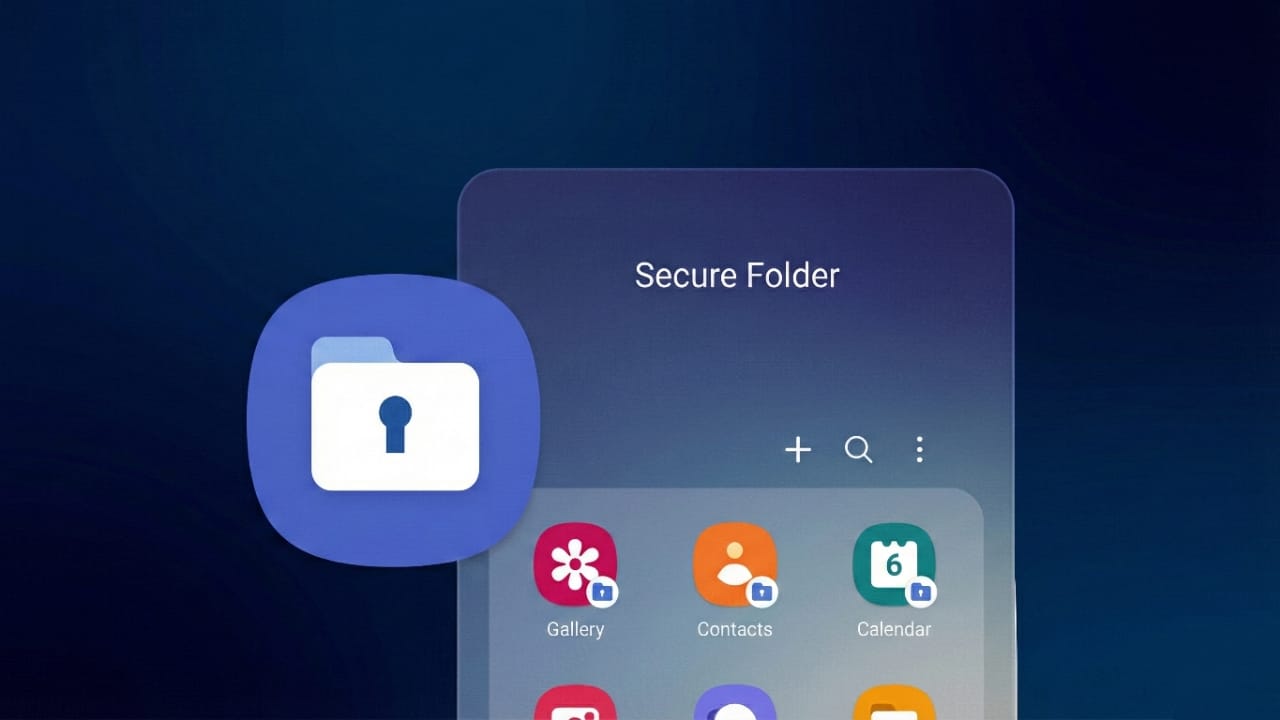
Smartphones today carry more than just contacts and messages. They hold office documents, personal photos, banking apps, and other sensitive information. Keeping all this data safe is no longer optional. This is where Samsung Secure Folder becomes useful.
Samsung Secure Folder creates a private space inside your phone. Anything stored there stays locked and separate from the rest of your device. It is designed for people who want better control over their privacy without using third-party apps.
Also read: A Simple Guide to Using Google Calendar Smart Features for Better Planning
What Is Samsung Secure Folder and Why It Matters
Samsung Secure Folder works like a locked vault on your Galaxy phone. It is available on most Samsung devices running Android 7.0 or newer.
Inside this folder, you can store photos, videos, documents, and even apps. Everything placed there is encrypted using Samsung Knox, which protects data at a system level. This means your private content stays safe even if someone accesses your phone.
You can secure the folder using a PIN, password, pattern, fingerprint, or face unlock. From the outside, Secure Folder looks like a regular app, making it discreet and less noticeable.
To use it, you need a Samsung account. On many phones, Secure Folder is already available but may not be turned on.
How to enable it:
- Open Settings
- Go to Security and Privacy
- Tap Secure Folder
- Choose Add Secure Folder to Apps screen
Once enabled, open Secure Folder, sign in to your Samsung account, select a lock method, and complete the setup. After that, the folder is ready to use.
Adding Apps and Files to Secure Folder
You can place apps inside Secure Folder so they run separately from normal apps on your phone.
To add apps:
- Open Secure Folder
- Tap the + icon
- Select apps already installed on your phone
or - Download new apps directly inside Secure Folder
These apps will have their own data and login, fully isolated from the main system.
Adding files is just as simple.
To move files manually:
- Open Secure Folder
- Tap the three-dot menu
- Select Add files
- Choose the file type (images, videos, documents, etc.)
- Pick files and choose whether to copy or move them
The files will appear safely inside Secure Folder under My Files.
You can also move items directly from Samsung apps like Gallery:
- Open the file
- Tap the three dots
- Select Move to Secure Folder
The content is instantly protected.
Hiding and Customizing Secure Folder for Extra Privacy
If you want even more privacy, you can hide Secure Folder from your app drawer.
To hide the icon:
- Open Secure Folder
- Tap the three dots
- Go to Settings
- Turn off Add Secure Folder to Apps screen
The folder will no longer appear in your apps list. You can still access it anytime through Settings.
Samsung also lets you customize how Secure Folder looks. You can change its name, icon, or color so it appears like an ordinary app. This helps avoid drawing attention to it.
For quick access, Secure Folder can also be opened from the notification panel. Just swipe down and tap the Secure Folder shortcut.
Also read: Add a Stylish Edge Glow Border Light to Your Phone Screen
Final Thoughts
Using Samsung Secure Folder is simple, practical, and highly effective. It helps protect personal photos, files, and apps without complicating daily phone use.
With Samsung Knox providing strong security, your private data stays locked and encrypted at all times. Secure Folder gives you peace of mind by creating a safe, private space inside your Samsung device—perfect for anyone who values digital privacy.

Abhi Rajput, founder of EarnAbhi.in, is a tech lover with 6+ years of experience in SEO, digital tools, and smartphone troubleshooting. He writes simple, clear, and useful guides to help people solve real tech problems.