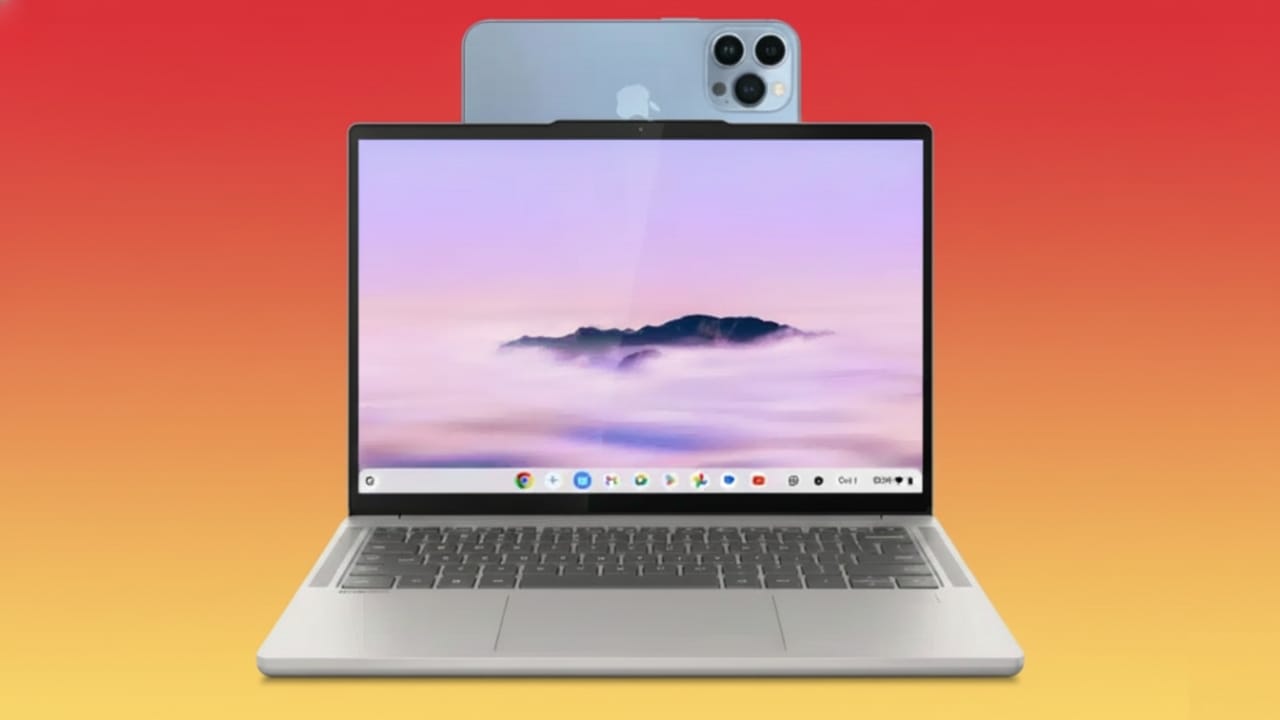
If you are not happy with the video quality of your laptop webcam, your iPhone can be a great upgrade. iPhones are known for sharp video, accurate colors, and fast focus. With the right setup, you can use your iPhone as a webcam on a Windows computer and instantly improve how you look on video calls, recordings, or live streams.
The process is simple and does not require technical knowledge. You only need a supporting app and a stable connection.
Also read: How to Use ChatGPT 5.2: A Simple Guide for Beginners
Why Use an iPhone as a Webcam on Windows?
Most built-in laptop cameras struggle with low light and produce grainy video. Your iPhone, on the other hand, already has a powerful camera that delivers clear and natural-looking footage.
Using your phone as a webcam helps you:
- Get better video quality without buying new hardware
- Look more professional in meetings and online classes
- Save money by using a device you already own
Apple’s built-in webcam feature works only on Mac. On Windows, third-party apps make the same idea possible in a safe and reliable way.
Best Apps to Turn Your iPhone into a Webcam
Windows users can choose from several trusted apps. Some are free, while others offer advanced tools for creators and professionals.
Popular options include:
- Iriun Webcam (free, beginner-friendly)
- Camo (advanced controls, optional paid features)
- Riverside (best for recording and live streaming)
Method 1: Use Iriun Webcam (Free and Simple)
Iriun is one of the easiest ways to use an iPhone as a webcam on Windows. It supports both Wi-Fi and USB connections.
Steps to set it up:
- Open your browser on Windows and go to the official Iriun website
- Download and install Iriun Webcam for Windows
- On your iPhone, install the Iriun Webcam app from the App Store
- Connect both devices to the same Wi-Fi network
- Open the app on your iPhone and your PC
- The connection will start automatically
Your iPhone camera feed should now appear on your computer. If you prefer a more stable connection, plug your iPhone into the PC using a USB cable. This also helps keep the phone charged during long calls.
Helpful tips for better results:
- Place your iPhone on a stand or tripod
- Sit facing a light source or window
- Close other apps that may use the camera
Method 2: Use Camo or Riverside for Advanced Features
If you need more control over video quality, Camo and Riverside are strong alternatives.
Camo Webcam
Camo works with both Wi-Fi and USB. Install Camo Studio on your Windows PC and the Camo app on your iPhone. Once connected, choose Camo as your camera inside Zoom, Google Meet, Teams, or other apps.
The free version offers good quality. The paid plan unlocks higher resolution, lens selection, and visual effects.
Riverside
Riverside is designed for recording and live streaming. It supports high-resolution video, clean audio, and multiple camera sources.
Basic setup:
- Connect your iPhone using a supported webcam app
- Open Riverside on your desktop and enter your studio
- Select your iPhone as the camera and microphone
- Start recording or streaming
Riverside also allows direct streaming to platforms like YouTube and Facebook.
Also read: How Instagram’s Collaborative Posts Feature Works for Creators
Final Thoughts
Using an iPhone as a webcam on Windows is a smart way to improve video quality without extra cost. Apps like Iriun, Camo, and Riverside make the setup smooth and beginner-friendly.
With good lighting, a stable connection, and a steady phone position, your video can look clean and professional every time. Whether you are attending meetings, teaching online, or creating content, this simple setup can make a big difference.

Abhi Rajput, founder of EarnAbhi.in, is a tech lover with 6+ years of experience in SEO, digital tools, and smartphone troubleshooting. He writes simple, clear, and useful guides to help people solve real tech problems.