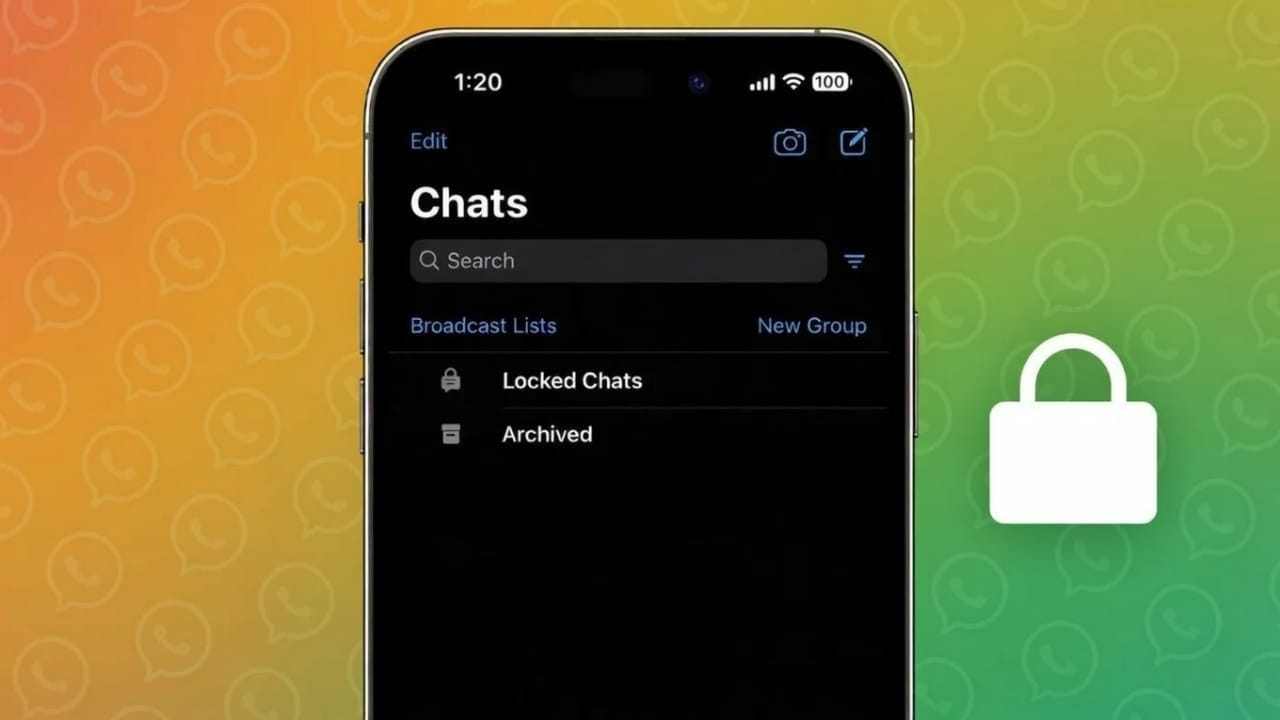
Keeping your private messages safe matters—especially if other people sometimes use your iPhone. To solve this, WhatsApp includes a built-in option that lets you lock selected conversations. Once locked, those chats can only be opened after identity verification.
This article explains, in simple terms, how to lock personal and group chats on WhatsApp for iPhone and what actually happens after you turn the feature on.
Also read: How to Edit Videos Inside WhatsApp on Android and iPhone
What the Chat Lock Feature Does
Chat Lock adds an extra security layer to chosen WhatsApp conversations. When you enable it, the app asks for Face ID, Touch ID, or your iPhone passcode before showing the messages.
Locked conversations do not appear in your regular chat list. Instead, they are stored in a separate section that stays hidden until you authenticate.
You can use this feature for:
- One-to-one private chats
- Group conversations
What You Need Before You Start
Before locking any chat, make sure the following are in place:
- WhatsApp is updated to the latest version
- Face ID or Touch ID is active on your iPhone
- You are signed in to WhatsApp on that device
If these requirements are not met, the chat lock option may not be visible.
Also read: How to Enable Two-Step Verification on WhatsApp (Simple Guide)
How to Lock a Personal Chat on iPhone
Follow these steps to protect a single conversation:
- Open WhatsApp on your iPhone
- Open the chat you want to secure
- Tap the contact’s name at the top
- Choose Chat Lock
- Turn on Lock This Chat with Face ID
- Confirm using Face ID or Touch ID
Once done, the chat will disappear from the main list.
How to Lock a Group Chat
The process for group chats is almost the same:
- Open the group conversation
- Tap the group name at the top
- Select Chat Lock
- Enable the lock option
- Verify using Face ID or Touch ID
All messages in that group will now stay protected.
Where Locked Chats Are Stored
After locking a chat:
- Go to the top of your chat list
- Tap Locked Chats
- Authenticate to view the conversations
Without verification, these chats remain completely hidden.
Notifications and Message Privacy
When a chat is locked:
- Notification previews are not shown
- You may only see a basic alert like “New message”
- Photos and videos stay inside the locked chat
This prevents private content from showing on your lock screen.
How to Unlock or Remove Chat Lock
If you decide to remove the lock later:
- Open Locked Chats
- Open the secured conversation
- Tap the contact or group name
- Go to Chat Lock
- Turn off the lock option
- Confirm with Face ID or Touch ID
The chat will return to your normal chat list.
Useful Points to Keep in Mind
- Chat lock works only on the iPhone where it is enabled
- Locked chats are still included in WhatsApp backups
- Removing WhatsApp deletes chats stored on the device
- You can lock multiple chats without any limit
Also read: How to Clear WhatsApp Call History on Android and iPhone (Easy Guide)
Conclusion
WhatsApp’s chat lock feature on iPhone is a simple and reliable way to protect personal conversations. It does not require any extra apps and works smoothly with your phone’s built-in security. Whether you want privacy from curious eyes or just more control over your messages, locking chats is a smart and practical choice.

Abhi Rajput, founder of EarnAbhi.in, is a tech lover with 6+ years of experience in SEO, digital tools, and smartphone troubleshooting. He writes simple, clear, and useful guides to help people solve real tech problems.