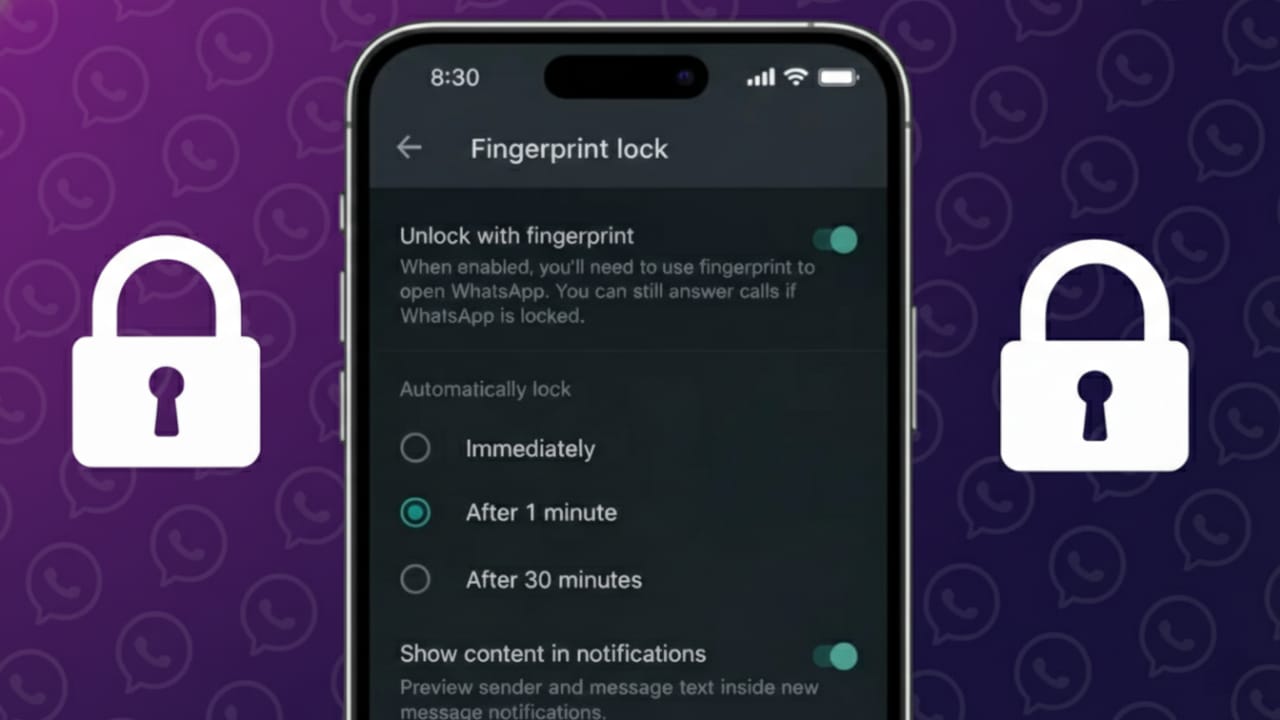
WhatsApp stores a lot of personal stuff—private chats, photos, videos, and even work files. A phone lock helps, but it’s not always enough. If someone gets hold of your unlocked phone, they can open WhatsApp in seconds. To avoid this, WhatsApp includes its own app lock feature that works with Face ID or fingerprint.
Below is a simple, clear guide to help you turn on this feature on both iPhone and Android using official WhatsApp settings.
Also read: How to Find Messages on WhatsApp Using Android or iPhone
What Is WhatsApp App Lock?
WhatsApp app lock adds an extra security step before the app opens. It asks for biometric verification, such as Face ID, Touch ID, or a fingerprint.
This lock works separately from your phone’s screen lock. Even if your phone is already unlocked, WhatsApp will stay protected until your face or fingerprint is verified.
Phones That Support WhatsApp App Lock
You can use this feature on:
- iPhones that support Face ID or Touch ID
- Android phones with a fingerprint sensor
Make sure WhatsApp is updated to the latest version for the option to appear.
How to Enable Face ID or Touch ID on WhatsApp (iPhone)
Follow these steps on an iPhone:
- Open WhatsApp
- Tap Settings at the bottom
- Go to Privacy
- Tap App Lock
- Turn on Require Face ID or Require Touch ID
After this, WhatsApp will ask for Face ID or Touch ID every time you open the app.
Choose Auto-Lock Timing on iPhone
You can also decide when WhatsApp should lock itself again:
- Immediately
- After 1 minute
- After 15 minutes
- After 1 hour
Pick a time that feels comfortable while still keeping your chats safe.
How to Enable Fingerprint Lock on WhatsApp (Android)
Android users can secure WhatsApp using their fingerprint.
Steps to follow:
- Open WhatsApp
- Tap the three-dot menu at the top
- Go to Settings
- Open Privacy
- Tap Fingerprint lock
- Turn on Unlock with fingerprint
Once enabled, WhatsApp will not open without fingerprint verification.
Hide Message Previews on Android
When WhatsApp is locked, you can choose whether message text shows in notifications. Turning off message previews gives you extra privacy, especially in public places.
What Happens After App Lock Is Turned On?
When WhatsApp app lock is active:
- Messages and calls still come as usual
- Notifications may appear based on your settings
- Opening WhatsApp always needs biometric verification
Your communication continues normally, but access stays restricted.
Things You Should Know
Before using app lock, keep these points in mind:
- App lock does not encrypt chats
- It does not replace end-to-end encryption
- You need to turn it on again if WhatsApp is reinstalled
- The setting works only on the current device
Why Using WhatsApp App Lock Is a Good Idea
People use this feature to:
- Keep personal chats private
- Protect work-related conversations
- Avoid accidental access by friends or family
- Add one more layer of security
It’s especially helpful if you share your phone or sometimes leave it unattended.
Also read: How to Protect Your WhatsApp Account From Hackers (Simple and Safe Guide)
Final Words
Locking WhatsApp with Face ID or fingerprint is a quick and effective way to protect your chats. Since this feature is built into WhatsApp, it’s safe, reliable, and easy to use. Just a few taps can make a big difference.
If privacy matters to you, turning on WhatsApp app lock is a smart move.

Abhi Rajput, founder of EarnAbhi.in, is a tech lover with 6+ years of experience in SEO, digital tools, and smartphone troubleshooting. He writes simple, clear, and useful guides to help people solve real tech problems.