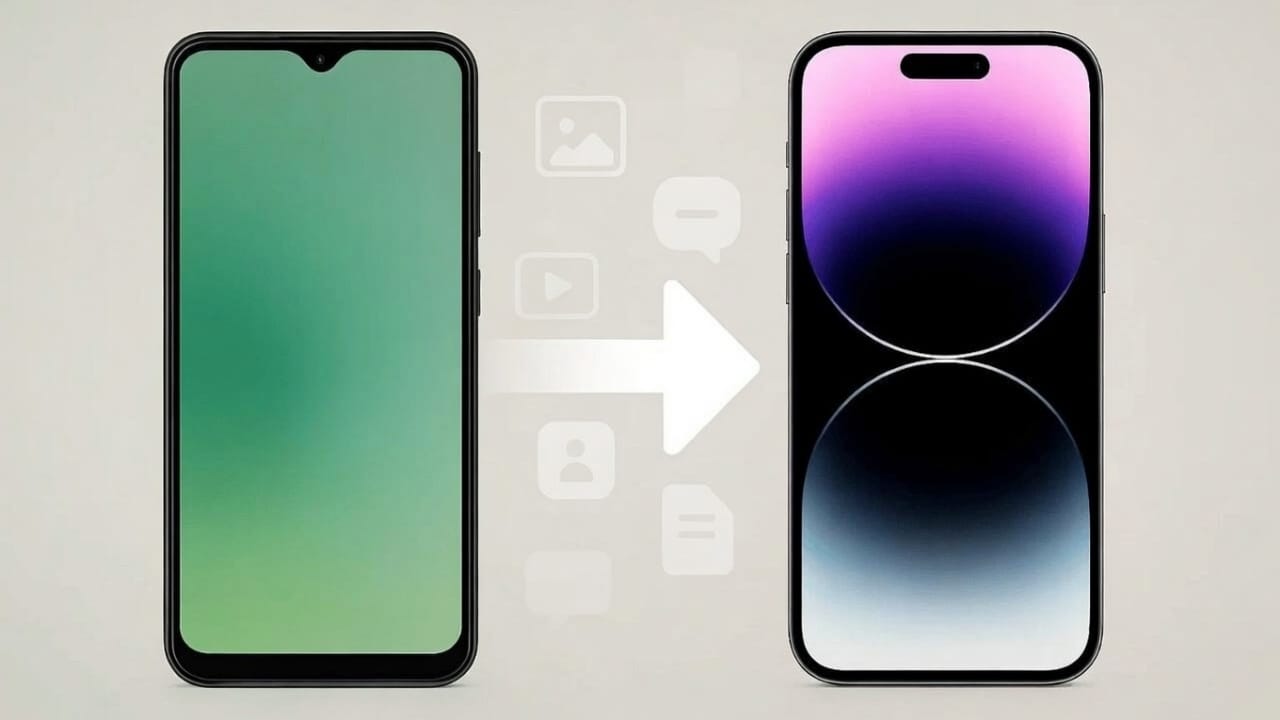
Changing from an Android phone to an iPhone can feel exciting, but many people worry about losing their data. Contacts, photos, videos, messages, and files are important, and no one wants to start from zero. The good news is that moving your data is much easier than it used to be.
This beginner-friendly guide explains safe and simple ways to transfer data from Android to iPhone without stress. These methods work for both new and older iPhones.
Also read: How to Change the Bluetooth Name on iPhone, iPad, and Mac (Simple Guide)
1. Move to iOS App (Best and Official Option)
Apple offers a free app called Move to iOS, designed specially to help Android users switch to iPhone. It is the easiest and safest choice for most people.
What this app can move
- Contacts
- Text messages
- Photos and videos
- Calendar events
- Google account details
- WhatsApp chat history
- Some app-related data
How to use it
- Turn on your iPhone and begin the setup process.
- When asked, select Move Data from Android.
- On your Android phone, download Move to iOS from the Play Store.
- Open the app and allow all required permissions.
- Enter the code shown on your iPhone screen.
- Choose the data you want to transfer.
- Wait for the process to finish, then complete iPhone setup.
Helpful tip: Keep both phones connected to Wi-Fi and charging to avoid interruptions.
2. Move WhatsApp Chats from Android to iPhone
WhatsApp now allows direct chat transfer between Android and iPhone, which makes things much easier.
Steps to follow
- Update WhatsApp on both devices.
- On Android, open WhatsApp and go to Settings > Chats > Transfer chats to iPhone.
- A QR code will appear on your iPhone.
- Scan the code using your Android phone.
- Let the transfer complete before opening WhatsApp on the iPhone.
3. Transfer Photos and Videos Using Google Photos
If your photos and videos are already backed up, this method saves a lot of time.
How it works
- On Android, make sure all media is synced to Google Photos.
- Install the Google Photos app on your iPhone.
- Sign in using the same Google account.
- Your photos and videos will appear automatically.
4. Move Documents and Files with Google Drive
For PDFs, documents, and other files, Google Drive is a simple solution.
Steps
- Upload your files to Google Drive from your Android phone.
- Install Google Drive on your iPhone.
- Log in with the same account.
- Download the files you need.
5. Transfer Music Manually
Music files do not transfer automatically, but you can move them using a computer.
What to do
- Connect your Android phone to a computer and copy the music files.
- Connect your iPhone to the same computer.
- Open iTunes or Finder.
- Add the music files and sync them to your iPhone.
6. Move Contacts Using Your Google Account
If you only care about contacts, this method is quick and reliable.
Steps
- On Android:
Go to Settings > Accounts > Google and turn on contact syncing. - On iPhone:
Go to Settings > Mail > Accounts > Add Account, sign in with the same Google account, and enable contact sync.
7. Optional: Use Third-Party Transfer Tools
Some people prefer advanced tools for full control. Popular options include:
- MobileTrans
- AnyTrans
- iCareFone
These tools can offer extra features but may require payment. Always download them from official sources.
Also read: How to Find Your EID on an iPhone (Easy Guide for 2026)
Final Thoughts
Moving from Android to iPhone does not have to be difficult. For most beginners, the Move to iOS app is the best starting point because it is free, secure, and easy to use. Other methods help you move specific items like WhatsApp chats, photos, files, and music.
Take things step by step, follow the instructions carefully, and your new iPhone will feel familiar in no time—with all your important data right where you need it.

Abhi Rajput, founder of EarnAbhi.in, is a tech lover with 6+ years of experience in SEO, digital tools, and smartphone troubleshooting. He writes simple, clear, and useful guides to help people solve real tech problems.