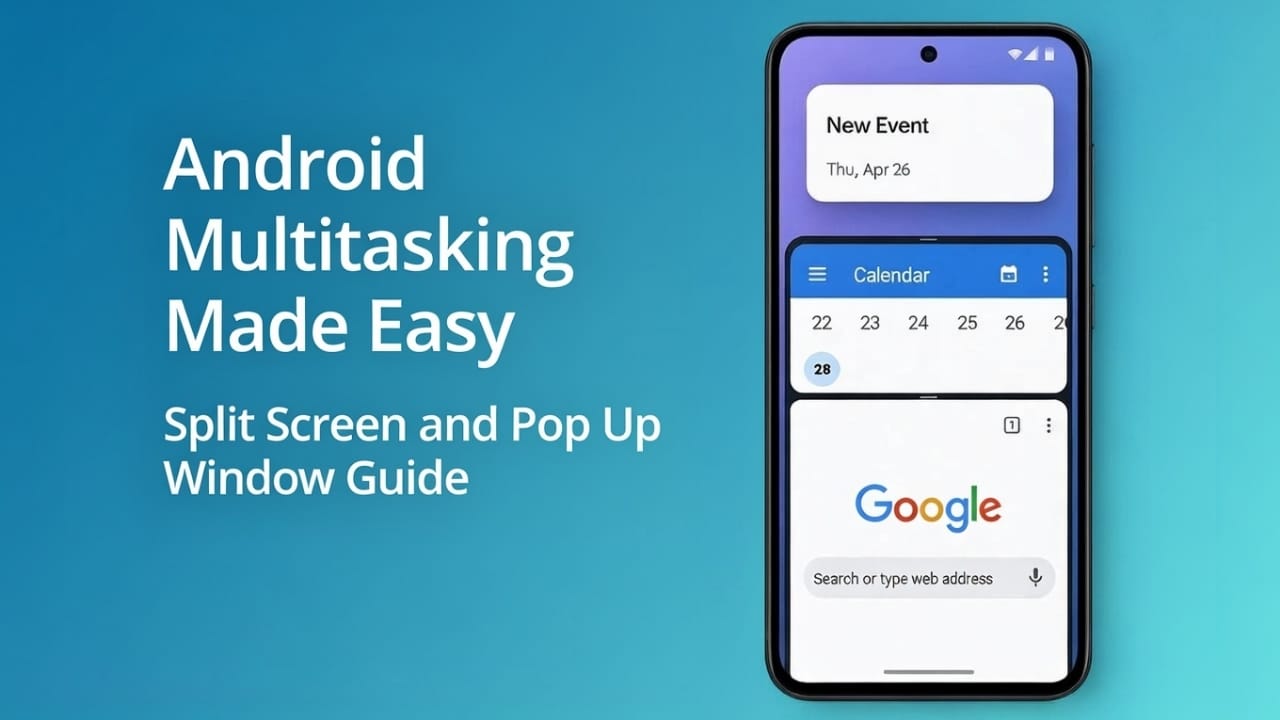
Have you ever wanted to watch a video and reply to messages at the same time? Or check your notes while filling out an online form? Android already has built-in features that let you do this easily. You don’t need to install any extra apps.
Two tools make this possible: Split Screen and Pop-up (Floating) Window. Once you understand how they work, using multiple apps together feels natural and simple. Let’s break it down step by step, in a clear and friendly way.
Also read: How to Share Files on Android Using Nearby Share — Fast, Offline, and Easy
What Split Screen Really Means
Split Screen allows two apps to stay open on your screen at the same time. One app appears on the upper part of the display, and the other stays on the lower part.
This is useful when you want to:
- Watch a video while chatting with someone
- Read notes and type at the same time
- Browse the internet while checking emails
- Compare content from two different apps
In short, your phone works more like a small computer with two windows open together.
How to Start Using Split Screen
The exact steps may look slightly different depending on your Android version, but the idea is almost the same on most phones.
Follow these basic steps:
- Open the first app you want to use
- Tap the Recent Apps button
- Tap the app icon at the top of its preview
- Choose Split Screen
- Select the second app from the list
Now both apps will appear on the screen together.
Changing App Size in Split Screen
You are not forced to keep both apps the same size. Android lets you control how much space each app gets.
There is a divider line between the two apps. You can:
- Drag it up or down
- Give more space to one app
- Reduce the size of the other app
- Close one app by dragging the divider fully to one side
It’s smooth, flexible, and easy to adjust anytime.
What Is a Pop-up (Floating) Window?
A Pop-up Window is a small app window that floats above other apps. It does not take over the full screen.
Think of it like a mini screen that stays visible while you use another app normally.
This works well for:
- Videos
- Messaging apps
- Notes
- Maps
- Browser tabs
- Music controls
It’s helpful when you want quick access to one app without leaving what you’re doing.
How to Open an App in Pop-up Window Mode
Most Android phones, including many Samsung and Xiaomi models, support this feature.
Here’s the common way to enable it:
- Open Recent Apps
- Tap the app icon
- Select Open in Pop-up View or Floating Window
The app will turn into a small movable window on your screen.
Moving and Resizing the Floating Window
The floating window is fully adjustable, just like you’d expect.
You can:
- Drag it anywhere on the screen
- Resize it from the edges or corners
- Make it semi-transparent
- Minimize it into a small bubble
This lets you multitask without hiding your main app.
Choosing Between Split Screen and Pop-up Window
Both features are useful, but they serve different purposes.
Use Split Screen when:
- You need to see two apps clearly
- You are reading and typing together
- You want to compare information
Use Pop-up Window when:
- You only need quick access to one app
- You want a small video or chat window
- You want your main screen to stay clean
Using the right option at the right time makes your phone experience much smoother.
How to Close Split Screen or Pop-up Window
Closing them is quick and simple.
To exit Split Screen:
- Drag the divider line all the way up or down
To close a Pop-up Window:
- Tap the close (X) button
- Or drag it to the bottom close area
It only takes a moment.
Also read: How to Back Up Your iPhone Without iCloud – Simple and Practical Guide
Final Words
Android multitasking becomes much easier once you start using Split Screen and Pop-up Window properly. These features help you save time, reduce app switching, and stay focused on what matters.
Try them during your daily phone use, and you’ll notice how much faster and more organized everything feels.

Abhi Rajput, founder of EarnAbhi.in, is a tech lover with 6+ years of experience in SEO, digital tools, and smartphone troubleshooting. He writes simple, clear, and useful guides to help people solve real tech problems.