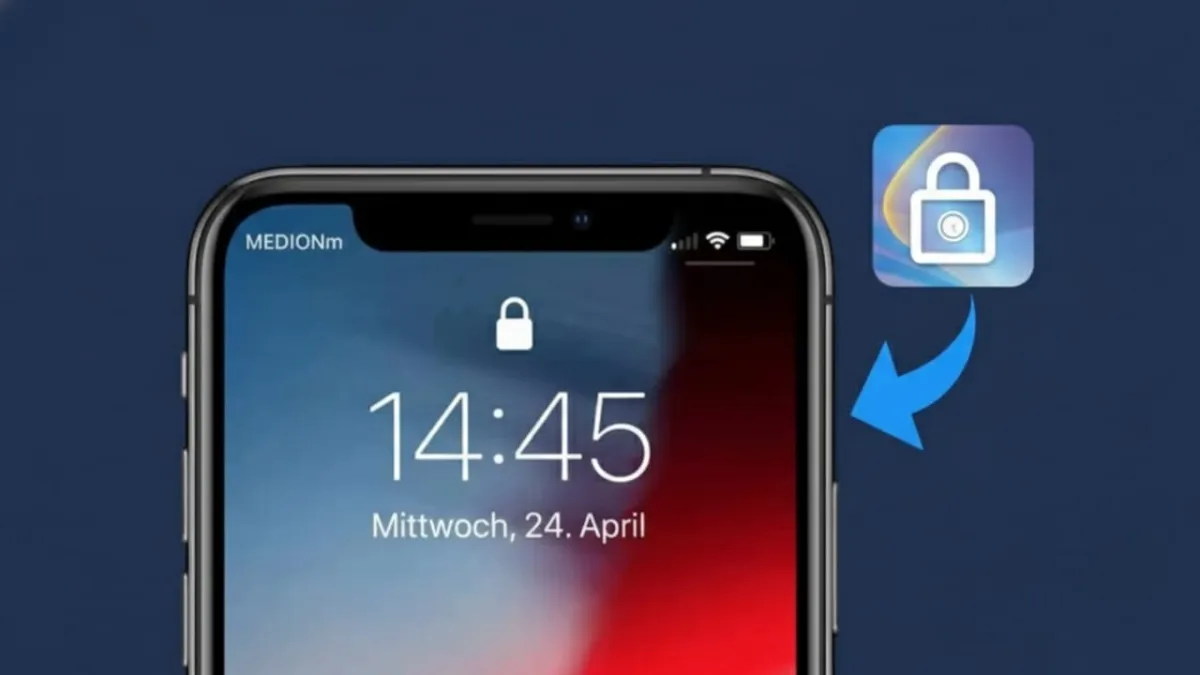
Keeping a smartphone secure has become more important than ever. We store personal photos, private chats, banking apps, and work data on our phones. Common lock options like PINs, patterns, or fingerprints are useful, but they can still be observed, guessed, or misused. This is where Screen Lock – Time Password offers a smarter approach.
Advertisements
Instead of using a fixed password, this app locks your phone using the current time. Since time changes every minute, the password also keeps changing. This makes unauthorized access much harder and adds an extra layer of protection to your device.
In this article, we’ll explain what the app does, its main features, and how you can use it easily.
Also read: Family Track: A Simple Tool to Encourage Healthy Screen Time at Home
What Is Screen Lock – Time Password?
Screen Lock – Time Password is a phone security app that turns your device’s current time into your lock screen password. Because the time updates constantly, the password never stays the same for long.
For example, if the time is 08:45, the password becomes 0845. One minute later, it automatically changes to 0846. Since the password keeps updating, no one can memorize or reuse it. This simple idea makes the lock system more secure than traditional methods.
Main Features of Screen Lock – Time Password
1. Time-Based Lock System
The app uses real-time clock data to generate a new password every minute. This dynamic lock method reduces the risk of guessing or spying.
2. Multiple Lock Options
Along with the time password, users can choose from other lock styles for convenience:
- PIN Lock for a fixed numeric code
- Pattern Lock for a swipe-based unlock
- Keypad Lock for a classic lock screen experience
3. Intruder Photo Capture
If someone enters the wrong password several times, the app automatically takes a photo using the front camera. This helps you know who tried to unlock your phone without permission.
4. Private Vault for Media
You can hide personal photos and videos inside a secure vault. These files stay hidden from the gallery and cannot be accessed without proper authorization.
5. Fake Lock Screen Protection
To confuse intruders, the app can show a fake error message or a fake fingerprint screen. This extra trick helps protect your phone even further.
6. Lock Screen Customization
Users can personalize the lock screen with different themes, backgrounds, and clock styles. This allows you to balance security with a clean and attractive look.
How to Set Up Screen Lock – Time Password
The setup process is simple and beginner-friendly.
Step 1: Install the App
- Open the Google Play Store
- Search for Screen Lock – Time Password
- Tap Install and wait for the download to finish
Step 2: Configure the Lock
- Open the app and allow the required permissions
- Choose Time Password as your lock method
- Add extra digits before or after the time if you want stronger security
Step 3: Enable Extra Security Options
- Turn on Intruder Selfie to capture failed unlock attempts
- Set up the Secure Vault for private media
- Activate Fake Cover to display misleading lock screens
Once everything is set, your phone will be protected by a password that updates automatically every minute.
Where Can You Download the App?
Screen Lock – Time Password is available on the Google Play Store.
You can search for the app by name and install it directly from the search results.
Official Play Store Link
Also read: E2PDF Call Backup Restore App Review: A Simple Way to Save Phone Data
Final Thoughts
If you want a smarter and more reliable way to protect your phone, Screen Lock – Time Password is worth trying. Its time-based password system makes unauthorized access much more difficult, while extra features like intruder photos, private vaults, and fake lock screens add strong backup protection.
With an easy setup and useful customization options, this app offers a simple yet effective way to improve smartphone security. Install it today and keep your personal data safer every minute.

Abhi Rajput, founder of EarnAbhi.in, is a tech lover with 6+ years of experience in SEO, digital tools, and smartphone troubleshooting. He writes simple, clear, and useful guides to help people solve real tech problems.
Advertisements