Samsung Galaxy phones often come with a mix of downloaded apps and pre-installed apps. Over time, you may end up with apps that you no longer use. Removing unnecessary apps can help free up storage and keep your phone more organized.
Samsung provides several ways to remove or manage apps. You can uninstall an app directly from the home screen, use Settings, manage multiple apps through the Google Play Store, or remove apps installed from the Galaxy Store. For some built-in apps, Samsung may provide a Disable option instead of uninstalling them.
Advertisements
Here are six simple ways to manage unwanted apps on a Samsung Galaxy phone.
Also read: WhatsApp Introduces a Dedicated Contacts Tab for Android Beta Users
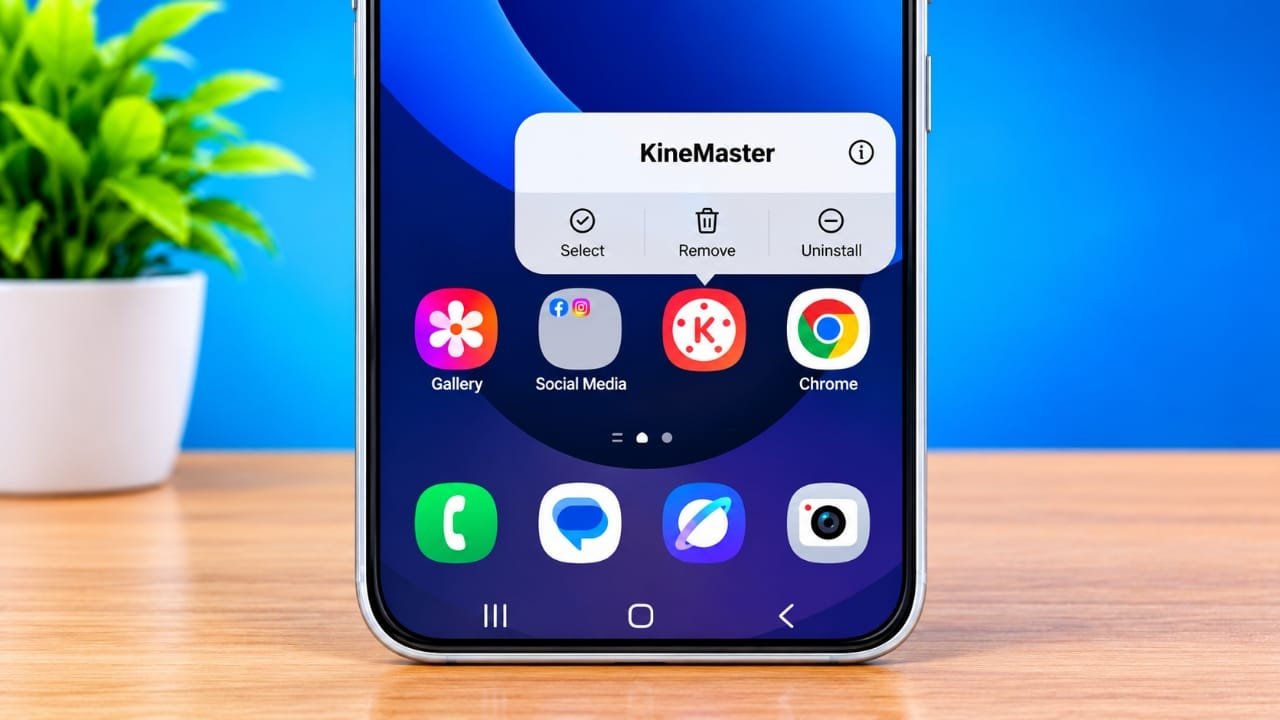
1. Delete an App From the Home Screen or Apps Screen
This is usually the quickest way to uninstall an app.
- Find the app on your Home screen.
- If you don’t see it there, swipe up to open the Apps screen.
- Press and hold the app icon.
- Tap Uninstall.
- Select OK or confirm the action.
The app will then be removed from your phone.
Remove vs. Uninstall
Samsung may also show a Remove option when you press and hold an app.
These two options do different things:
- Remove: Takes the app icon off the Home screen but keeps the app installed.
- Uninstall: Removes the app from the phone.
So, if your goal is to actually delete the app, choose Uninstall.
2. Uninstall Apps From Samsung Settings
You can also remove apps through the Settings app. This method is useful when you want to check an app’s storage usage before uninstalling it.
- Open Settings on your Samsung phone.
- Tap Apps.
- Scroll through the installed apps or use the search option to find the app.
- Tap the app you want to remove.
- Select Uninstall.
- Confirm when prompted.
The app will be removed from your device if it can be uninstalled.
This method can also help you identify apps that are using a large amount of storage.
3. Remove Multiple Apps Using the Google Play Store
If you have several downloaded apps that you no longer need, the Google Play Store can make the process easier on supported devices.
- Open the Google Play Store.
- Tap your profile picture in the top-right corner.
- Select Manage apps & device.
- Open the Manage section.
- Select the apps you want to remove.
- Tap the trash/bin icon if it appears.
- Confirm the uninstall action.
The available options can vary slightly depending on your Samsung phone, Android version, and Play Store version.
4. Uninstall Apps From the Galaxy Store
Apps installed through Samsung’s Galaxy Store can also be managed from the store.
- Open the Galaxy Store.
- Search for the app you want to remove.
- Open the app’s page.
- Tap Uninstall if the option is available.
- Confirm the action.
If you don’t see an uninstall option, the app may be a system or pre-installed application that cannot be removed in the normal way.
5. Disable Pre-Installed Apps on Samsung
Not every app that comes with a Samsung phone can be uninstalled. Some system and Samsung apps are connected to other phone features, so Samsung may only provide a Disable option.
To check:
- Open Settings.
- Tap Apps.
- Find the pre-installed app you want to manage.
- Open its App info page.
- If available, tap Disable.
- Confirm your choice.
On some Samsung models, you may need to use the app list’s filter or menu options to view system apps.
Be Careful When Disabling System Apps
Disabling an app can affect other features that depend on it. For this reason, avoid disabling apps unless you know what they do.
If an app is related to important phone functions, such as calling, messaging, system settings, or other core features, it is better to leave it enabled unless you have a specific reason to disable it.
6. Archive Apps to Save Space
Archiving can be useful when you don’t regularly use an app but don’t want to completely remove its data.
When an app is archived, its app installation files can be removed while its icon and certain app information remain available. When you need the app again, you can restore it, depending on the feature and app support on your device.
To check whether archiving is available:
- Open Settings.
- Go to Apps.
- Select the app you want to archive.
- Look for an Archive option.
- Follow the on-screen instructions.
The exact availability of app archiving can depend on your Samsung model, Android/One UI version, and the app itself.
Which Method Should You Use?
The best option depends on what you want to do:
- Want to remove one downloaded app quickly? Use the Home screen or Apps screen.
- Want to check storage usage first? Use Settings.
- Want to remove several apps? Try the Google Play Store’s app management section.
- Downloaded the app from Galaxy Store? Check the Galaxy Store.
- Can’t uninstall a built-in app? Check whether Samsung allows you to disable it.
- Want to keep the app’s information while reducing its installed size? Check whether archiving is available.
Also read: Airtel Buy 1 Get 1 Free Recharge Offer: Rs 349 and Rs 399 Plans Explained
Final Thoughts
Deleting apps you no longer use is a simple way to keep your Samsung Galaxy phone organized. You don’t always need to uninstall everything, either. Depending on the app, you may be able to remove it, disable it, or archive it instead.
Keep in mind that menu names and available options can differ between Samsung Galaxy models and One UI versions. If an option mentioned above isn’t visible on your phone, check the app’s information page or look for the same feature under Settings > Apps.

Abhi Rajput, founder of EarnAbhi.in, is a tech lover with 6+ years of experience in SEO, digital tools, and smartphone troubleshooting. He writes simple, clear, and useful guides to help people solve real tech problems.