Many users think WhatsApp is only meant for sending messages and videos. What most people don’t notice is that WhatsApp also allows you to make small video edits before sharing. You don’t need any third-party apps for this. The app already includes basic editing tools that are perfect for quick changes.
In this article, you’ll learn how to edit videos directly in WhatsApp on both Android and iPhone, what tools are available, and where the limitations are.
Advertisements
Also read: How to Enable Two-Step Verification on WhatsApp (Simple Guide)
Built-In Video Editing Features in WhatsApp
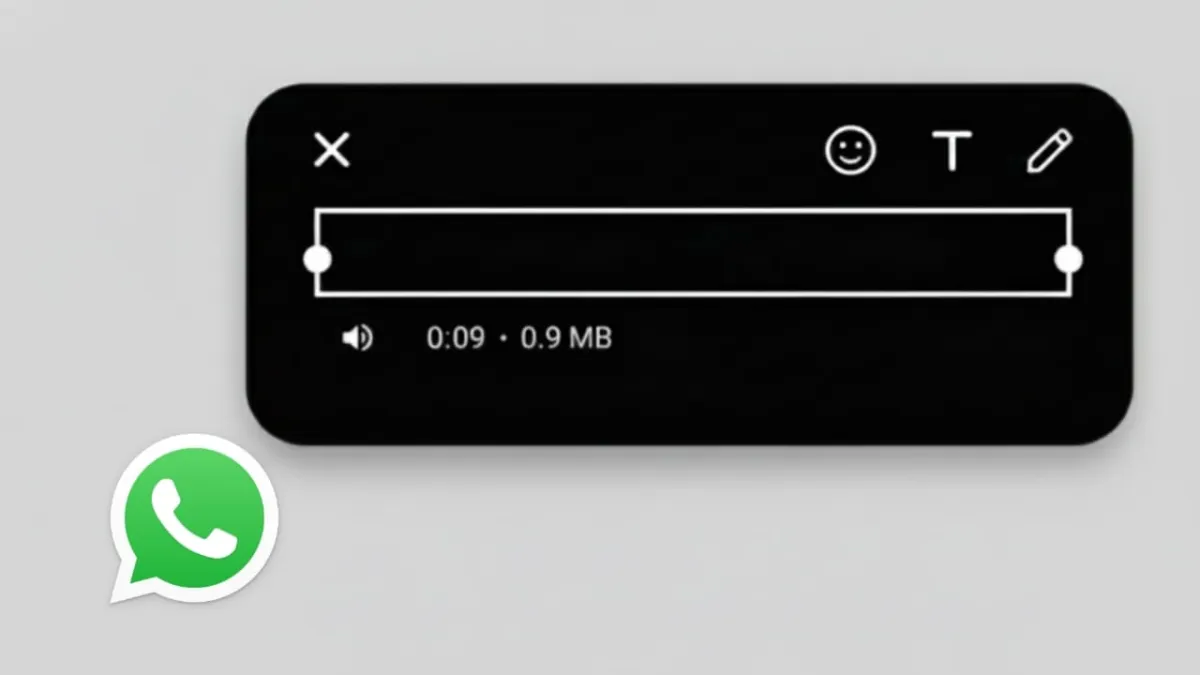
Whenever you select a video to send, WhatsApp opens an editing screen automatically. From there, you can make simple adjustments that are helpful for everyday sharing.
The available options include:
- Cutting the video to a shorter length
- Turning the sound on or off
- Adding text messages on the video
- Drawing or highlighting parts of the screen
- Placing emojis or stickers
- Cropping the video for chats or status
These tools are designed for fast edits, not professional video production.
Editing Videos in WhatsApp on Android
Editing a video on an Android phone is quick and easy.
Steps to edit a video
- Open WhatsApp and enter any chat
- Tap the attachment icon and select Gallery
- Choose the video you want to send
- The editing screen opens automatically
Editing tools on Android
- Trim the video
Move the slider at the bottom to remove unwanted parts - Mute the audio
Tap the speaker icon to remove sound - Add text or drawings
Use the text or pencil icon to write or draw - Insert emojis
Pick emojis and place them anywhere on the video
Once you’re done, tap Send to share the edited video.
Editing Videos in WhatsApp on iPhone
The process on iPhone is very similar, with a slightly smoother interface.
Steps to edit a video
- Open WhatsApp and select a chat
- Tap the plus (+) icon
- Choose Photo & Video Library
- Select a video
- The editing screen appears before sending
Editing tools on iPhone
- Trim the clip
Drag the edges of the timeline - Add text or stickers
Use the icons at the top - Draw on the video
Highlight or mark areas using drawing tools - Mute sound
Turn off audio if needed
After finishing the edits, tap Send.
Editing Videos for WhatsApp Status
WhatsApp uses the same editor for status videos as it does for chats.
One thing to keep in mind:
- Videos longer than 30 seconds are automatically divided into smaller parts
You can edit and trim each part before posting it as a status.
Limitations of WhatsApp Video Editing
While WhatsApp’s editor is useful, it has its limits. You cannot:
- Add background music
- Use advanced filters
- Change brightness or color settings
- Merge multiple video clips
For advanced editing, you’ll need to use a separate video editing app before uploading the video to WhatsApp.
When WhatsApp’s Video Editor Is the Best Choice
The built-in editor works best when:
- You want to quickly cut a video
- You need to hide or blur something
- You want to add short text or emojis
- You don’t want to install extra apps
For daily use, these tools are more than sufficient.
Also read: How to Clear WhatsApp Call History on Android and iPhone (Easy Guide)
Final Words
WhatsApp may not replace professional video editing apps, but its built-in tools are extremely helpful for quick sharing. Whether you’re on Android or iPhone, you can trim, mute, and customize videos in just a few taps.
If you want fast and simple edits without extra effort, WhatsApp’s video editor gets the job done smoothly.

Abhi Rajput, founder of EarnAbhi.in, is a tech lover with 6+ years of experience in SEO, digital tools, and smartphone troubleshooting. He writes simple, clear, and useful guides to help people solve real tech problems.