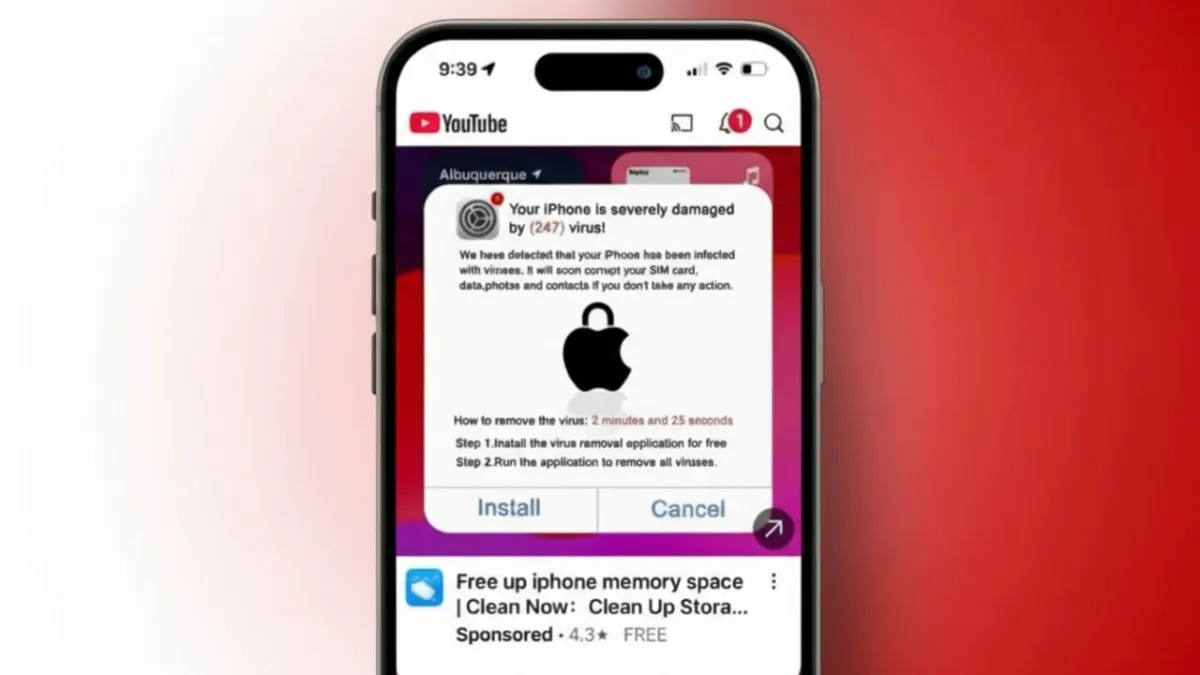
Fake Apple security alerts are a common problem for iPhone users. These warnings usually appear while browsing websites and claim that your device is infected or at risk. Their main goal is to scare you into acting fast so scammers can steal your personal information or money.
Advertisements
The good news is that most of these alerts are not real. Once you know how genuine Apple warnings work, it becomes much easier to spot and remove fake ones safely.
Also read: How to Install OpenClaw (Clawdbot) on a Mac Mini – Step-by-Step Guide
Key Points You Should Know
- Fake alerts rely on fear and urgency.
- Apple never asks for payments or passwords in alerts.
- Proper browser settings can block most scam messages.
How Real Apple Security Alerts Actually Work
Apple sends security notifications only through official channels. These alerts are designed to inform, not scare.
Real Apple security notices appear inside:
- iPhone Settings
- Your Apple ID account
- Legitimate system notifications
When Safari blocks an unsafe website, it shows a small warning near the address bar. It simply says the site is not secure or has a problem with its certificate. These messages do not take over your screen.
Apple may also send emails or iMessages, but only from official Apple addresses. Genuine messages look professional, use correct spelling, and follow Apple’s clean design style. There are no flashing colors, countdown timers, or threatening language.
Most importantly:
- Apple never asks for your Apple ID password inside an alert.
- Apple never asks for credit card details or payments.
- Real alerts guide you calmly to Settings or Apple Support.
If you are unsure, you can always check your Apple ID account. If there is no security warning there, the alert you saw is almost certainly fake.
How to Spot Fake Apple Security Warnings
Fake alerts usually appear suddenly while visiting random websites. They often fill the entire screen and claim your iPhone has viruses or serious security issues.
Common warning signs include:
- Messages like “Your iPhone is infected” or “Immediate action required”
- Buttons such as Fix Now, Scan Device, or Update Immediately
- Requests to call a support number
- Demands for Apple ID, bank details, or payment
These alerts often use generic greetings like “Dear User” and may contain spelling or grammar mistakes. Sometimes the Apple logo looks blurry or incorrect.
Scam messages can also arrive through:
- Emails
- Text messages (smishing)
- Calendar invitations with fake alerts
If alerts keep appearing again and again, it usually means a website or adware is causing them.
Why Fake Security Pop-Ups Keep Showing Up
Most fake alerts come from unsafe or compromised websites. Some free apps and downloads include hidden ads that force pop-ups.
Scammers copy Apple’s design to gain trust. They use fear to rush users into clicking links or sharing details. This can lead to stolen accounts, identity misuse, or financial loss.
Safe Steps to Remove and Stop Fake Alerts
Follow these steps calmly. Do not interact with the alert itself.
- Do not tap any buttons or close icons on the pop-up.
- Open Control Center and turn on Airplane Mode.
- Open Safari and close the tab where the alert appeared.
Clear Suspicious Website Data
- Go to Settings > Safari
- Tap Advanced > Website Data
- Remove unknown or suspicious entries
Improve Safari Protection
- Enable Block Pop-ups
- Turn on Fraudulent Website Warning
- Use Reader Mode to reduce ads and distractions
Block Risky Websites
- Open Screen Time
- Enable Content & Privacy Restrictions
- Add unsafe websites under Never Allow
Extra Safety Tips
- Use trusted Safari extensions that block pop-ups
- Avoid downloading apps or files from unknown sources
Report Fake Apple Alerts
Reporting scams helps protect others.
- Forward phishing emails to reportphishing@apple.com
- Report abusive messages to abuse@icloud.com
Also read: How to Fix Apple CarPlay Not Working on iPhone (Simple & Practical Guide)
Final Thoughts
Fake Apple security alerts are designed to scare you into quick decisions. Remember, Apple never demands payments or personal details through pop-ups.
Always double-check alerts using official Apple settings. Keep your browser protections enabled and avoid suspicious websites. Staying alert and informed is the best way to keep your iPhone safe.

Abhi Rajput, founder of EarnAbhi.in, is a tech lover with 6+ years of experience in SEO, digital tools, and smartphone troubleshooting. He writes simple, clear, and useful guides to help people solve real tech problems.
Advertisements