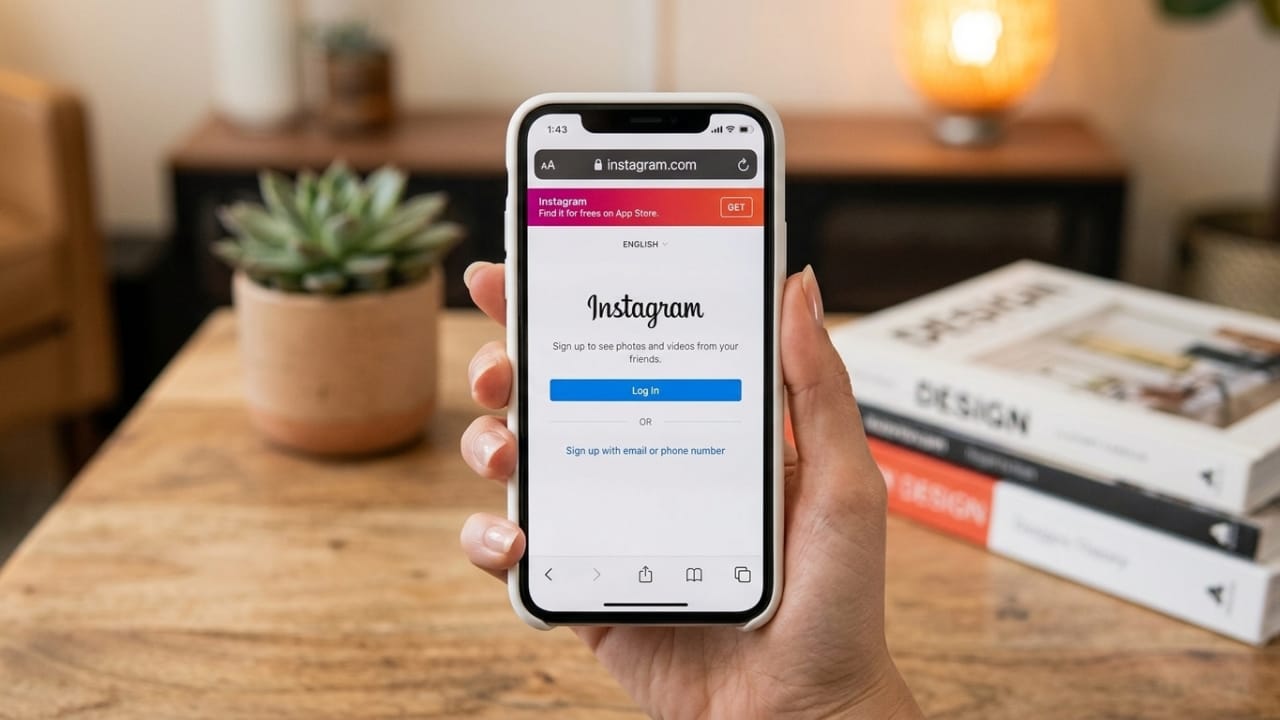
Keeping your Instagram account secure is more important than ever. A strong password helps, but it may not always be enough. That is why Instagram provides a feature called Two-Factor Authentication (2FA), which adds an extra security layer to your account.
Advertisements
With 2FA enabled, Instagram asks for a special verification code whenever someone tries to log in from a new device. This makes it much harder for unauthorized users to access your account, even if they know your password.
In this guide, you will learn how to enable two-factor authentication on Instagram using different methods in a simple and beginner-friendly way.
Also read: Google Gemini Now Lets Users Create Documents, Sheets, and Presentations Inside Chat
What Is Two-Factor Authentication on Instagram?
Two-factor authentication is a security feature that requires two steps during login:
- Your Instagram password
- A verification code sent to your phone or generated by an authentication app
This extra step helps protect your account from hacking attempts and unauthorized access.
Benefits of Enabling Two-Factor Authentication
Here are some major advantages of turning on 2FA for your Instagram account:
Better Account Security
Even if someone gets your password, they still cannot log in without the verification code.
Protection From Unauthorized Logins
Instagram will ask for verification whenever a login attempt happens from a new device or browser.
Safer Personal Information
Your photos, messages, and account details remain more secure.
Instant Login Verification
You receive a code each time a new login attempt is made, helping you notice suspicious activity quickly.
Methods Available for Instagram Two-Factor Authentication
Instagram allows users to receive verification codes in different ways:
- Authentication apps
- SMS text messages
- WhatsApp messages
Instagram generally recommends using authentication apps because they are considered more secure and generate fresh codes automatically.
Popular authentication apps include:
- Google Authenticator
- Duo Mobile
- Microsoft Authenticator
Also read: Adobe Introduces AI Productivity Agent for Acrobat and Smarter PDF Collaboration Features
How to Enable Two-Factor Authentication Using an Authentication App
Follow these steps carefully:
Step 1: Open Instagram
Launch the Instagram app and log in to your account.
Step 2: Go to Your Profile
Tap your profile picture located at the bottom-right corner.
Step 3: Open Settings
Tap the three horizontal lines in the top-right corner.
Step 4: Open Accounts Centre
Select Accounts Centre from the menu.
Step 5: Go to Password and Security
Tap Password and Security.
Step 6: Select Two-Factor Authentication
Choose the Two-Factor Authentication option.
Step 7: Choose Your Account
If you manage multiple Meta accounts, select the Instagram account you want to secure.
Step 8: Select Authentication App
Choose Authentication App and tap Next.
Step 9: Connect the App
Instagram will show a setup key or QR code.
You can:
- Copy the key into your authentication app, or
- Scan the QR code directly using the app
Step 10: Enter Verification Code
The authentication app will generate a six-digit code. Enter this code on Instagram to complete setup.
That’s it. Two-factor authentication is now enabled on your Instagram account.
How to Enable Two-Factor Authentication via SMS or WhatsApp
If you prefer receiving codes on your phone, follow these steps:
Step 1: Open Instagram Settings
Repeat the same steps mentioned earlier until you reach the Two-Factor Authentication page.
Step 2: Choose SMS or WhatsApp
Select either SMS or WhatsApp as your verification method.
Step 3: Enter Your Phone Number
Type the mobile number where you want to receive the security codes.
Step 4: Verify the Code
Instagram will send a six-digit verification code to your number.
Enter the code to confirm setup.
Once completed, Instagram will send a new verification code every time you log in from an unknown device.
Which Method Is Better?
Authentication apps are usually considered more secure because the codes refresh automatically and do not depend on text messages.
However, SMS and WhatsApp options are simpler for many users and still provide strong additional protection compared to using only a password.
Choose the method that feels easiest and safest for you.
Tips to Keep Your Instagram Account Safe
Here are a few extra security tips:
- Use a strong and unique password
- Avoid sharing login details with others
- Never enter your password on unknown websites
- Keep your email account secure
- Update your Instagram app regularly
- Review login activity frequently
Also read: Chrome May Be Installing Google’s Gemini Nano AI Model Quietly on Some Devices
FAQs
1. Why should I enable two-factor authentication on Instagram?
It adds an extra security layer and helps prevent unauthorized access to your account.
2. Does Instagram support authentication apps?
Yes, Instagram supports apps like Google Authenticator, Duo Mobile, and similar security apps.
3. Can I receive Instagram verification codes through WhatsApp?
Yes, Instagram allows users to receive login verification codes through WhatsApp or SMS.
4. What happens if I lose my phone?
If you lose access to your phone, you may need backup recovery codes or access to your registered email to recover your account.
5. Is two-factor authentication free to use?
Yes, Instagram provides this feature free for all users.
Conclusion
Two-factor authentication is one of the easiest ways to improve your Instagram account security. It helps protect your account from unauthorized access by adding an extra verification step during login.
Whether you choose an authentication app, SMS, or WhatsApp verification, enabling this feature can greatly reduce the chances of someone accessing your account without permission.
If you use Instagram regularly, turning on two-factor authentication is a smart and simple security step worth taking.

Abhi Rajput, founder of EarnAbhi.in, is a tech lover with 6+ years of experience in SEO, digital tools, and smartphone troubleshooting. He writes simple, clear, and useful guides to help people solve real tech problems.
Advertisements