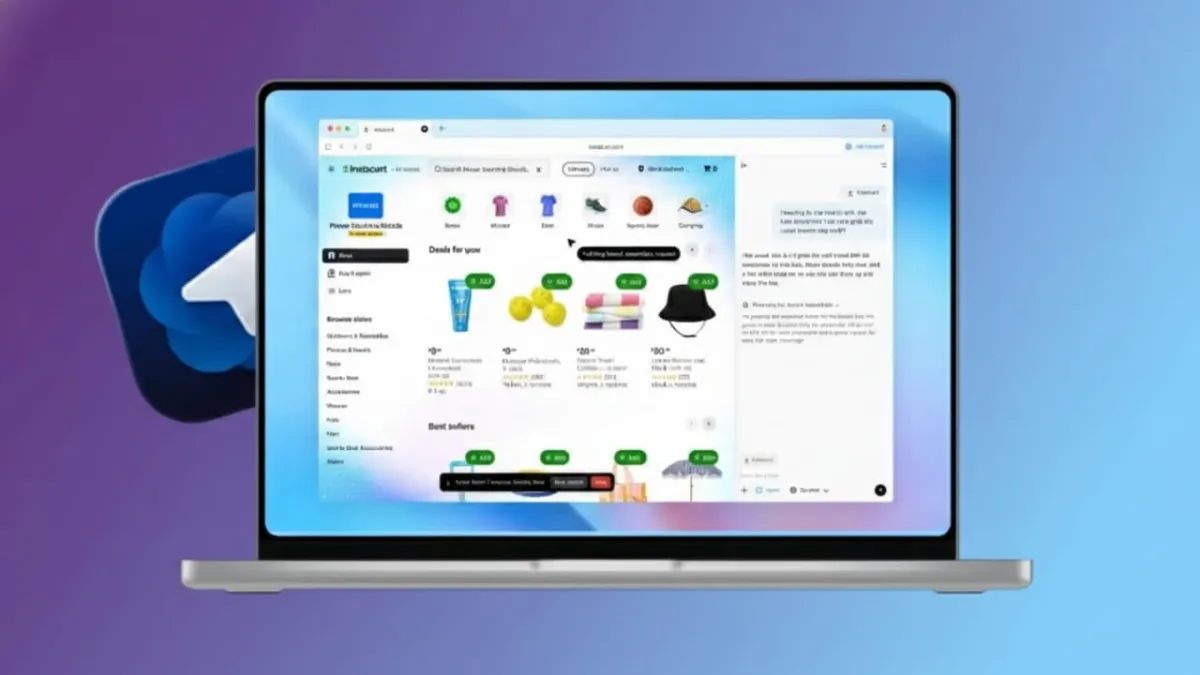
ChatGPT Atlas introduces a new way to use the internet. Instead of jumping between endless tabs, it lets you browse through natural conversations. The idea is simple: ask questions, give instructions, and let the browser help you complete tasks smoothly.
Advertisements
Atlas is built to support research, writing, and planning in one place. It works like a digital assistant that stays with you while you browse. The focus is on saving time, reducing effort, and keeping users in control of their data.
Also read: How to Secure Android Quick Settings for Better Phone Protection
What Makes ChatGPT Atlas Different?
Using Atlas feels more like chatting than traditional browsing. You don’t have to click through multiple pages to find what you need. You just explain your goal, and the browser helps you reach it.
Here’s what stands out:
- Browsing feels natural and conversation-based
- Complex tasks can be handled automatically
- Personalization improves without sacrificing privacy
Atlas treats browsing as an ongoing dialogue, not a series of disconnected clicks.
A New Way to Browse
Atlas is not designed to replace a regular browser feature by feature. Instead, it changes how you interact with the web. ChatGPT is built directly into the browsing experience, so every action comes with smart assistance.
You can ask questions, give instructions, and move between tasks without losing focus. Atlas handles multiple pages in the background while you concentrate on your main goal. This approach reduces mental load and helps you get things done faster.
Agent Mode: Let the Browser Do the Work
Agent Mode allows Atlas to complete tasks on your behalf. You only need to explain what you want to achieve. The browser takes care of the steps.
With Agent Mode, Atlas can:
- Open and compare information from different websites
- Review documents across multiple tabs
- Help plan trips by checking options and details
- Read recipes and adjust ingredient quantities
- Add items to online shopping carts (without making payments)
It’s designed to assist, not replace you. You stay in control at all times.
Built-In Safety for Agent Mode
Atlas includes strong limits to keep users safe:
- It cannot run computer code
- It cannot access files stored on your device
- It pauses automatically on banking or payment pages
- You can stop or turn off Agent Mode anytime
Agent Mode is currently in preview and available only to paid users.
Browser Memories: Smarter Than History
Browser Memories go beyond simple browsing history. Instead of just saving links, Atlas remembers the context of what you were doing.
This means:
- You can close tabs without worrying about losing progress
- Unfinished research can be resumed later
- Past searches are easier to understand and revisit
- Old information can be found and summarized quickly
It feels like the browser actually understands your work.
Full Control Over Privacy
Privacy is handled carefully in Atlas. Nothing is saved without your permission.
You control everything:
- Memories are off by default
- You can view, edit, or delete them anytime
- All stored data stays under your control
- Saved information is not used for training
This keeps the experience personal and secure.
Writing Help Wherever You Type
Atlas offers writing support directly inside websites. You don’t need to copy text into another tool.
You can use it while:
- Writing emails
- Editing documents
- Filling out job applications
- Improving sentences for clarity and tone
Edits happen instantly, right where you are typing.
Use Simple Language Commands
You don’t need special shortcuts or bookmarks. Atlas understands everyday language.
You can say things like:
- Open the websites I visited yesterday
- Close all tabs related to one topic
- Summarize this page
This keeps your browser clean and easy to manage.
Interface and How to Get Started
When you open a new tab in Atlas, you see a chat-style view. You can ask questions, paste links for summaries, or type website addresses as usual. Search results are interactive and clearly organized with links, images, videos, and news.
How to Install Atlas
- Available for macOS only
- Download it from the OpenAI website
- Move the app to the Applications folder
- Sign in with your ChatGPT account
- Follow the setup steps
- Import browser data if you want
- Enable Browser Memories (optional)
- Set Atlas as your default browser
Agent Mode requires a Plus subscription. Pro and Business plans also support it.
ChatGPT Atlas vs Traditional Browsers
| Feature | Traditional Browsers | ChatGPT Atlas |
|---|---|---|
| Browsing style | Clicking and tabs | Conversations and commands |
| Task handling | Manual steps | Automated assistance |
| Memory | Basic history | Context-aware memories |
| Writing support | External tools | Built-in editing |
| Privacy control | Limited | User-controlled |
Also read: How to Remove Fake Apple Security Alerts on iPhone (Safe & Simple Guide)
Final Thoughts
ChatGPT Atlas represents a fresh direction for web browsing. It combines everyday internet use with intelligent assistance. Tasks that once took many steps can now be handled with simple instructions.
With automation, smart memory, writing tools, and strong privacy controls, Atlas makes browsing feel easier and more focused. It shows how the internet experience could evolve in the coming years—simpler, faster, and more human-friendly.

Abhi Rajput, founder of EarnAbhi.in, is a tech lover with 6+ years of experience in SEO, digital tools, and smartphone troubleshooting. He writes simple, clear, and useful guides to help people solve real tech problems.
Advertisements