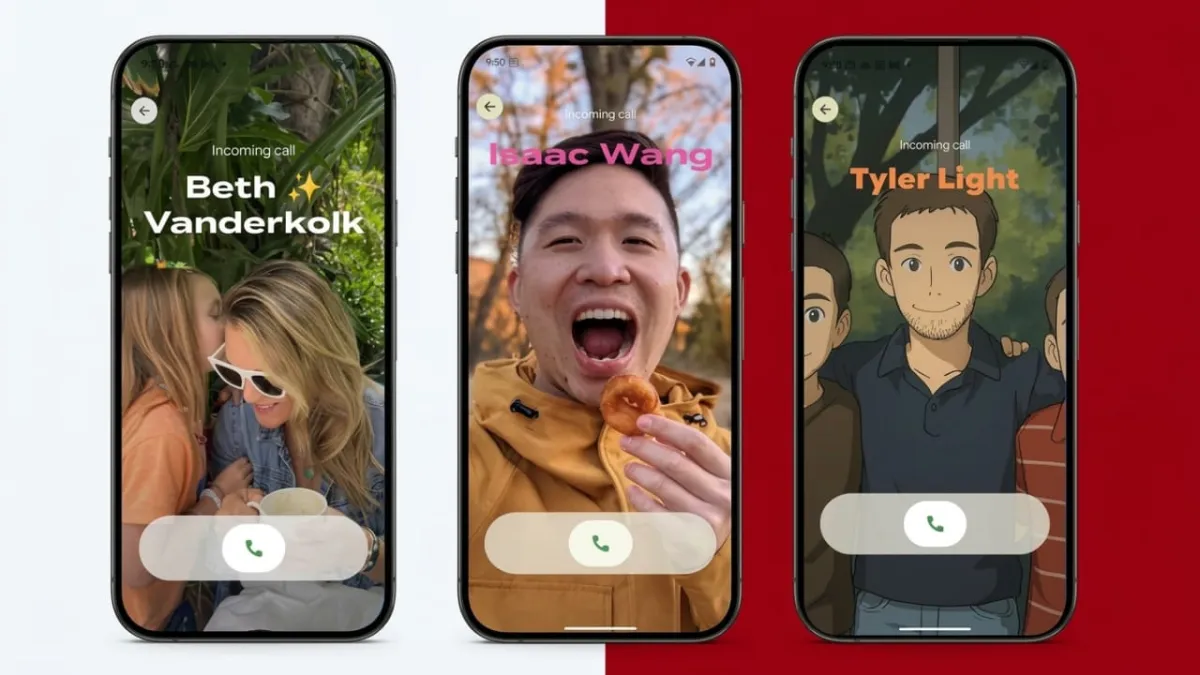
Android now offers a fun way to personalize your incoming call screen. With the Calling Cards feature in the Google Phone app, you can display a full-screen photo and custom design when someone calls you.
Advertisements
Instead of the simple default call screen, this feature shows a large image, bold colors, and bigger buttons. You can design different cards for specific contacts, making calls feel more personal.
Many people compare this feature to the contact posters available on iPhones, but Android users can now enjoy a similar customization option.
Also read: How to Delete Call History on Android and iPhone Safely
Key Highlights
- Calling Cards display full-screen photos during incoming calls.
- You can create custom designs for each contact.
- The latest update also allows sharing your own calling card with others.
How to Create Calling Cards for Your Contacts
Before you begin, make sure the Google Phone app on your device is updated to the latest version.
Step 1: Open a Contact
- Launch the Google Phone app.
- Choose any saved contact from your list.
- Tap the Edit option at the top of the screen.
You will see an option related to Picture and Calling Card. Tap the Calling Card icon to start designing.
Choose a Photo for the Contact
Once you enter the customization screen, the first step is selecting a photo.
You can pick an image from:
- Your phone’s Gallery
- Google Photos
Choose a clear image that shows the person’s face properly.
After selecting a picture, editing tools appear automatically. These tools allow you to adjust how the image fits on the screen.
You can:
- Move the image position
- Zoom in or out
- Crop the photo
Try to keep the face near the center so it appears clearly during calls.
Customize Text, Fonts, and Colors
Below the image editor, you will find tools for customizing text.
You can modify:
- Font style for the contact’s name
- Text color
- Display appearance
Several font styles are available, along with multiple color choices. Even though there isn’t a full color picker, the available colors provide enough variety to create a good design.
Save the Calling Card
After completing your design, preview it to see how the call screen will look.
When everything looks right:
- Tap Done.
- Confirm the image selection.
- Crop the picture if needed.
- Tap Save.
Once saved, the Calling Card becomes active. The next time that contact calls you, the custom full-screen design will appear.
You can repeat this process for as many contacts as you want. Many people create cards for close friends and family members.
How to Create Your Own Calling Card
Earlier versions of this feature only allowed cards for contacts. Also, only the person creating the card could see it.
A newer update changed this. Now you can create your own Calling Card, and people you call will see your design on their screen.
Open the Calling Card Settings
Follow these steps to begin:
- Open the Google Phone app.
- Tap the menu icon (three lines).
- Select Settings.
- Scroll to the bottom.
- Tap Calling Card.
Look for the section labeled Your Calling Card and tap Create.
Next, choose the Google profile you want to use. This profile connects your calling card to your identity.
Add a Photo and Design Your Card
Now select a photo for your personal calling card.
You can add an image using:
- Camera (to take a new photo)
- Gallery (stored images on your phone)
- Google Photos (cloud photos)
After choosing the picture, adjust the position and zoom to fit the screen properly.
Below the image editor, you can customize:
- Font style
- Text color
- Name appearance
Some fonts also allow small adjustments such as width or weight, giving you extra design control.
Tap anywhere on the card to see a full preview of how it will look to others.
Save and Choose Who Can See It
When your design is ready:
- Tap Done.
- A preview page will appear.
- Select your sharing preference.
By default, only people saved in your contacts will see your calling card. However, you can change this setting if you want.
Available sharing options may include:
- Show only to saved contacts
- Show to everyone you call
After selecting the option you prefer, tap Done again to activate your card.
Anyone you call will now see your personalized call screen.
You can return to the settings anytime to update the design or adjust sharing preferences.
If You Cannot See the Feature Yet
The Calling Card feature started rolling out in early March, but updates may appear gradually on different devices.
If you don’t see it yet:
- Open the Google Play Store.
- Search for Google Phone.
- Install the latest update.
After updating, reopen the app and check the settings again.
Sometimes Google enables new features through server updates, so the option may appear later even if your app is already updated.
Also read: Copy on iPhone and Paste on Mac: Simple Guide (2026)
Final Thoughts
Calling Cards add a creative touch to Android phone calls. Instead of a basic call screen, you can display large photos, unique fonts, and colorful designs.
You can create custom cards for individual contacts or design one for yourself so others see it when you call them.
With just a few steps inside the Google Phone app, your calls can look more personalized and visually appealing.

Abhi Rajput, founder of EarnAbhi.in, is a tech lover with 6+ years of experience in SEO, digital tools, and smartphone troubleshooting. He writes simple, clear, and useful guides to help people solve real tech problems.
Advertisements