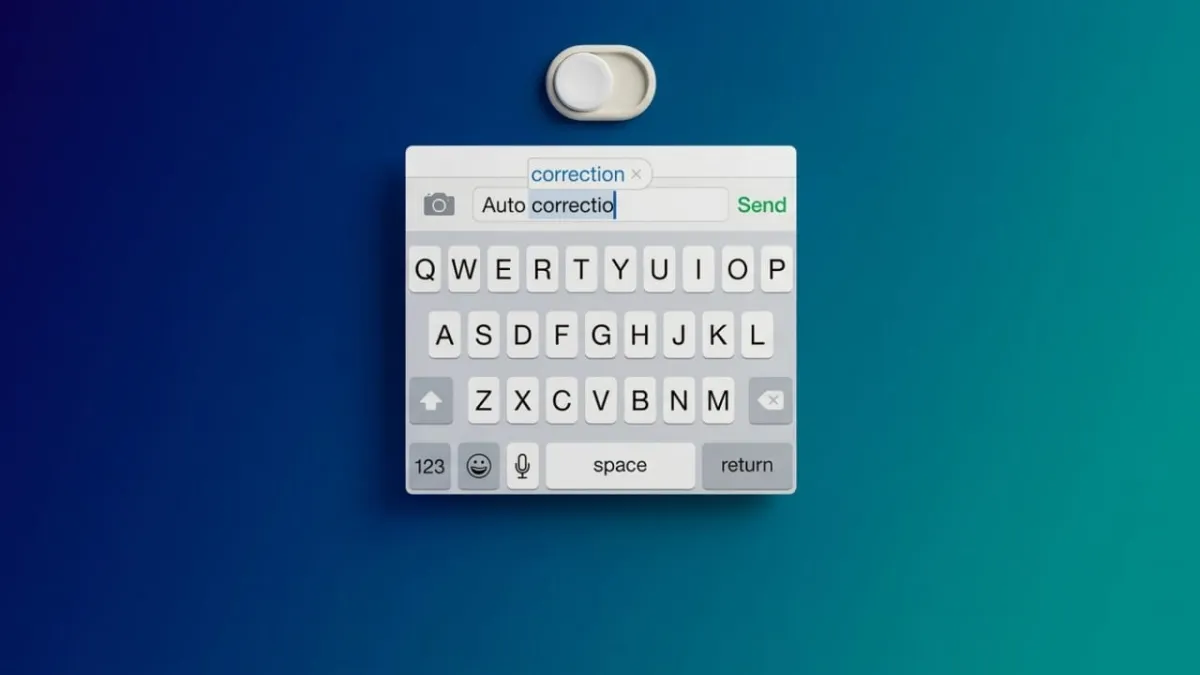
Autocorrect is meant to make typing easier, but for many people, it does the opposite. It can change perfectly fine words into something completely different, mess up names, or ruin Hinglish sentences. If you’re tired of correcting your keyboard again and again, turning off autocorrect can make typing much smoother.
Advertisements
In this guide, you’ll learn how to switch off autocorrect on your iPhone, iPad, and Mac in a few simple steps.
Also read: How to Set Up Your New iPad (Simple Step-by-Step Guide)
What Autocorrect Does
On iPhone and iPad, this feature is called Auto-Correction, and it is turned on by default. Its job is to:
- Fix spelling mistakes automatically
- Replace words it thinks are wrong
- Sometimes change text even after you finish typing
In short, it doesn’t just help—it can also edit your message without asking.
On Mac, the same feature is called “Correct spelling automatically.” It works in most apps, including third-party ones.
Autocorrect vs Predictive Text
Many people confuse these two features, but they work differently:
- Autocorrect: Changes your words automatically while typing
- Predictive Text: Shows suggestions, but you choose whether to use them
For example:
- Autocorrect may change “definately” to “definitely” on its own
- Predictive text will suggest words like “work” or “home,” but won’t insert them unless you tap
If you don’t like automatic changes, turning off autocorrect while keeping predictive text can be a good balance.
How to Turn Off Autocorrect on iPhone or iPad
Method 1: Using Settings (Recommended)
- Open Settings
- Tap General
- Select Keyboard
- Turn off Auto-Correction
That’s it. Your device will stop changing your words automatically.
Method 2: From the Keyboard Itself
If you’re already typing and don’t want to exit the app:
- Open any app with a keyboard
- Press and hold the globe or emoji icon
- Tap Keyboard Settings
- Turn off Auto-Correction
Note: If you don’t see the globe icon, you probably have only one language enabled.
Also read: Forgot Your Apple Watch Passcode? Here’s a Simple Way to Reset It
How to Turn Off Autocorrect on Mac
Autocorrect settings on Mac are separate from your iPhone or iPad.
- Open System Settings
- Click Keyboard
- Go to Text Input and select Edit
- Turn off “Correct spelling automatically”
Now your Mac won’t change your words while typing.
Stop Autocorrect for Specific Words (Smart Trick)
If you don’t want to disable autocorrect completely, you can prevent it from changing certain words like your name, brand names, or slang.
Here’s how:
- Go to Settings → General → Keyboard
- Tap Text Replacement
- Tap the + icon
- Enter the word in both Phrase and Shortcut
- Tap Save
Now your phone will stop correcting that specific word.
Does It Affect All Apps?
Yes. Once you turn off autocorrect, it stops working across all apps, including:
- Messaging apps like WhatsApp and iMessage
- Social media apps
- Notes and email apps
- Browsers and search bars
There is currently no option to disable it for only one app.
Still Seeing Changes? Try These Fixes
Even after turning off autocorrect, some features may still affect your typing. You can adjust them:
- Check Spelling: Turn it off to remove red underlines
- Smart Punctuation: Stops automatic changes to quotes and symbols
- Auto Capitalization: Prevents automatic capital letters
- Reset Keyboard Dictionary: Clears learned typing mistakes
- Text Replacement: Remove any unwanted saved entries
You’ll find these options under Settings → General → Keyboard.
Also read: How to Edit PDF Files on iPhone and iPad (Simple Guide)
Final Thoughts
Turning off autocorrect gives you more control over what you type. No more unexpected word changes or awkward mistakes.
If the problem is only with certain words, using text replacement is a better option than disabling the feature completely.
Try these settings and see what works best for you.

Abhi Rajput, founder of EarnAbhi.in, is a tech lover with 6+ years of experience in SEO, digital tools, and smartphone troubleshooting. He writes simple, clear, and useful guides to help people solve real tech problems.
Advertisements