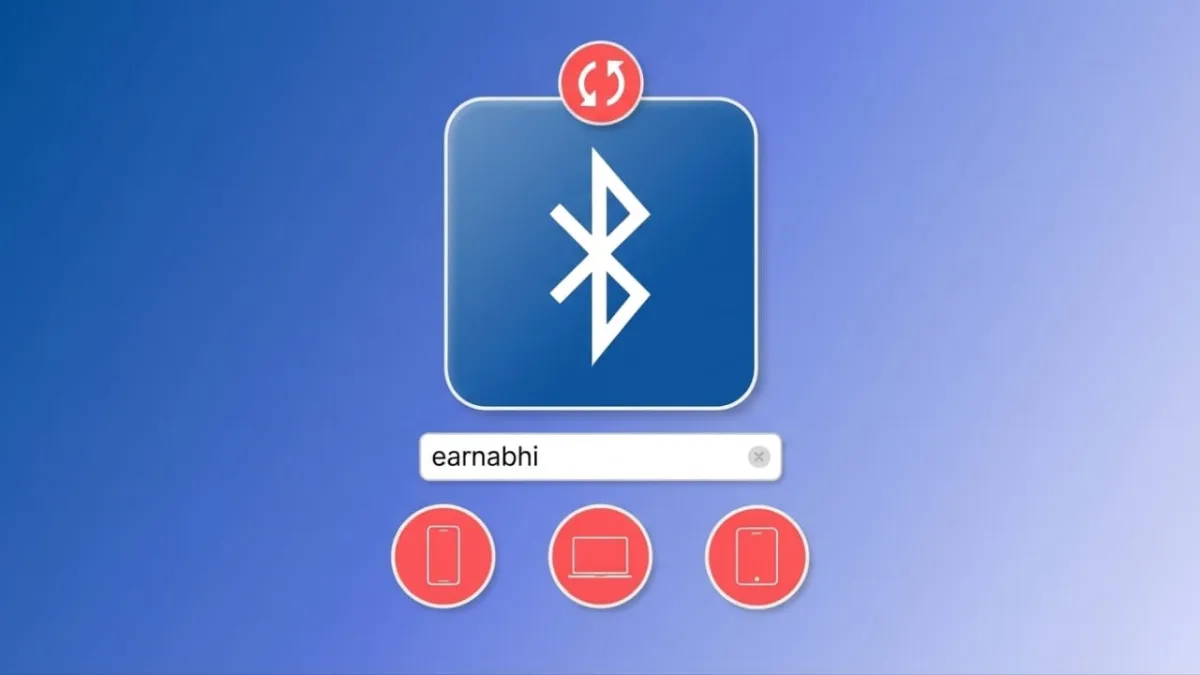
If your device still shows a generic name like “iPhone” or “MacBook,” it can get confusing—especially when multiple devices are nearby. The good news is you can quickly rename your device and make it easier to recognize during Bluetooth pairing.
This simple change helps you stay organized and avoid connecting to the wrong device.
Also read: How to Record With Front and Back Cameras Together on iPhone
Why Renaming Your Bluetooth Device Is Useful
Giving your device a custom name isn’t just about looks—it actually makes everyday use easier.
Here’s how it helps:
- You can quickly identify your device in crowded Bluetooth lists
- It reduces the chances of pairing with the wrong device
- Keeps your connected accessories organized
- Makes your device feel more personal
- Useful if you own multiple Apple devices
How to Change Bluetooth Name on iPhone or iPad
On iPhone and iPad, the Bluetooth name is the same as your device name. Once you change it, it updates everywhere automatically.
Steps:
- Open Settings
- Go to General
- Tap About
- Select Name
- Enter a new name and tap Done
That’s it. Your new name will now appear when connecting via Bluetooth.
How to Rename a Bluetooth Accessory on iPhone or iPad
You can also rename connected accessories like headphones or speakers.
Steps:
- Make sure the device is connected
- Open Settings → Bluetooth
- Tap the (i) icon next to the device
- Tap Name
- Enter a new name and save it
This helps you easily recognize specific devices, especially if you use multiple accessories.
Also read: How to Set Up an Apple Recovery Key (Simple & Complete Guide)
How to Change Bluetooth Name on Mac
Just like on iPhone, your Mac uses its system name for Bluetooth visibility.
Steps:
- Open System Settings
- Go to General
- Click About
- Click on Name
- Type your new name
Your Mac will now show this updated name when connecting through Bluetooth or sharing files.
How to Rename a Bluetooth Accessory on Mac
If you want to rename a connected device on your Mac, follow these steps:
- Connect the Bluetooth device
- Open System Settings → Bluetooth
- Click the (i) button next to the device
- Click Name
- Enter a new name and save
What Changes After You Rename Your Device?
When you update your device name, it doesn’t just affect Bluetooth—it also updates across other features.
Here’s where you’ll notice the change:
- Bluetooth lists – Easier to spot your device
- AirDrop – Your new name appears when sharing files
- Personal Hotspot – The hotspot uses your updated name
- Find My – Helps you identify devices quickly
- Mac sharing features – Used in file sharing and network visibility
- Connected devices – Cars, speakers, and TVs will show the new name
Also read: Forgot Your Apple Watch Passcode? Here’s a Simple Way to Reset It
Final Thoughts
Changing your Bluetooth name is a small tweak that makes a big difference. It keeps your device list clean, reduces confusion, and adds a personal touch to your setup.
If you use multiple devices or often connect to accessories, this is definitely worth doing.

Abhi Rajput, founder of EarnAbhi.in, is a tech lover with 6+ years of experience in SEO, digital tools, and smartphone troubleshooting. He writes simple, clear, and useful guides to help people solve real tech problems.