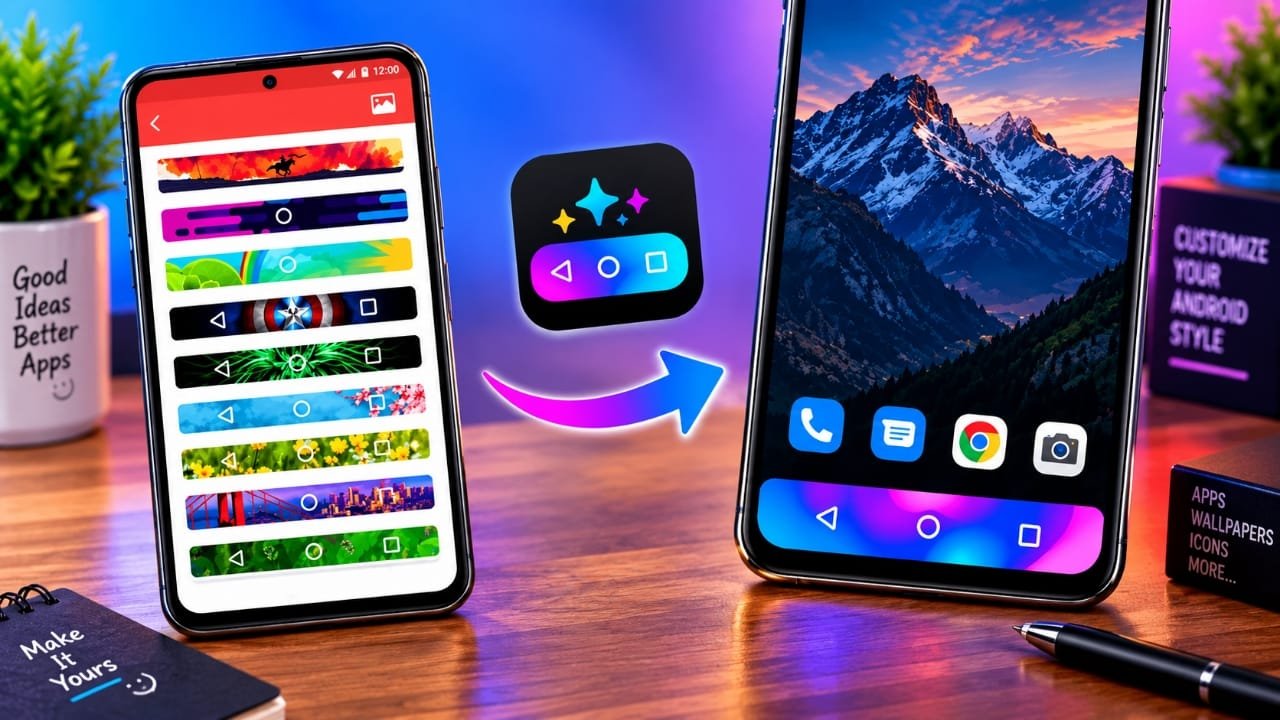
The navigation area is one of the parts of an Android phone that you interact with every day. Still, it usually looks the same regardless of how often you change your wallpaper, icons, or home-screen layout.
Advertisements
If you like giving your smartphone a personal touch, changing the navigation bar can be a simple way to make the interface feel different. Colourful Custom Navigation Bar is an Android customization app designed for this purpose. It offers several visual options that let you change the look of the navigation area without replacing your entire Android theme.
Depending on your phone and Android version, you can experiment with colors, images, gradients, animations, and other design elements.
Also read: How to Restart an iPhone Without Using the Power or Home Button
What Is Colourful Custom Navigation Bar?
Colourful Custom Navigation Bar is an Android app focused on customizing the appearance of the navigation area.
Rather than changing your launcher, icons, or wallpaper, the app lets you concentrate on one specific section of the screen. Available options may include solid colors, pictures, gradients, animated effects, and emoji-style designs.
This can be useful if you want the navigation area to match the rest of your setup. For instance, you could select a color that works with your current wallpaper or use a more eye-catching design when creating a new home-screen theme.
The concept is straightforward: customize a small part of Android while leaving the rest of your phone unchanged.
Why Change the Navigation Bar?
Most Android customization apps are designed around larger changes. Launchers, widgets, wallpapers, and icon packs can completely alter the appearance of a phone.
However, you don’t always need to change everything.
A customized navigation bar can add a small visual difference while keeping your existing setup intact. If you frequently change wallpapers or create different home-screen styles, you can also adjust the navigation area to match them.
This type of customization is mainly about appearance. It does not aim to replace Android’s core interface or fundamentally change how the operating system works.
How to Use Colourful Custom Navigation Bar
The exact setup can differ depending on your phone, Android version, manufacturer, and navigation settings. However, the general process is straightforward.
Step 1: Open the App
Install and launch Colourful Custom Navigation Bar on your Android device.
After opening the app, browse through the available options first. This can help you understand which features are compatible with your particular phone.
Step 2: Check the Requested Permissions
Some features may require additional access to work. Depending on the device, this can include Android’s Accessibility Service.
Before enabling any permission, read the information shown by Android carefully. Accessibility access can give an app broader control over certain interactions with your device, so it should only be enabled when you understand why it is required and are comfortable granting it.
Step 3: Pick a Style
Once the initial setup is complete, explore the available navigation bar designs.
You can start with a basic color for a cleaner look. If you prefer something more noticeable, you can try an image, gradient, animation, or another supported design.
Step 4: Apply Your Design
After selecting your preferred style, apply the changes and check the result while using your phone.
If the design doesn’t look right, go back to the app and choose another option. You can try different colors and styles until you find one that fits your wallpaper and overall interface.
Colourful Custom Navigation Bar Features
Change the Navigation Bar Color
The app allows users to experiment with different colors for the navigation area. This gives you an alternative to the default appearance provided by Android.
You can choose a subtle shade that blends into your setup or use a brighter color to make the bottom of the screen stand out.
Background Customization
If a plain color isn’t enough, background options provide another way to change the appearance of the navigation area.
A customized background can give the bottom section of the display a different look without requiring changes to the rest of the interface.
Use Images
The app also supports image-based customization. This can be useful if you want the navigation area to complement a particular wallpaper or visual theme.
For example, an image that uses similar colors to your wallpaper can make the overall screen look more consistent.
Try Gradient Designs
Gradients combine multiple colors to create a smoother transition between shades.
If you don’t want to use a single solid color, experimenting with gradients can give the navigation area a more distinctive appearance.
Add Animation Effects
Some users prefer interfaces that have a little movement. The app includes animation-related options that can make the navigation area more dynamic.
The exact effects available can depend on the device and Android version.
Use Emoji-Based Designs
For a more playful setup, you can experiment with emoji-related customization options.
This won’t appeal to everyone, but it provides another way to create a navigation area that looks different from the standard Android design.
Battery-Related Options
The app also offers features related to displaying battery information around the navigation area.
This can add a practical element to the customization instead of making the modified section purely decorative.
Customize Without Changing Everything
One of the useful aspects of this type of app is that you can leave the rest of your phone alone.
Your existing wallpaper, launcher, icons, and apps can remain the same while you give the navigation area a new appearance.
Things to Consider Before Using It
Android customization apps don’t always behave identically on every phone.
Your Android version, device manufacturer, navigation mode, and system settings can all affect compatibility. Some features may work differently or may not be available on certain devices.
The navigation method can also make a difference. Phones using gesture navigation may display the customized area differently from devices using traditional navigation buttons.
Permissions are another important consideration. Always check what an app is requesting before allowing access. In particular, review Accessibility Service requests carefully because this permission can provide broader access to certain device interactions.
Is Colourful Custom Navigation Bar Worth Trying?
If you enjoy changing the appearance of your Android phone, Colourful Custom Navigation Bar offers another area to experiment with.
The app focuses on a relatively small part of the interface, but there are several possible styles to explore. You can keep things simple with a single color or create a more noticeable design using images, gradients, animations, or emojis.
On the other hand, users who are happy with the standard Android interface may have little reason to use an app focused on this type of customization.
Official Play Store App Link
Also read: How to Create and Manage Lists in Google Maps on iPhone
Final Thoughts
Colourful Custom Navigation Bar is aimed at Android users who want more control over the appearance of their navigation area.
Instead of redesigning the entire phone, you can make a smaller change using colors, backgrounds, images, gradients, animations, and other available options. This makes it useful for people who enjoy matching different parts of their smartphone interface.
However, the available features and overall behavior can vary between Android devices. Before enabling any requested permissions, especially Accessibility Service access, make sure you understand what the permission allows.
If you enjoy small changes that make your phone’s interface feel more personal, this app can be an interesting customization option to explore.

Abhi Rajput, founder of EarnAbhi.in, is a tech lover with 6+ years of experience in SEO, digital tools, and smartphone troubleshooting. He writes simple, clear, and useful guides to help people solve real tech problems.
Advertisements