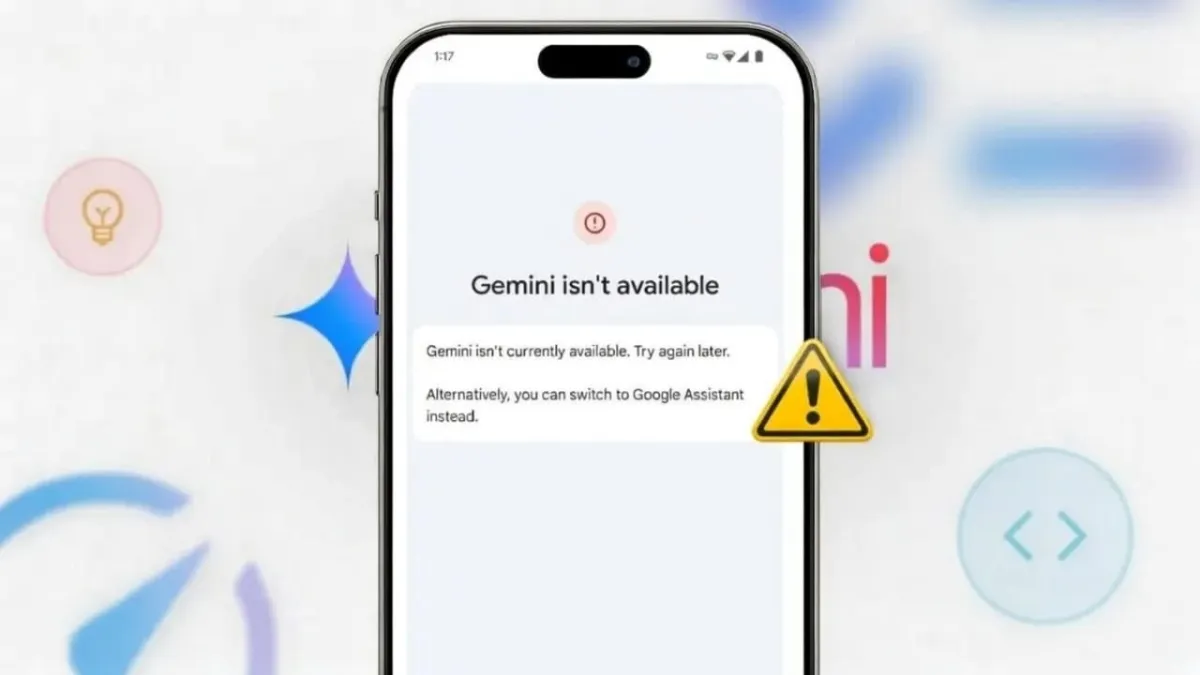
Google Gemini is a powerful AI assistant that helps people with writing, learning, research, and everyday questions. However, sometimes users face an error message that says, “Something went wrong.” This can be frustrating, especially if you rely on Gemini regularly.
Advertisements
The good news is that this issue is usually temporary and easy to fix. Most problems come from server outages, internet issues, or device settings. With a few simple steps, you can often restore Gemini quickly.
Also read: How to Move Data from Android to iPhone: A Simple Step-by-Step Guide
Why Does This Error Happen?
There are several common reasons behind this problem:
- Google’s servers may be overloaded or temporarily down
- Your internet connection might be weak or unstable
- The Gemini app could be outdated
- Your phone may have low storage or software glitches
- Your Google account type might have restrictions
Understanding the cause makes it easier to fix the problem.
Step 1 – Check if Gemini Servers Are Down
Gemini runs on Google’s cloud system, which millions of people use every day. During heavy traffic or technical maintenance, the service may slow down or stop working temporarily.
To check if this is a server issue:
- Visit a website like DownDetector
- Search for “Google Gemini”
- Read recent user reports
- Check if many people are facing the same issue
You can also check Google’s official social media pages for any outage announcements.
If many users are complaining at the same time, the problem is likely on Google’s side. In that case, all you can do is wait. Most outages are fixed within an hour.
Step 2 – Try Gemini on Another Platform
Sometimes the issue is with the app, not Gemini itself.
You can test this by switching platforms:
- Open a web browser and visit gemini.google.com
- Try using Gemini there instead of the mobile app
- If the website works but the app doesn’t, reinstall the app
Make sure you download Gemini only from the official Google Play Store (Android) or App Store (iPhone).
Step 3 – Check Your Google Account
Your account type can affect Gemini access.
- Personal Gmail accounts usually work fine
- School or college accounts may block Gemini
- Work or company accounts may need admin approval
Try signing out and signing back in using a personal Gmail account. Restart your phone and check again.
Step 4 – Fix Internet and Phone Issues
A weak internet connection is one of the most common causes.
Try these steps:
- Turn off Wi-Fi and use mobile data
- Restart your Wi-Fi router
- Check if apps like YouTube or WhatsApp are working properly
If other apps also have problems, your internet is likely the issue.
Step 5 – Update Your Phone Software
Old phone software can cause app errors.
To update your phone:
- Open Settings
- Go to Software Update
- Install the latest update
- Restart your phone
After updating, open Gemini again.
Step 6 – Fix Black or White Screen Problem
If Gemini opens but shows a blank screen:
- Close all background apps
- Reopen Gemini
- Restart your phone
- If still not working, uninstall and reinstall Gemini
This clears most temporary bugs.
Step 7 – Allow App Permissions
Gemini needs certain permissions to work smoothly.
Go to:
Settings → Apps → Gemini → Permissions
Make sure you allow:
- Camera
- Storage
- Location (if required)
Without proper permissions, the app may malfunction.
Step 8 – Free Up Storage Space
If your phone storage is almost full, Gemini may not work properly.
Check your storage by going to:
Settings → Storage
Delete:
- Unused apps
- Old photos or videos
- Large files
Freeing space can improve app performance.
Step 9 – Fix Login Problems
If you can’t sign in:
- Double-check your email and password
- Try logging in using OTP (One-Time Password)
- Read the error message carefully
- Clear Gemini app cache from settings
- Restart your phone
This usually resolves login-related issues.
Also read: How to Fix Google Wallet When It Stops Working
Final Thoughts
The “Something went wrong” error in Gemini is usually not serious. Most of the time, it is caused by server issues, internet problems, or simple app glitches.
By checking your connection, updating your phone, and reinstalling the app if needed, you can fix the issue quickly.
If nothing works, you can contact Google Gemini support and explain your problem clearly with screenshots or error messages.
With these steps, you should be able to use Gemini smoothly again.

Abhi Rajput, founder of EarnAbhi.in, is a tech lover with 6+ years of experience in SEO, digital tools, and smartphone troubleshooting. He writes simple, clear, and useful guides to help people solve real tech problems.
Advertisements