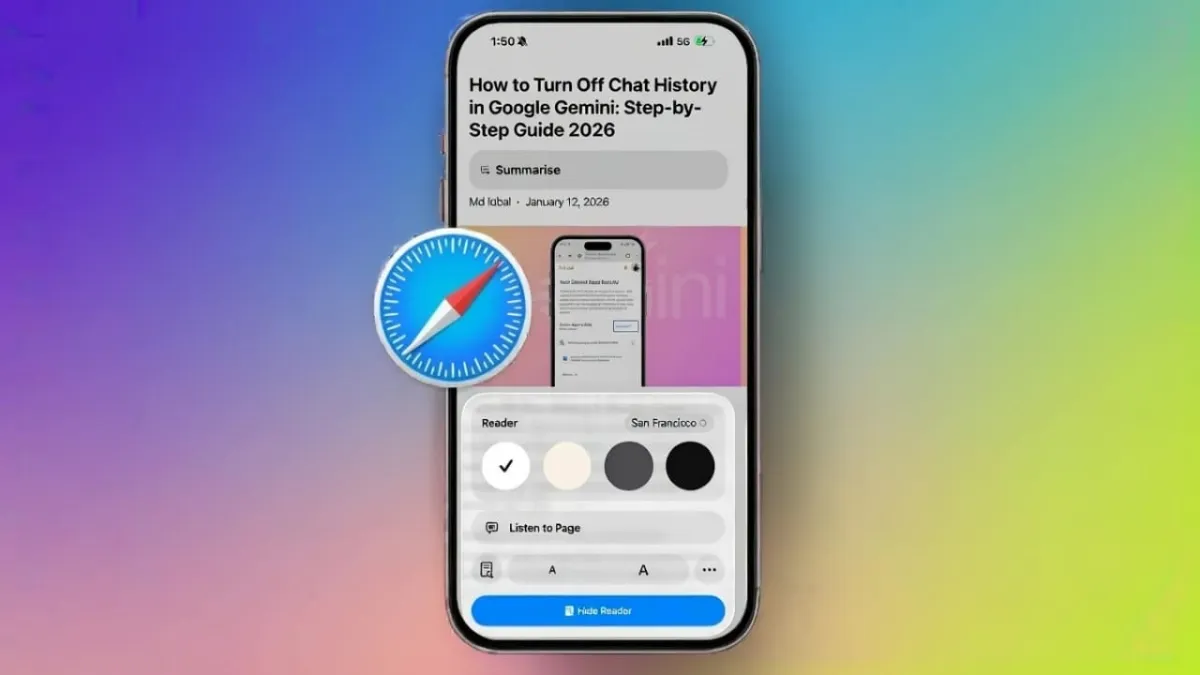
Many websites today are filled with pop-ups, banners, videos, and flashy ads. These distractions can make reading difficult, especially when you want to focus on an article. To solve this problem, Apple’s Safari browser includes a useful feature called Reader Mode.
Advertisements
Reader Mode removes unnecessary clutter from a webpage and presents only the main text and images in a clean layout. This makes reading smoother, more comfortable, and less tiring for your eyes.
Also read: How to Use Google Gemini with WhatsApp for Smart Automatic Replies
Why Use Reader Mode?
Reader Mode is helpful because it:
- Removes ads and pop-ups
- Makes text easier to read
- Reduces visual distractions
- Helps people with weak eyesight
- Improves concentration while reading
It creates a simple and neat reading environment, similar to reading a book or a PDF.
How to Turn On Reader Mode in Safari on iPhone
Follow these simple steps:
- Open Safari on your iPhone.
- Visit any article or blog page you want to read.
- Wait for the webpage to load completely.
Now check the address bar at the top of the screen. If the website supports Reader Mode, you will see a message like “Reader Available.”
Tap on this message, and Safari will instantly switch to Reader Mode. The page will look cleaner, with clear text and fewer distractions.
If You Don’t See ‘Reader Available’
If the message does not appear:
- Tap the AA icon in the address bar.
- Select Show Reader View from the menu.
Safari will then convert the page into Reader Mode.
Note: Some websites do not support Reader Mode, especially pages that rely heavily on scripts, videos, or interactive content. In such cases, the option may not appear.
Using Reader Mode on iPhone and iPad
The steps are exactly the same on both iPhone and iPad. You will see the Reader Mode icon (which looks like stacked lines) near the address bar.
Once enabled, Reader Mode provides a calm reading experience with clear formatting and better contrast.
How to Customize Reader Mode in Safari
Safari lets you adjust Reader Mode to match your reading preferences.
While in Reader Mode, tap the AA icon again. You can now:
- Increase or decrease text size
- Change the font style
- Change background color
Available background options:
- White – best for bright rooms
- Sepia – warm and easy on the eyes
- Gray – balanced and comfortable
- Black – perfect for night reading
If your iPhone is in Dark Mode, Safari will automatically match the Reader Mode background to your system theme.
Turn On Reader Mode Automatically
If you like using Reader Mode often:
- Tap the AA icon
- Select Website Settings
- Turn on Use Reader Automatically
From now on, Safari will open that website in Reader Mode by default.
If you ever want to reset everything:
- Tap AA
- Choose Reset to Defaults
This will restore all original settings.
Also read: How to Solve the “Something Went Wrong” Error in Google Gemini
Final Thoughts
Reader Mode in Safari is a simple but powerful tool for better reading on your iPhone. It removes distractions, reduces eye strain, and makes articles easier to understand.
Whether you read casually or spend hours browsing, Reader Mode can greatly improve your experience.

Abhi Rajput, founder of EarnAbhi.in, is a tech lover with 6+ years of experience in SEO, digital tools, and smartphone troubleshooting. He writes simple, clear, and useful guides to help people solve real tech problems.
Advertisements