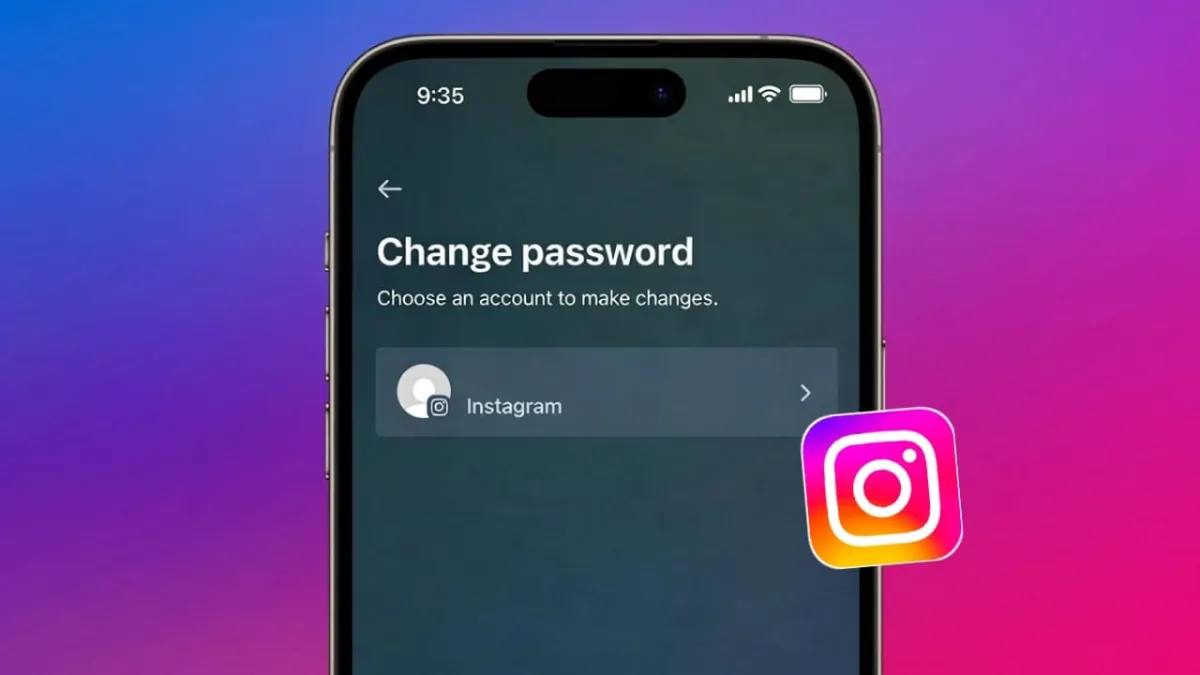
Your Instagram account holds private photos, messages, and personal activity. Keeping it secure is important. If your password feels weak, has been shared before, or you logged in on another device, changing it is a smart move. Instagram allows you to update your password safely using both the mobile app and a web browser.
Advertisements
This article explains the complete process in clear and simple steps, using only Instagram’s official options.
Also read: How to Add Pronouns on Instagram Profile (Easy Step-by-Step Guide)
Why You Should Update Your Instagram Password
People usually decide to change their password when:
- They are not sure who else knows it
- They signed in on a public or shared device
- They notice strange login alerts
- They want better account protection
Updating your password does not remove followers, delete posts, or affect messages.
Change Instagram Password Using the Mobile App
You can easily change your password from the Instagram app on Android or iPhone.
Steps to Follow
- Open the Instagram app
- Tap your profile photo at the bottom
- Open the menu from the top corner
- Go to Settings and privacy
- Open Accounts Center
- Tap Password and security
- Choose Change password
- Enter your current password
- Create and confirm a new password
- Save the changes
Your new password will start working right away.
Change Instagram Password on a Computer (PC or Laptop)
If you prefer using a desktop or laptop, you can change your password through Instagram’s website.
Steps to Follow
- Open a web browser and visit Instagram
- Log in to your account
- Click your profile icon or menu
- Open Settings
- Go to Accounts Center
- Select Password and security
- Click Change password
- Enter your old password
- Set a new password
- Save the update
This method works on both Windows and macOS devices.
What to Do If You Forgot Your Instagram Password
If you don’t remember your current password, you can reset it safely.
Password Reset Process
- Open the Instagram login screen
- Tap Forgot password
- Enter your username, email, or phone number
- Open the reset link sent by Instagram
- Create a new password
This is Instagram’s official recovery system.
Tips to Create a Strong Instagram Password
- Combine letters, numbers, and special symbols
- Avoid names, birthdays, or common words
- Do not reuse old passwords
- Turn on two-step verification for extra safety
A strong password helps block unauthorized access.
What Happens After Changing Your Password
- All your posts, followers, and chats stay the same
- You may be signed out from other devices
- Instagram may send a security alert
These actions are normal and help protect your account.
Also read: How to Check Which Email Is Connected to Your Instagram Account
Final Words
Changing your Instagram password is simple and takes only a few minutes. Whether you use a phone or a computer, Instagram provides safe and official ways to update or reset your password. Keeping your login details strong and updated is one of the easiest ways to protect your account and personal information.

Abhi Rajput, founder of EarnAbhi.in, is a tech lover with 6+ years of experience in SEO, digital tools, and smartphone troubleshooting. He writes simple, clear, and useful guides to help people solve real tech problems.
Advertisements