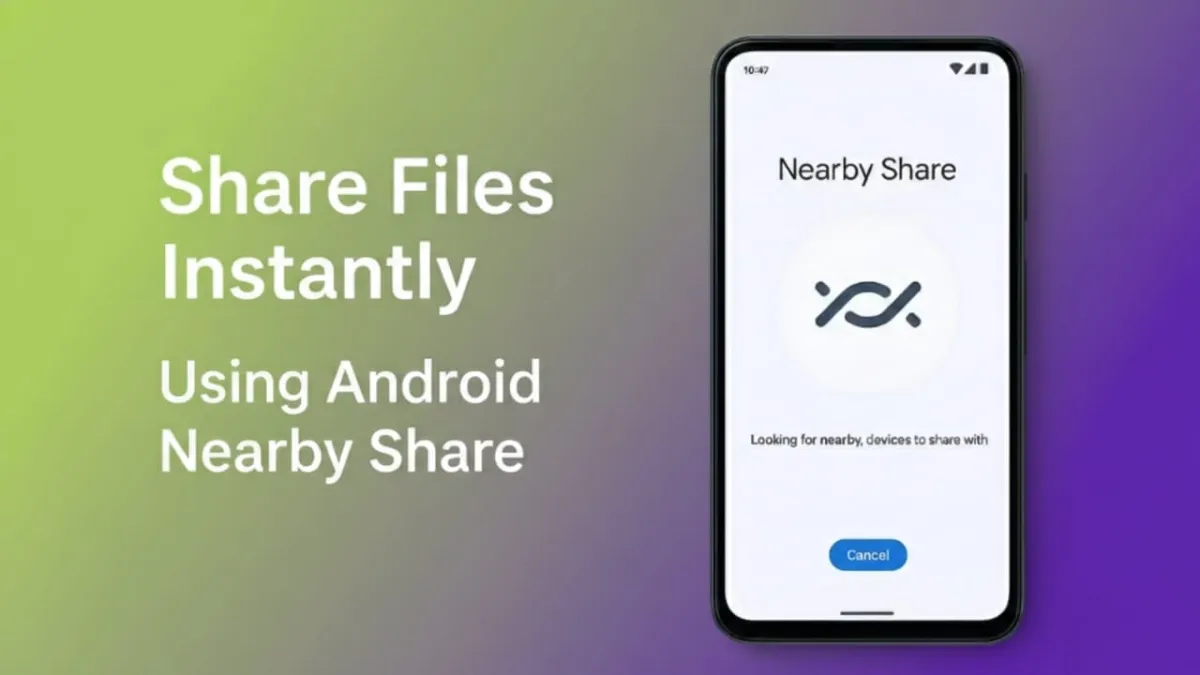
Sharing files between Android phones no longer needs the internet or extra apps. Android’s Nearby Share is a built-in feature that lets you send files instantly, even when mobile data or Wi-Fi is unavailable. It works offline, keeps the original quality, and finishes transfers in seconds.
Many people still rely on messaging apps to send photos or videos, only to find the quality reduced. Nearby Share fixes that problem. Files move directly from one phone to another, without compression or delay.
Below is a simple, beginner-friendly explanation of how it works and how to use it.
Also read: How to Use Copilot in Excel for Automatic Calculations (Easy Guide)
What Nearby Share Does
Nearby Share allows Android devices close to each other to exchange files directly. It uses smart connectivity methods to find nearby phones and transfer data quickly.
Because the transfer happens phone-to-phone, there is no quality loss and no internet usage. Your files stay private and move securely between devices.
You can share:
- Photos and videos
- Documents and PDFs
- Audio files
- Apps and APKs
- Links and contacts
- Entire folders
Why Nearby Share Is a Better Option
Nearby Share is more convenient than most traditional sharing methods. Here’s why many users prefer it:
- Works without mobile data or Wi-Fi internet
- Sends files at high speed
- Keeps original file quality
- No cables or pairing needed
- Already available on modern Android phones
- Also works with Windows using Quick Share
It’s Android’s simplest solution for quick file transfers.
How to Enable Nearby Share
Nearby Share is usually turned on by default, but it’s good to check once.
Steps:
- Open Settings
- Go to Google
- Tap Devices & Sharing
- Select Nearby Share
- Turn it on
You can also enable it directly from the quick settings panel by swiping down from the top of your screen.
Choose Who Can See Your Device
You can control when and how others can find your phone.
Visibility options include:
- Everyone
- Contacts only
- Your devices
- Hidden
For quick sharing with someone nearby, selecting Everyone works best. You can switch it back afterward for privacy.
How to Send Files Using Nearby Share
Sending files is very straightforward.
Steps:
- Open the file you want to send
- Tap Share
- Choose Nearby Share
- Wait while your phone searches for nearby devices
- Ask the other person to turn on Nearby Share
- Tap their device name
- They accept the request
- The transfer begins instantly
Photos and videos usually send within seconds.
How to Receive Files
Receiving files is just as simple.
Steps:
- Turn on Nearby Share
- Keep your screen unlocked
- Wait for the sender’s request
- Tap Accept
The file is saved automatically in the correct folder on your phone.
Share Files Between Android and Windows
Nearby Share also works with Windows through Quick Share, making phone-to-laptop transfers easy.
Basic steps:
- Install Quick Share on your Windows computer
- Sign in using your Google account
- Turn on Bluetooth and Wi-Fi
- Select the file on your phone
- Share it to your Windows device
This allows smooth file sharing across platforms.
Tips for Faster Transfers
For the best speed, keep these points in mind:
- Keep both devices close
- Make sure Bluetooth and Wi-Fi are on
- Turn off mobile hotspot if enabled
- Set visibility to Everyone during sharing
- Keep the screen on until the transfer finishes
These small steps help ensure maximum transfer speed.
Also read: How to Back Up Your iPhone Without iCloud – Simple and Practical Guide
Final Words
Nearby Share is one of the most practical features on Android. It saves time, keeps files in full quality, and removes the need for extra apps or internet access. Once you start using it, sending files through slow or compressed methods won’t feel necessary anymore.
Try it once, and you’ll see how simple and reliable offline file sharing can be.

Abhi Rajput, founder of EarnAbhi.in, is a tech lover with 6+ years of experience in SEO, digital tools, and smartphone troubleshooting. He writes simple, clear, and useful guides to help people solve real tech problems.