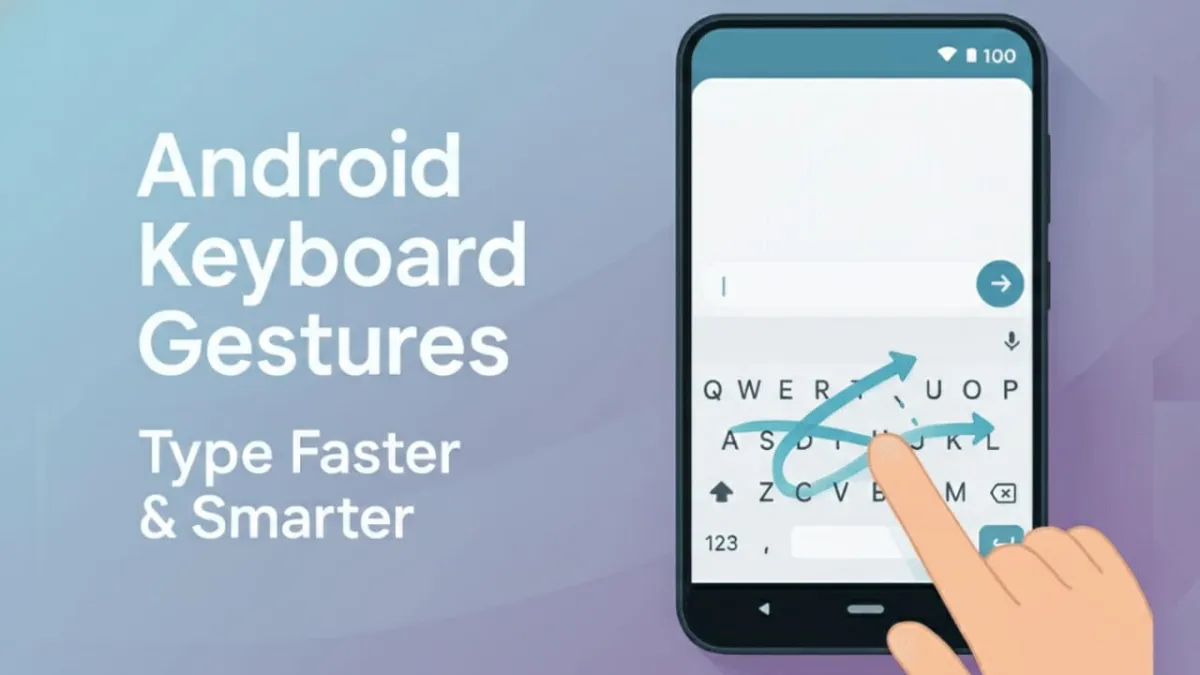
Typing on a phone can feel slow and frustrating, especially when you make mistakes or need to edit text again and again. The good news is that Android keyboards already include smart gesture shortcuts that can save time and effort. You don’t need to install anything extra or learn complex tricks.
Advertisements
Many users never notice these features, but once you start using them, typing becomes smoother, quicker, and less tiring.
Below is a clear and easy guide to help you use Android keyboard gestures the right way.
Also read: How to Use Split Screen and Floating Window on Android for Better Multitasking
1. Turn On Gesture (Swipe) Typing
Most Android phones come with Google’s keyboard, and swipe typing is often already active. If it’s not, you can enable it in a few steps:
- Open Settings
- Go to System
- Tap Languages & input
- Select On-screen keyboard
- Choose Gboard
- Open Glide typing
- Switch on Enable glide typing
After this, you can type by sliding your finger instead of tapping each letter.
2. Type Words by Swiping, Not Tapping
With gesture typing, you don’t need to press every key separately. Just move your finger across the letters of a word.
For example, to type hello, slide your finger smoothly across H, E, L, L, and O without lifting it.
This method is much faster, especially for long messages or when using one hand. Try to keep your movement natural and relaxed.
3. Move the Cursor Using the Space Bar
Placing the cursor exactly where you want can be annoying if you tap the screen again and again.
Here’s a better way:
- Touch and hold the space bar
- Slide your finger left or right
The cursor will move with your finger, making text editing simple and accurate.
4. Delete Words Quickly with a Swipe
If you’ve typed something wrong, you don’t need to press backspace repeatedly.
- Place your finger on the delete key
- Swipe left slowly
- The keyboard will select text
- Lift your finger to erase it
This helps remove full words or sentences in seconds.
5. Make Capital Letters Faster
Instead of tapping the shift key every time:
- Swipe up on any letter to type it in capital
This is especially useful for names, titles, or short uppercase words.
6. Access Symbols Without Changing the Keyboard
Switching between letter and symbol layouts can slow you down.
A quicker option:
- Long press on certain letters
- A symbol will appear (for example, holding S may show $)
This is handy when typing passwords, prices, or professional messages.
7. Change Languages by Swiping the Space Bar
If you type in more than one language:
- Swipe left or right on the space bar
- The keyboard will switch languages instantly
No need to tap extra icons every time.
8. Use Voice Typing When Typing Feels Hard
While not a gesture, voice typing can save time:
- Tap the microphone icon
- Speak clearly
- Your words appear as text
This works well for long notes or messages when your hands are busy.
Also read: How to Share Files on Android Using Nearby Share — Fast, Offline, and Easy
Final Words
Android keyboard gestures are built to make typing easier, not complicated. Once you practice these shortcuts for a day or two, they start to feel natural. You’ll type faster, make fewer mistakes, and spend less time fixing text.
Use these features regularly, and normal typing will feel slow in comparison.

Abhi Rajput, founder of EarnAbhi.in, is a tech lover with 6+ years of experience in SEO, digital tools, and smartphone troubleshooting. He writes simple, clear, and useful guides to help people solve real tech problems.
Advertisements