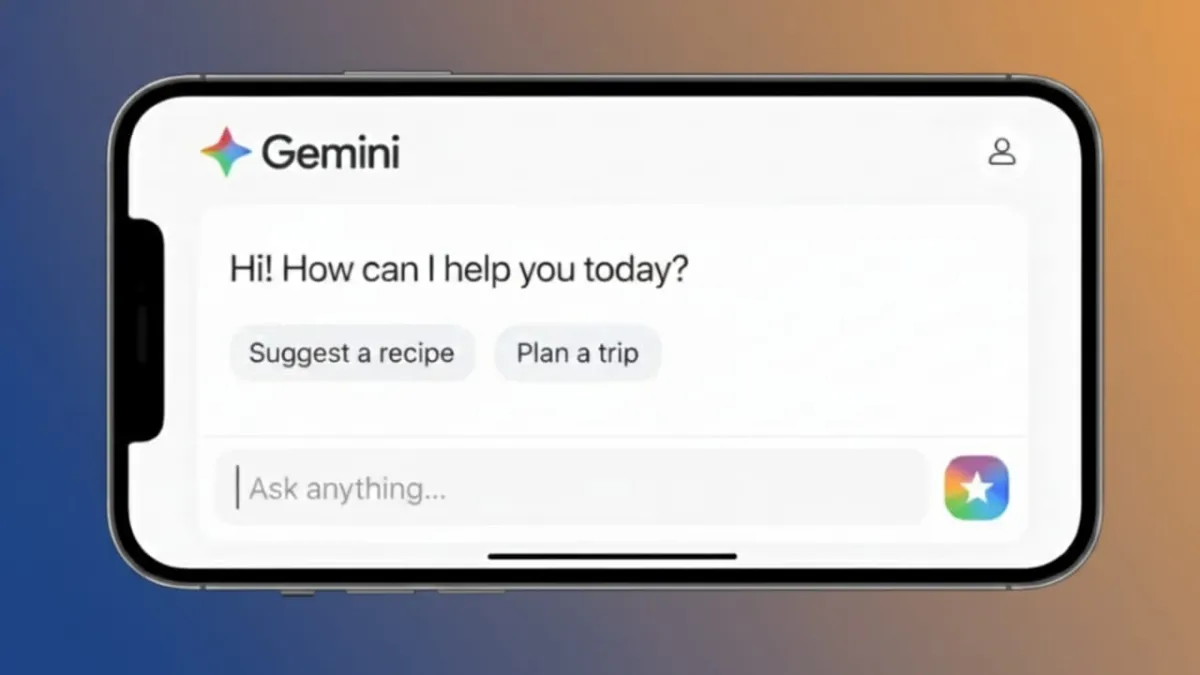
Artificial intelligence is no longer something only experts use. Today, AI tools are helping people with daily tasks like writing, learning, and planning. One such tool is Google Gemini. If you are new to it and feel unsure where to begin, this guide will explain everything in a clear and simple way.
Advertisements
You don’t need any special knowledge or technical background. With a Google account and a few minutes, you can start using Gemini right away.
Also read: How to Quiet a WhatsApp Chat Without Blocking Anyone
What Is Google Gemini?
Google Gemini is an AI-powered assistant created by Google. It is designed to help with many everyday tasks. You can ask questions, get explanations, write content, summarize long text, generate ideas, and even get basic help with coding.
It runs online and works smoothly inside your web browser. Gemini is also connected with several Google tools, which makes it easy to use if you already rely on Google services.
How to Open Google Gemini
Getting access is quick and straightforward.
On a Computer
- Open any web browser.
- Go to the official Google Gemini page.
- Log in using your Google account.
- Type your question or request in the chat box.
On a Mobile Phone
- Open your browser or the Gemini app, if it is available in your area.
- Sign in with your Google account.
- Tap on the message field and enter your query.
That’s it. You are ready to start using Gemini.
Starting Your First Conversation
After signing in, you will see a clean and simple chat screen.
- Write your question or task in clear words.
- Tap send or press enter.
- Wait a moment for the response.
You can try simple requests like:
- Explain online marketing in easy language
- Write a short email for a customer
- Summarize this text
Clear questions usually lead to better answers.
How to Ask Better Questions
Many beginners feel disappointed with the results because their instructions are too vague. A little detail can make a big difference.
Here are a few easy tips:
- Be clear and detailed.
Instead of saying “write an article,” try “write a 500-word article about healthy habits for college students.” - Give some background.
Mention who the content is for or why you need it. - Ask for a structure.
You can request bullet points, short paragraphs, or step-by-step instructions.
Better instructions help Gemini understand exactly what you want.
What You Can Do With Google Gemini
Gemini can help in many useful ways, such as:
- Writing Content
Create blog ideas, outlines, or full drafts. - Studying and Learning
Break down complex topics into simple explanations. - Email Drafting
Write clear and professional emails in less time. - Research Help
Turn long articles into short summaries. - Idea Generation
Get ideas for social media posts, videos, or business names.
Improving the Answers You Get
If the first reply isn’t quite right, you don’t need to start over.
You can:
- Ask for a simpler version.
- Request more explanation or details.
- Ask for examples.
- Change the tone, such as formal or casual.
You can keep chatting and refining the response until it fits your needs.
Important Things to Remember
- Always read and review the output before using it.
- Avoid sharing personal or sensitive information.
- Use Gemini as a helpful tool, not as a final decision-maker.
- Clear guidance leads to better results.
Also read: How to Use Notion AI for Note-Taking: A Simple, Practical Guide
Final Thoughts
Using Google Gemini becomes easy once you understand the basics. Log in, ask clear questions, and adjust the answers when needed. Whether you are a student, writer, or working professional, this tool can help you save time and work more efficiently.
Start with simple tasks, then slowly explore what else it can do. With practice, you’ll get better results and more value from it.

Abhi Rajput, founder of EarnAbhi.in, is a tech lover with 6+ years of experience in SEO, digital tools, and smartphone troubleshooting. He writes simple, clear, and useful guides to help people solve real tech problems.
Advertisements