Receiving frequent WhatsApp calls from the same person can sometimes become distracting. However, blocking them is not always the best choice. You might still want to read their messages later or keep communication open without creating unnecessary tension.
Advertisements
The good news is that WhatsApp and your phone already include simple settings that help reduce or silence these calls. You do not need any third-party apps or risky tricks. Below are a few practical methods that work on both Android and iPhone.
Also read: How to Export a WhatsApp Chat as a File (With or Without Media)
1. Use WhatsApp’s Built-In Call Silencing Option
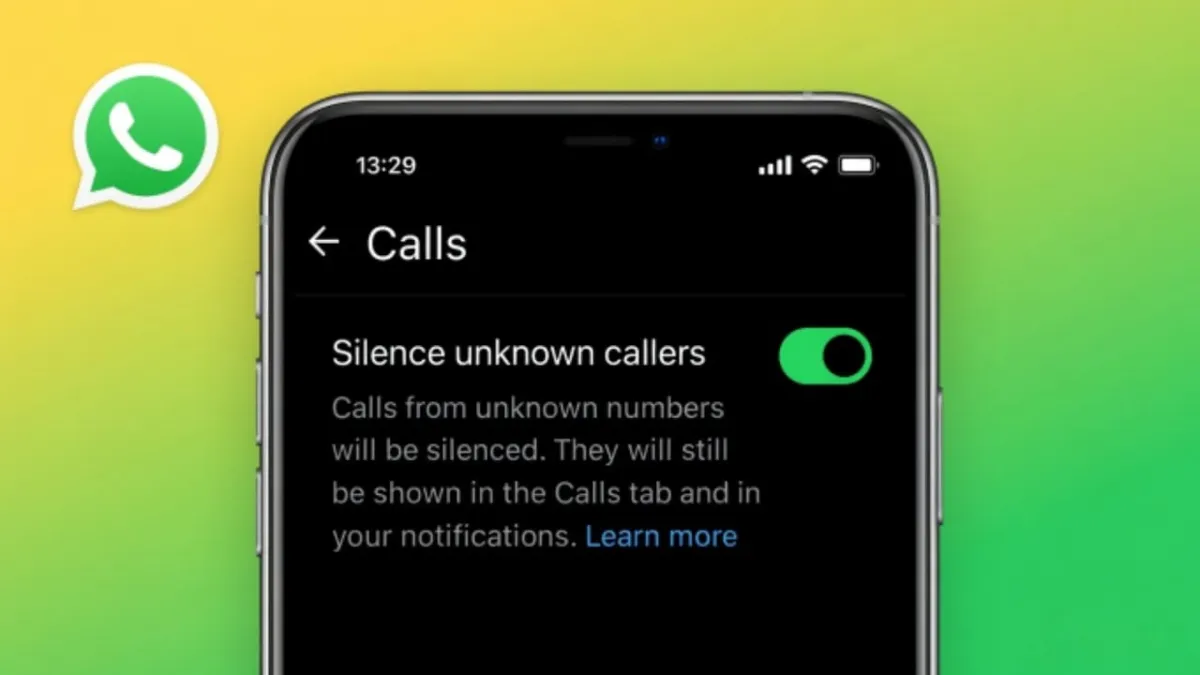
WhatsApp includes a feature that helps reduce disturbances from unknown callers.
How This Feature Works
When enabled, calls from numbers that are not saved in your contacts will not ring on your phone. Instead, the call appears silently in your notifications and inside the Calls tab. You can check it later without being interrupted.
Steps to Turn It On
- Open WhatsApp.
- Tap Settings.
- Select Privacy.
- Tap Calls.
- Turn on Silence Unknown Callers.
This option is helpful when someone who is not in your contact list keeps calling you.
2. Mute Notifications for a Specific Contact
If the person is already saved in your contacts, you can reduce interruptions by adjusting their notification settings.
On Android
- Open WhatsApp and enter the chat with that contact.
- Tap the contact’s name at the top of the screen.
- Go to Notifications.
- Change the call alert to Silent or disable it.
On iPhone
iOS does not offer a direct setting inside WhatsApp to mute calls from one specific contact. However, you can manage interruptions using system features like Focus modes.
3. Use Focus Mode or Do Not Disturb
Both Android and iPhone allow you to control when notifications and calls can reach you.
A Simple Way to Use It
- Create a Focus or Do Not Disturb schedule.
- Allow calls only from selected contacts.
- Keep WhatsApp call alerts muted during that time.
This works well during work hours, study time, or while sleeping when you want fewer interruptions.
4. Turn Off WhatsApp Call Notifications
If you rarely use WhatsApp for calling, you can disable call notifications completely while still receiving messages.
Steps
- Open your phone’s Settings.
- Go to Apps or App Management.
- Select WhatsApp.
- Tap Notifications.
- Disable Call Notifications.
Your messages will continue to arrive normally, but WhatsApp calls will no longer disturb you.
5. Lower the WhatsApp Call Volume
Another simple trick is adjusting the call volume.
When a WhatsApp call comes in, press the volume down button. Your phone will remember this lower level for future calls. This makes incoming calls much quieter without affecting message alerts.
Things You Should Avoid
To keep your account safe and secure, avoid these practices:
- Installing unofficial apps that promise to control WhatsApp calls
- Modifying WhatsApp files or using unofficial versions
- Trying methods that could risk your privacy or account security
Using only official phone and app settings is the safest option.
Also read: WhatsApp Spoiler Messages Feature: What It Is and How It May Work
Final Thoughts
You do not need to block someone just to stop frequent WhatsApp calls. By adjusting a few built-in settings, you can reduce interruptions while still receiving messages when needed. Features like silent calls, notification controls, and Focus modes help you manage communication in a simple and stress-free way.

Abhi Rajput, founder of EarnAbhi.in, is a tech lover with 6+ years of experience in SEO, digital tools, and smartphone troubleshooting. He writes simple, clear, and useful guides to help people solve real tech problems.
Advertisements