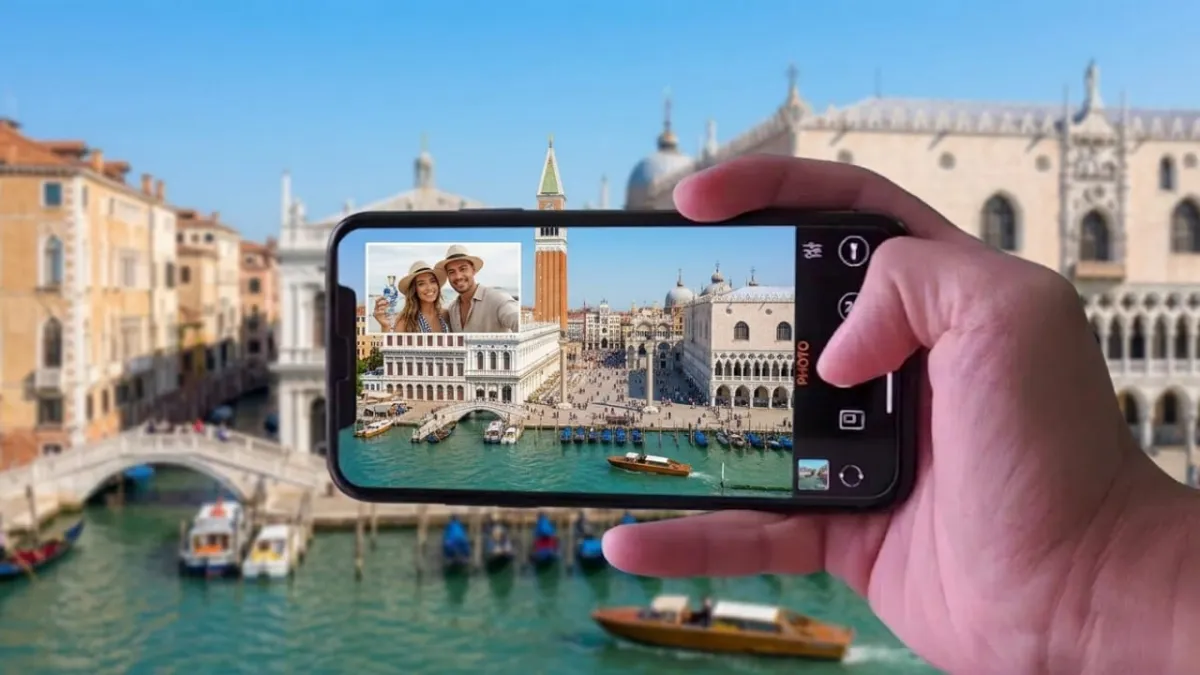
Want to capture your reaction and what’s happening in front of you at the same time? You don’t need to edit two clips later. iPhones now offer simple ways to record using both cameras in one go.
Advertisements
Whether you’re making a vlog, filming an interview, or sharing a live reaction, this guide explains easy methods you can use—both built-in and with apps.
Also read: How to Stop iPhone Calls from Ringing on Your Mac and iPad
Method 1: Use Built-in Dual Capture (iPhone 17 Series)
If you’re using an iPhone 17 model, Apple has added a feature called Dual Capture directly inside the Camera app. This is the quickest way to record with both cameras.
Steps:
- Open the Camera app
- Switch to Video mode
- Tap the three dots in the top corner
- Select Dual Capture
- Press Record to start
- Tap Stop when finished
Your video will be saved as a single file showing both camera views together.
Things to keep in mind:
- Only available on iPhone 17 series
- Limited layout options (no custom split or picture-in-picture styles)
- Doesn’t support higher frame rates like 60fps or 120fps
This option is best if you want something quick and simple without installing anything.
Method 2: Use Third-Party Apps for More Control
If your iPhone doesn’t support Dual Capture or you want more flexibility, third-party apps are a great option.
Recommended App: Dualgram
Dualgram is a free app that gives you more control over how your video looks and sounds.
How to use it:
- Download Dualgram from the App Store
- Open the app and allow camera and microphone access
- Choose your layout and settings
- Tap Record
- Tap Stop to save
What makes it useful:
- Multiple layout styles
- Option to choose audio source
- Zoom controls
- Can take photos while recording
It creates a single combined video that’s ready to share or edit.
Other Apps You Can Try
- 2Camera Dual Camera Front Back
Offers advanced controls and more layout customization - MixCam
Easy to use with extra features like motion effects and fun overlays
Each app has different features, so pick one based on how much control you need.
Also read: How to Stop iMessage From Syncing Across Apple Devices (Easy Guide)
Method 3: Use Dual Camera in Social Media Apps
Some social media apps already support recording with both cameras. This is a good option if you mainly create content for these platforms.
On Instagram:
- Open Instagram
- Go to Story or Reels
- Tap the arrow icon on the screen
- Select Dual mode
- Record your video
The clip will be saved in your drafts or posted directly.
On Snapchat:
- Open Snapchat
- Tap Dual Camera option
- Choose a layout (horizontal, vertical, or picture-in-picture)
- Press and hold the capture button
You can share it instantly or save it for later.
Tips for Better Dual-Camera Videos
To get the best results, keep these simple tips in mind:
- Frame your shot properly
The rear camera usually shows the main scene, so set that first - Use good lighting
Both cameras need enough light for clear video - Keep your phone steady
Use a tripod or stable surface to avoid shaky footage - Check storage space
Dual recording takes more space, so make sure you have enough free storage - Improve audio quality
An external microphone can help in noisy environments - Use it creatively
Great for reactions, product reviews, travel videos, and storytelling
Also read: iMessage vs SMS: What’s the Real Difference on iPhone?
Final Thoughts
Recording with both front and back cameras on an iPhone is easier than it seems. If you have an iPhone 17, the built-in feature is the fastest way to get started. For older models or more control, apps like Dualgram or MixCam work well.
This feature opens up new ways to create engaging content—once you try it, you’ll likely start using it more often in your videos.

Abhi Rajput, founder of EarnAbhi.in, is a tech lover with 6+ years of experience in SEO, digital tools, and smartphone troubleshooting. He writes simple, clear, and useful guides to help people solve real tech problems.
Advertisements