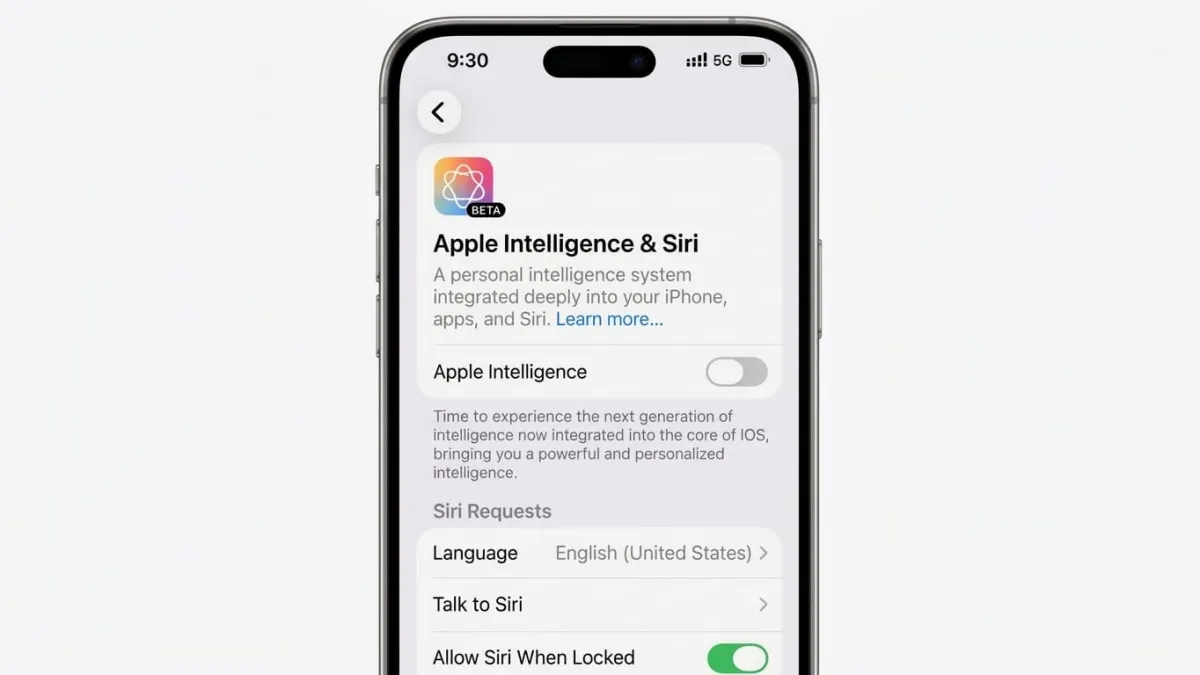
Apple has added smart AI features to its devices under the name Apple Intelligence. These tools can help with writing, summarizing text, and giving suggestions. However, not everyone finds them useful. If you prefer a more simple and distraction-free experience, you can easily disable these features.
This guide explains how to turn off Apple Intelligence fully or adjust only certain features.
Advertisements
Also read: Google Introduces Option to Change Gmail Username
What Changes When You Disable It?
Before switching it off, here’s what you should know:
- AI-based suggestions will stop appearing
- Automatic summaries and smart replies will be disabled
- Your apps will continue to work as usual
- Your personal data will remain safe and unchanged
In short, only the AI assistance is removed. Your device will function normally.
Steps to Disable Apple Intelligence on iPhone and iPad
Follow these simple steps:
1. Open Settings
Go to the Settings app on your device.
2. Find AI Settings
Scroll down and tap Apple Intelligence & Siri (the name may vary slightly depending on your device).
3. Turn It Off
Switch off the main toggle to disable all Apple Intelligence features.
Turn Off Specific Features (Optional)
If you don’t want to disable everything, you can turn off only selected options:
- Writing Tools – Disable AI writing assistance
- Notification Summaries – Stop automatic summaries of alerts
- Smart Replies – Turn off suggested replies in Messages or Mail
This lets you customize your experience based on your needs.
Also read: ElevenLabs Steps Into AI Music With a New Song Creation App
How to Disable Apple Intelligence on Mac
Here’s how you can do it on a Mac:
1. Open System Settings
Click the Apple menu and select System Settings
2. Go to AI Settings
Look for the section related to Apple Intelligence or Siri
3. Turn Off Features
Disable the main toggle or turn off individual options like suggestions and summaries
Why Some People Turn It Off
Many users choose to disable these features for different reasons:
- Fewer distractions while using apps
- Better focus without constant suggestions
- Reduced background activity
- More control over device behavior
- Cleaner and simpler interface
AI tools can be helpful, but they are not necessary for everyone.
Can You Enable It Again?
Yes, you can turn Apple Intelligence back on anytime. Just go to the same settings and enable the feature again.
Also read: Google Vids Update: Free AI Video Creation Now Available for Everyone
Final Thoughts
Apple Intelligence is designed to make tasks easier, but it’s optional. If you prefer a straightforward and controlled experience, disabling it is a good choice.
The process is quick, safe, and fully reversible. You can always adjust the settings later based on what works best for you.

Abhi Rajput, founder of EarnAbhi.in, is a tech lover with 6+ years of experience in SEO, digital tools, and smartphone troubleshooting. He writes simple, clear, and useful guides to help people solve real tech problems.