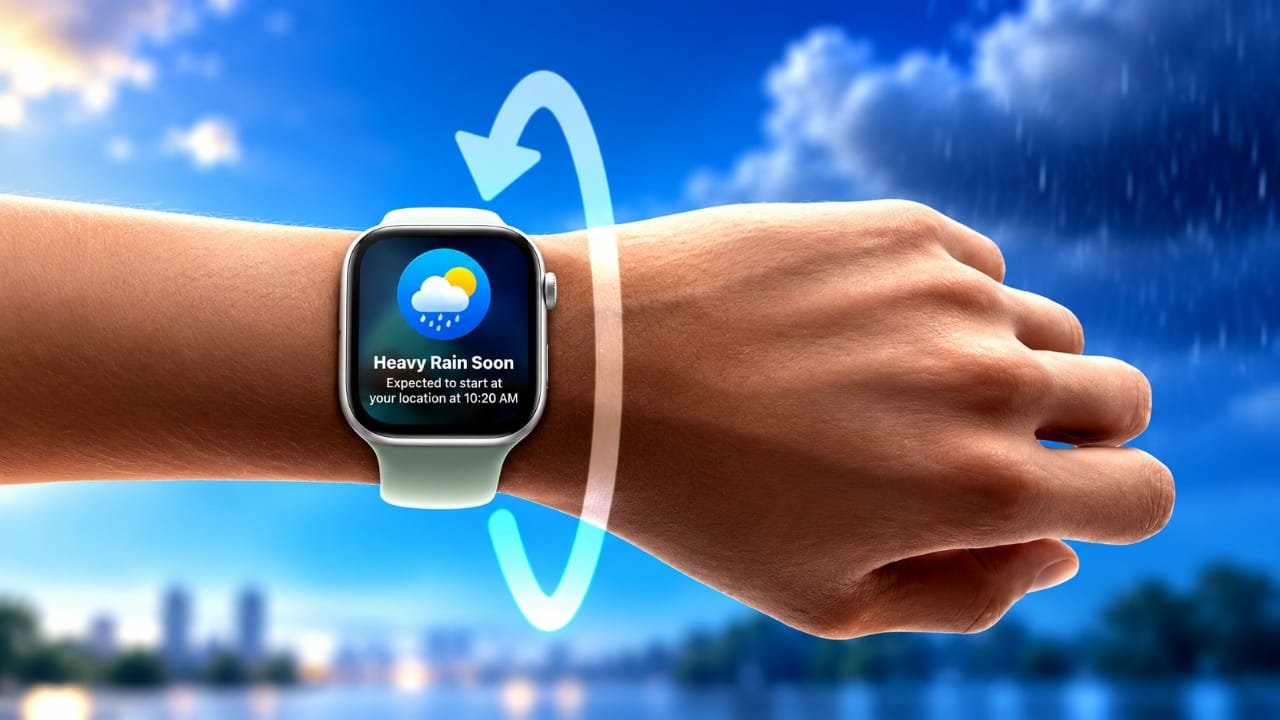
Apple Watch makes it easy to check messages, calls, and reminders throughout the day. However, there are times when you may not want to touch the screen just to dismiss an alert.
The Wrist Flick gesture offers a simple solution. With a quick movement of your wrist, you can dismiss supported notifications, silence incoming calls, and manage certain alerts without using your other hand.
Advertisements
Introduced with watchOS 26, this feature is especially helpful when you’re exercising, cooking, carrying something, or doing an activity that keeps your hands busy.
Here’s how Wrist Flick works, how to turn it on, and what you should know before using it.
Also read: Shared Albums Not Working on iPhone? 8 Ways to Fix the Problem
What Is Wrist Flick on Apple Watch?
Wrist Flick is a gesture-based feature that allows you to dismiss certain alerts by moving your wrist.
Instead of tapping the screen or pressing a button, you quickly rotate your wrist away from your body and then bring it back.
Your Apple Watch uses its built-in motion sensors to recognize this movement and perform the supported action.
For example, imagine you’re walking with shopping bags and receive a notification. Rather than stopping to interact with the display, you can use Wrist Flick to clear the alert from view.
The feature is designed to make everyday interactions quicker and more convenient.
What Can You Do With Wrist Flick?
Wrist Flick supports several useful actions on compatible Apple Watch models.
1. Dismiss Notifications
When a message, reminder, or another supported notification appears, you can use the gesture to remove it from the screen.
This is useful when you have already seen an alert and don’t need to interact with it immediately.
2. Silence Incoming Calls
If your Apple Watch starts ringing at an inconvenient moment, Wrist Flick can help silence the incoming call.
Keep in mind that silencing a call is different from answering it. The gesture does not automatically connect the call.
3. Dismiss Timer Alerts
Timers are useful when cooking, exercising, or managing daily activities.
When a supported timer alert appears, Wrist Flick provides a convenient way to dismiss it without touching the watch.
4. Manage Alarm Alerts
The gesture can also help dismiss supported alarm alerts.
However, its behavior may depend on the alert and available watch controls.
5. Return to the Watch Face
Wrist Flick can return you to the watch face from certain screens or alert views.
This makes it easier to get back to the main display without additional taps.
Important: Wrist Flick does not replace every touchscreen function. Its actions depend on what is currently displayed on your Apple Watch.
Which Apple Watch Models Support Wrist Flick?
Wrist Flick was introduced with watchOS 26 and requires compatible Apple Watch hardware.
The models Apple originally identified as supporting the feature include:
- Apple Watch Series 9
- Apple Watch Series 10
- Apple Watch Ultra 2
Newer compatible models may also support the gesture.
The Apple Watch SE (3rd generation) is another model to check against Apple’s current compatibility information.
If you own an older Apple Watch, the gesture may not be available even if your device supports other accessibility or motion-based controls.
For the most accurate compatibility information, check Apple’s official documentation or look for the Wrist Flick option in your watch settings.
How to Enable Wrist Flick on Apple Watch
Wrist Flick is normally enabled by default on supported models.
However, if the gesture is not responding, you can check whether the feature is switched on.
Follow these steps:
- Press the Digital Crown to access your Apple Watch apps.
- Open Settings.
- Scroll down and select Gestures.
- Find the Wrist Flick option.
- Turn on the feature if it is disabled.
Once enabled, you can start using the gesture whenever a supported notification or alert appears.
If you prefer not to use Wrist Flick, return to the same menu and switch it off.
How to Perform the Wrist Flick Gesture
Using Wrist Flick is straightforward, although you may need a few attempts to become comfortable with the movement.
Step 1: Wait for an Alert
Raise your wrist when a notification, call, or supported alert appears on your Apple Watch.
Step 2: Rotate Your Wrist Away
Make a quick outward wrist movement, turning the watch away from your body.
Step 3: Bring Your Wrist Back
Immediately rotate your wrist back toward its normal viewing position.
The movement should feel like a quick outward-and-back flick.
Step 4: Check the Result
If your Apple Watch recognizes the gesture, it will perform the supported action, such as dismissing the notification.
You don’t need to shake your entire arm or make a large movement.
A short, controlled wrist motion is usually sufficient.
What to Do if Wrist Flick Is Not Working
If Wrist Flick does not respond, there are several things worth checking.
Check the Gesture Setting
Open Settings, go to Gestures, and confirm that Wrist Flick is enabled.
Make Sure Your Watch Is Compatible
Not every Apple Watch supports the feature.
If you cannot find Wrist Flick in the settings, check your model and software compatibility.
Wear Your Apple Watch Properly
Your watch should sit comfortably and securely on your wrist.
A loose fit may make certain wrist-based interactions less reliable.
Try a More Distinct Movement
If the gesture isn’t recognized, try rotating your wrist slightly faster while keeping the movement natural.
Avoid exaggerated movements.
Update Your Watch Software
Open the Watch app on your iPhone and navigate to:
General → Software Update
Install an available compatible update if needed.
Restart Your Apple Watch
A restart can sometimes resolve temporary software issues.
If the problem continues, review Apple’s support instructions for your specific watch model.
Wrist Flick vs. Double Tap: What’s the Difference?
Apple Watch offers different gestures for controlling features without relying entirely on the touchscreen.
Two useful options are Wrist Flick and Double Tap.
| Feature | Wrist Flick | Double Tap |
|---|---|---|
| How it works | Rotate your wrist outward and back | Tap your index finger and thumb together twice |
| Main purpose | Dismiss supported alerts | Perform supported primary actions |
| Notifications | Dismiss supported notifications | Interact with supported notification actions |
| Calls | Silence supported incoming call alerts | Answer or end calls in supported situations |
| Smart Stack | Not its primary function | Navigate supported widgets |
| Screen touch needed | No | No |
Wrist Flick is mainly useful when you want to clear an interruption.
Double Tap is designed for situations where you want to interact with something, such as answering a call or performing an available action.
Both gestures can make Apple Watch easier to operate when your other hand is occupied.
Another Useful Feature: Cover to Mute
If Wrist Flick isn’t available on your Apple Watch, Cover to Mute may be a useful alternative.
This feature lets you silence certain incoming alerts by covering the watch display with your palm.
To use it:
- Open Settings on your Apple Watch.
- Select Gestures.
- Check whether Cover to Mute is enabled.
- When an alert sounds, place your palm over the display for approximately three seconds.
This can silence supported alerts without navigating through menus.
Unlike Wrist Flick, Cover to Mute requires you to place your other hand over the watch.
When Is Wrist Flick Most Useful?
Wrist Flick can be particularly convenient during everyday activities.
While exercising: You can dismiss an unwanted notification without stopping your workout to interact with the display.
While carrying items: If your other hand is holding bags or other objects, a wrist movement may be easier than tapping the screen.
During household tasks: When you’re cleaning or doing chores, the gesture offers a quick way to handle supported alerts.
While working: You can clear an interruption and return to your watch face with minimal interaction.
When your hands are occupied: Wrist Flick reduces the need to use both hands for simple watch actions.
Although the feature is small, it can make routine interactions feel more convenient.
Does Wrist Flick Delete Notifications?
No. Dismissing a notification using Wrist Flick does not delete the original message, email, or other information stored in its app.
For example, if you dismiss a message notification, the conversation remains available in the Messages app.
However, the notification itself may no longer appear in the same place after being dismissed.
You can open the relevant app whenever you need to review its contents.
Can You Use Wrist Flick on Every Screen?
No. Wrist Flick works only in supported situations.
It is not a universal replacement for scrolling, selecting menu options, or navigating every app.
Its main purpose is to help dismiss alerts and return to the watch face in supported contexts.
For more detailed interactions, you may still need to use the touchscreen, Digital Crown, side button, or another supported gesture.
Frequently Asked Questions
Is Wrist Flick enabled automatically?
Yes. On supported Apple Watch models, Wrist Flick is generally enabled by default. You can check or change its status under Settings → Gestures.
Do I need an internet connection to use Wrist Flick?
No. The gesture is recognized using the watch’s built-in hardware and software. An internet connection is not required simply to perform the movement.
Can Wrist Flick answer phone calls?
No. Wrist Flick is intended to silence supported incoming call alerts rather than answer them. Double Tap provides call-answering functionality on compatible models.
Why can’t I find Wrist Flick in Settings?
Your Apple Watch model or installed software may not support the feature. Check compatibility and available software updates.
Does Wrist Flick work with all notifications?
Not necessarily. The gesture supports specific notification and alert interactions. Its behavior can vary depending on what appears on the display.
Can I turn Wrist Flick off?
Yes. Open Settings → Gestures → Wrist Flick and disable the option.
Also read: How to Clear Keyboard History on iPhone and iPad
Final Thoughts
Wrist Flick is a practical Apple Watch feature for anyone who wants to manage interruptions with less effort.
Instead of reaching for the display whenever a notification appears, you can use a quick wrist movement to dismiss supported alerts or silence certain incoming calls.
The gesture is easy to learn, doesn’t require an internet connection, and can be especially useful when your hands are occupied.
If your Apple Watch supports Wrist Flick, check that it is enabled and practice the movement a few times.
Once you’re familiar with it, handling everyday notifications can become a little quicker and easier.

Abhi Rajput, founder of EarnAbhi.in, is a tech lover with 6+ years of experience in SEO, digital tools, and smartphone troubleshooting. He writes simple, clear, and useful guides to help people solve real tech problems.