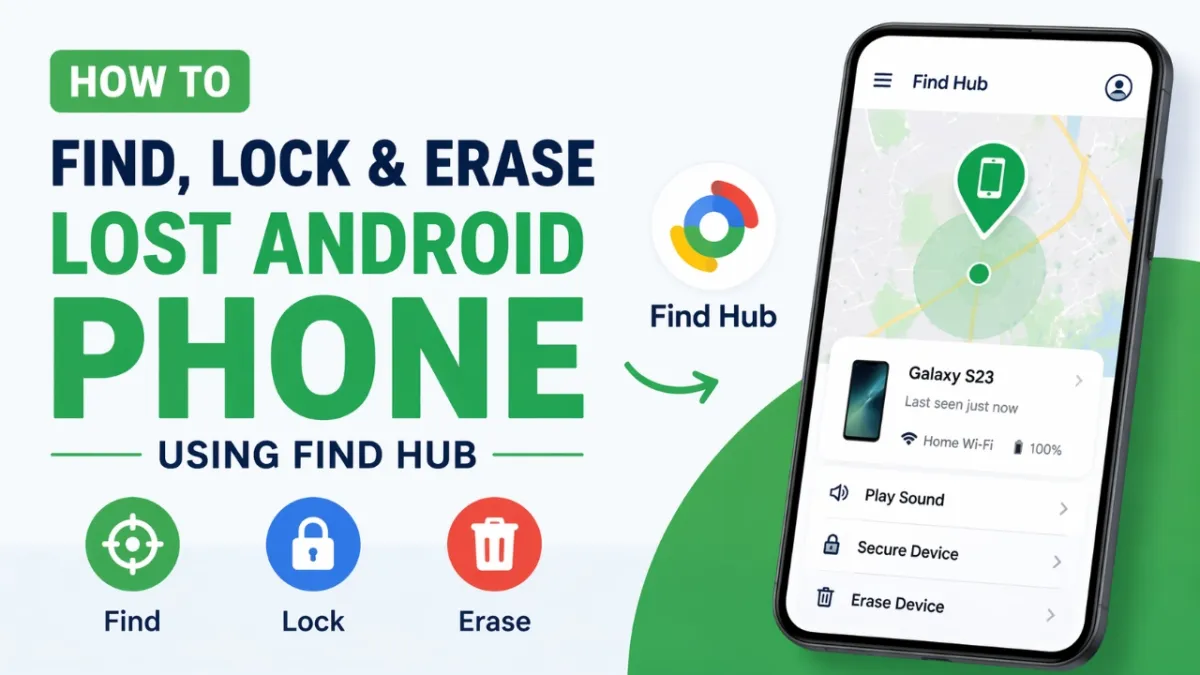
Losing your Android phone can be stressful, especially when it contains your personal photos, chats, and important data. The good news is that Google provides a built-in tool called Find Hub (earlier known as Find My Device) that helps you track, secure, or completely erase your phone from a distance. If your phone is set up properly in advance, you can act quickly and protect your information.
Advertisements
Also read: Microsoft Is Shutting Down Outlook Lite for Android: What You Should Do
What is Find Hub and How It Helps
Find Hub allows you to manage your lost Android phone using another device or a web browser. Whether your phone is misplaced nearby or lost somewhere outside, you can:
- See its location on a map
- Make it ring loudly
- Lock it to block access
- Delete all data if needed
Even when the phone is not connected to the internet, the tool may still show its last recorded location or use nearby Android devices to help detect it.
Steps to Find Your Lost Android Phone
Follow these simple steps to track your phone:
- Open a browser and visit the Find Hub website, or use the app on another Android device.
- Sign in with the same Google account linked to your missing phone.
- Select your device from the list.
- The system will display its current or last known location on the map.
If the phone is close by, you can use the Play Sound option. This will make the phone ring at full volume, even if it is on silent mode.
Some devices also support a Find Nearby feature, which uses Bluetooth or other signals for more accurate tracking.
How to Lock Your Phone Remotely
If you think your phone might be in someone else’s hands, securing it should be your first step:
- Open Find Hub and choose your device.
- Select the Lock or Secure Device option.
- Set a new PIN, password, or pattern.
- Optionally, add a message or phone number on the lock screen.
Once locked, your phone becomes inaccessible to others and helps protect your personal data.
How to Erase All Data from Your Phone
If you are unable to recover your device, you can remove all data permanently:
- Access Find Hub and log in to your account.
- Choose the lost device.
- Click on Erase Device.
- Confirm your action.
This will reset your phone to factory settings and delete everything stored on it. After this step, the phone will no longer appear in Find Hub.
Also read: Google Gemini Introduces “Notebooks” to Simplify Project Organization
Requirements for Find Hub to Work Properly
To use this feature without issues, your phone should meet these conditions:
- It must be powered on
- Connected to the internet (Wi-Fi or mobile data)
- Logged in with your Google account
- Location services must be enabled
- Find Hub should be turned on
If these settings were already active, you can easily track or manage your device when needed.
What If Your Phone Is Offline?
Even if your phone is not connected to the internet, there is still hope. Find Hub can:
- Show its last known location
- In some cases, use nearby Android devices to help locate it
This depends on whether those features were enabled earlier.
Also read: How Google’s Gemini App on Mac Is Transforming Desktop AI
Frequently Asked Questions
1. Can I track my phone if it is offline?
Yes, you can see its last recorded location, and sometimes the system may help locate it using nearby devices.
2. Will tracking work after I erase the phone?
No, once the device is erased, it will no longer be visible in Find Hub.
3. Do I need to install Find Hub separately?
No, it is already available on Android devices when you sign in with a Google account.
By setting up Find Hub in advance, you can avoid panic if your phone goes missing. It gives you control over your device and helps keep your personal information safe.

Abhi Rajput, founder of EarnAbhi.in, is a tech lover with 6+ years of experience in SEO, digital tools, and smartphone troubleshooting. He writes simple, clear, and useful guides to help people solve real tech problems.
Advertisements