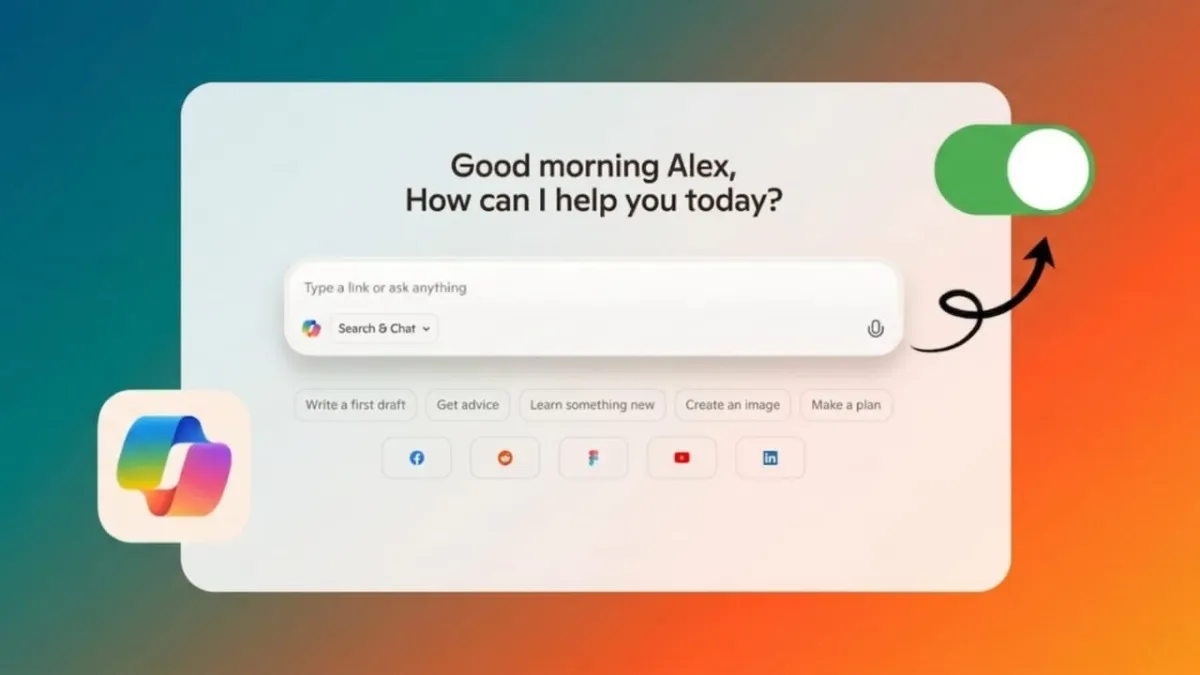
Microsoft Copilot is an AI assistant built into many Microsoft products, including Windows, Edge, Bing, and Office apps. While some people find it useful, others may prefer to turn it off because it feels distracting or raises privacy concerns.
Advertisements
The good news is that you can hide Copilot, reduce its activity, and limit data sharing. In most cases, it cannot be fully removed, but you can control how much it appears and works on your device.
Also read: Google May Bring a Fresh Design Update to the Gemini App on Android
Quick Summary
- Copilot usually cannot be completely removed.
- You can hide it from Microsoft Edge and Windows.
- You can reduce suggestions and personalization features.
- Privacy settings can help limit data collection.
Turn Off Copilot in Microsoft Edge
If Copilot appears in your Edge browser sidebar, you can disable it through settings.
Steps:
- Open Microsoft Edge.
- Click the three-dot menu in the top-right corner.
- Select Settings.
- Choose Sidebar from the left menu.
- Find the Copilot section.
- Turn off the option that shows Copilot.
After this, Copilot should no longer appear in the Edge sidebar.
Reduce AI Search Suggestions in Bing
If you also want fewer AI suggestions while searching, you can change Bing settings.
Steps: Android 17 Beta 4 Now Available for Pixel Devices: Full Update Overview
- Open Bing in your browser.
- Click the menu icon.
- Go to Settings.
- Select More Options.
- Turn off search suggestions.
This can reduce prompts while typing search queries.
Also read:
Hide Copilot in Windows 11
Copilot is connected to Windows 11, so full removal is limited for most users. However, you can hide it from the taskbar.
Steps:
- Open Settings.
- Go to Personalization.
- Select Taskbar.
- Find the Copilot option.
- Turn the toggle off.
Restart your computer after making changes.
Disable Copilot in Microsoft Apps
Some Microsoft apps like Word or Excel may include Copilot tools.
Steps:
- Open Word, Excel, or another Microsoft 365 app.
- Click File.
- Open Options.
- Look for Copilot settings.
- Disable the feature if available.
If you do not see this option, check privacy or connected experiences settings.
Limit Data Collection and Personalization
Copilot may use activity data to improve suggestions. If privacy matters to you, review your account settings.
You Can Do This:
- Turn off personalization features.
- Disable saved memory options.
- Delete previous activity history.
- Disconnect linked services such as OneDrive or Outlook if not needed.
Always review settings carefully before changing them.
Also read: Samsung Galaxy S26 Series Introduces Smarter Audio Control with Audio Eraser
Final Thoughts
Turning off Copilot in Microsoft Edge is simple and can make your browser feel cleaner and less distracting. While full removal may not be possible for everyone, you still have several ways to reduce its presence and control privacy options.
By hiding icons, disabling features, and adjusting settings, you can create a browsing experience that feels more comfortable for you.

Abhi Rajput, founder of EarnAbhi.in, is a tech lover with 6+ years of experience in SEO, digital tools, and smartphone troubleshooting. He writes simple, clear, and useful guides to help people solve real tech problems.
Advertisements