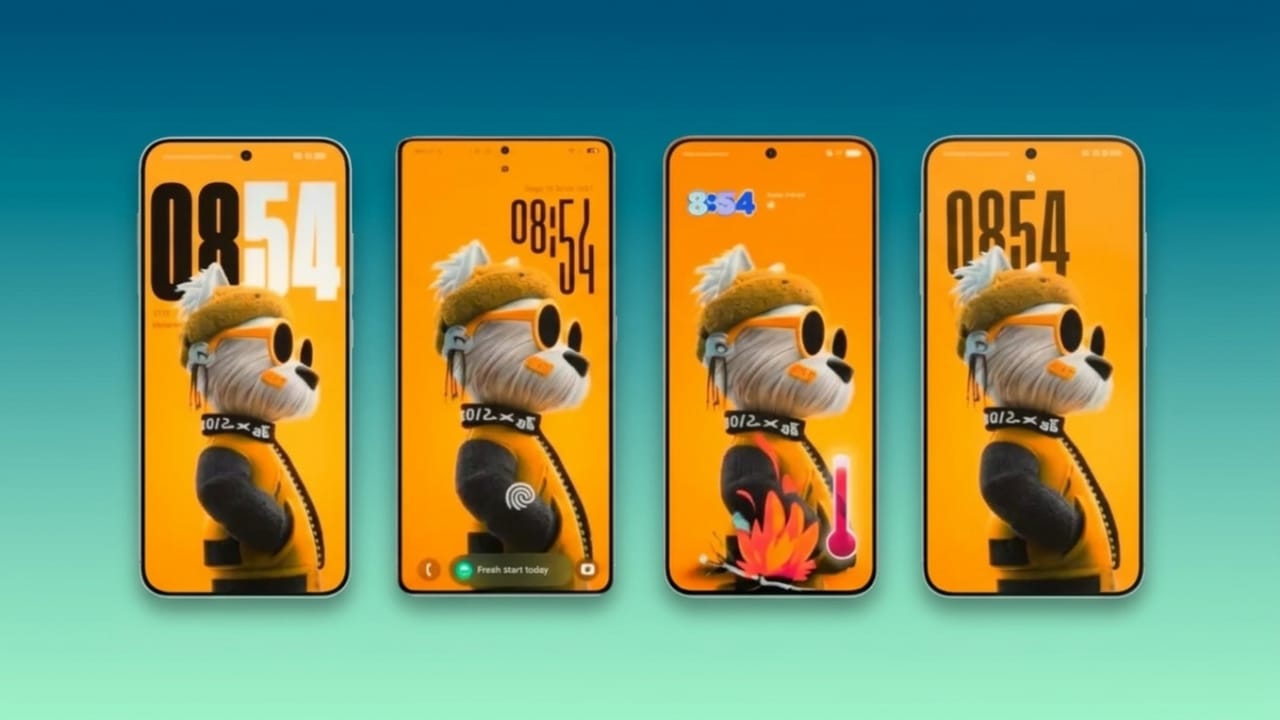
Samsung’s One UI 7 brings more flexibility and customization options than ever before. Whether you want a fresh look or quicker access to important information, the lock screen can be adjusted to match your style and daily needs.
Advertisements
From wallpapers and clocks to widgets and shortcuts, there are many ways to make your Galaxy device feel more personal and convenient.
Also read: Google Messages Introduces Chat Themes and Custom Wallpapers in Beta Update
Why Customize the Lock Screen?
The lock screen is one of the most frequently viewed parts of your phone. Personalizing it can improve both appearance and usability. One UI 7 allows users to add useful information, change visual elements, and create a lock screen that fits their preferences.
Change the Lock Screen Wallpaper
Updating the wallpaper is one of the easiest ways to give your phone a new look.
To get started:
- Open Settings on your Samsung Galaxy phone.
- Tap Wallpapers and Style.
- Select the lock screen preview to begin editing.
You can also press and hold an empty area on the lock screen and enter your password when prompted. This opens the customization screen directly.
One UI 7 includes several wallpaper options, including dynamic effects that add movement and depth. You can choose from Samsung’s built-in wallpapers or select your own photos from the gallery.
Some wallpaper styles also offer automatic design suggestions that match colors, widgets, and clock styles for a more balanced appearance.
Explore Frame and Filter Effects
Samsung includes additional tools that can make wallpapers look more attractive.
- Frame effects can create a layered look that adds depth to photos.
- Portrait images often work best with these effects.
- Different frame styles and color options are available.
- Blur and color filters can improve readability while enhancing the overall design.
These features make it easy to create a lock screen that looks unique without requiring any advanced editing skills.
Customize the Clock
The clock is usually the main element on the lock screen, and Samsung offers plenty of ways to personalize it.
To edit the clock:
- Open the lock screen editor.
- Tap on the clock.
- Browse available styles, fonts, and colors.
Users can choose from multiple font designs and adjust the appearance to suit their wallpaper. Color options include automatic matching based on the wallpaper or manual color selection.
One UI 7 also provides several clock layouts, including both digital and analog styles. Some designs include animations and additional information such as weather updates or the current date.
Advertisements
You can move the clock to a preferred location and resize it for better visibility.
Add Useful Widgets
Widgets allow you to view important information without unlocking your device.
To add widgets:
- Open the lock screen editing screen.
- Tap Add Widgets.
- Choose an app and select the widget you want to display.
Available widgets may include:
- Weather updates
- Calendar events
- Battery status
- Health information
- Reminders and more
You can combine multiple widgets to create a more informative lock screen. If you no longer need a widget, simply remove it with a single tap.
Adjust Notification Settings
Notifications can also be customized to match your preferences.
To change notification display settings:
- Open Settings.
- Go to Lock Screen.
- Tap Notifications.
You can choose to display:
- Only app icons
- Full notification details
- Different transparency levels
This allows you to balance convenience and privacy based on how you use your phone.
Change Lock Screen Shortcuts
The shortcuts located in the bottom corners of the lock screen provide quick access to apps.
By default, Samsung often places apps such as the Camera or Phone here, but these can be changed.
To customize shortcuts:
- Open Settings.
- Select Lock Screen.
- Tap Shortcuts.
- Choose the left or right shortcut position.
- Select the app you want to use.
Many users prefer adding frequently used apps such as messaging, flashlight, notes, or social media applications for faster access.
Also read: YouTube Introduces New Podcast Features to Improve Listening Experience
Final Thoughts
One UI 7 gives Samsung Galaxy users a wide range of lock screen customization options. You can personalize wallpapers, adjust clock styles, add helpful widgets, manage notifications, and set up shortcuts that suit your daily routine.
These simple changes not only improve the appearance of your device but also make it more practical and enjoyable to use.

Abhi Rajput, founder of EarnAbhi.in, is a tech lover with 6+ years of experience in SEO, digital tools, and smartphone troubleshooting. He writes simple, clear, and useful guides to help people solve real tech problems.