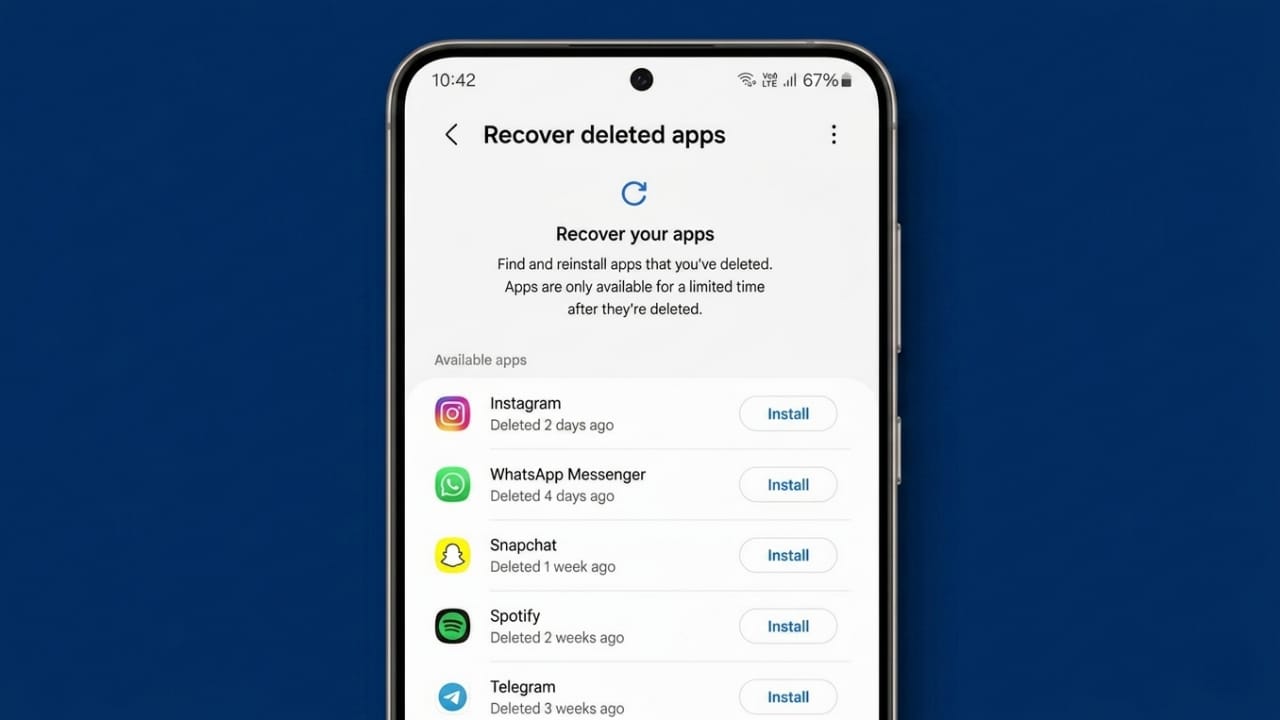
Apps can sometimes disappear from an Android phone without warning. In some cases, they are removed by mistake, while in others they may be affected by storage issues, software updates, or device changes. The good news is that Android offers several ways to restore missing apps quickly.
Advertisements
This guide explains why apps may go missing and how you can get them back safely.
Also read: Anthropic Introduces Claude Opus 4.8 With Improved Coding and Smarter Project Management
Why Do Apps Disappear on Android?
There are many reasons why an app may no longer appear on your device. Knowing the cause can help you avoid the same problem in the future.
Accidental Uninstallation
One of the most common reasons is accidental removal. While cleaning up storage or organizing apps, users sometimes uninstall applications without realizing it. Later, they discover that an important app is missing.
Storage Management Errors
Many people try to free up space by deleting files and unused content. During this process, apps can be removed unintentionally. Once the need for the app returns, users begin looking for ways to reinstall it.
Switching to a New Phone
When moving data from one phone to another, some apps may not transfer properly. This can happen during Android-to-Android transfers or when switching to a different platform. As a result, certain applications may be left behind.
Software Update Problems
Major Android updates occasionally create compatibility issues. Some older applications may stop working or disappear if they are no longer supported by the updated operating system.
User Profiles and Restrictions
Many Android devices support multiple user accounts and parental controls. Apps may be hidden due to profile restrictions, making it appear as though they have been deleted when they are actually still on the device.
Insufficient Storage Space
When storage becomes extremely low, Android may optimize device performance by removing unused app data or restricting certain applications. This can make apps difficult to access.
Malware or Security Issues
Malicious software can interfere with normal device functions. In some situations, malware may affect installed apps, causing them to stop working or disappear.
Removing an App and Wanting It Back
Sometimes users uninstall an app intentionally, only to realize later that they still need it. In these cases, reinstalling the app is usually straightforward.
How to Recover Deleted Apps Using Google Play Store
The easiest method is through the Google Play Store. Google keeps a history of apps linked to your account, making it easy to find and reinstall previously downloaded applications.
Step 1: Open Google Play Store
Launch the Google Play Store on your Android device and make sure you are signed in to the correct Google account.
Step 2: Open Your Profile
Tap your profile picture in the top-right corner of the screen.
Advertisements
Step 3: Select “Manage Apps & Device”
From the menu, choose Manage Apps & Device.
Step 4: Go to the Manage Section
Open the Manage tab to view your app information.
Step 5: View Previously Installed Apps
Tap the filter that shows Installed apps and change it to Not Installed.
This will display applications that were downloaded with your Google account but are not currently installed on the device.
Step 6: Find the Missing App
Browse the list and locate the app you want to restore.
Step 7: Reinstall the App
Select the app and tap the install button. You can reinstall one app or several apps at the same time.
Benefits of This Method
- Fast and easy to use
- No computer required
- Shows apps previously downloaded with your account
- Helps identify apps even if they are no longer on the phone
- Allows multiple app installations at once
For most users, this is the quickest and most reliable recovery method.
Other Ways to Recover Deleted Apps
If the Play Store method does not solve the problem, you can try additional options.
Use Recovery Software
Some recovery tools are designed to scan Android devices and help locate deleted app data.
Popular examples include:
- PhoneRescue
- DroidKit
- Recuva
- Dr.Fone
Most of these tools require a computer and a USB connection. Keep in mind that recovery success depends on the condition of the device and the type of data that has been removed.
Check Device App History
Certain Android manufacturers include built-in tools that keep records of installed apps. Exploring your device’s app management section may help you locate previously used applications.
Look Through File Management Apps
File manager applications sometimes contain folders or records related to installed apps. While this method may not restore the app directly, it can provide useful information about what was previously installed.
Restore From a Backup
If you regularly back up your device, recovering apps can be very simple.
Follow these general steps:
- Open Settings
- Go to System
- Tap Backup
- Choose an available backup
- Start the restoration process
Once completed, Android may reinstall apps and restore certain settings automatically.
Recovering Apps on Different Android Brands
The recovery process is generally similar across Android devices. Whether you use Samsung, Xiaomi, OnePlus, HONOR, Motorola, or another brand, Google Play Store remains the primary method for reinstalling previously downloaded apps.
As long as you have access to your Google account, finding old apps is usually straightforward.
What If You Don’t Remember the App Name?
Many users forget the name of an app after deleting it.
Fortunately, the Google Play Store’s installation history displays previously downloaded applications associated with your account. You can browse through the list until you find the one you are looking for.
Tips to Avoid Losing Apps in the Future
Preventing app loss is easier than recovering apps later. These simple habits can help.
Keep Apps Organized
Create folders and arrange apps by category. A well-organized home screen reduces the chance of accidental removal.
Enable Automatic Backups
Regular backups help protect apps, settings, and personal data. If something goes wrong, restoring your device becomes much easier.
Use App Protection Features
Some Android devices offer app locks or security settings that prevent accidental uninstallation.
Manage Storage Carefully
Before deleting files or apps, review the selected items carefully. Taking a few extra seconds can prevent mistakes.
Install Apps From Trusted Sources
Download apps only from reliable sources such as the Google Play Store. This helps reduce security risks and keeps your device safer.
Also read: iPhone 18 Pro Leak Reveals Battery, Price, and New Features
Final Thoughts
Recovering deleted apps on Android is usually a simple process. In most cases, the Google Play Store provides the fastest way to reinstall missing applications. Backups, device tools, and recovery software can also help when needed.
By keeping your device organized, maintaining backups, and managing storage carefully, you can reduce the chances of losing important apps in the future.

Abhi Rajput, founder of EarnAbhi.in, is a tech lover with 6+ years of experience in SEO, digital tools, and smartphone troubleshooting. He writes simple, clear, and useful guides to help people solve real tech problems.