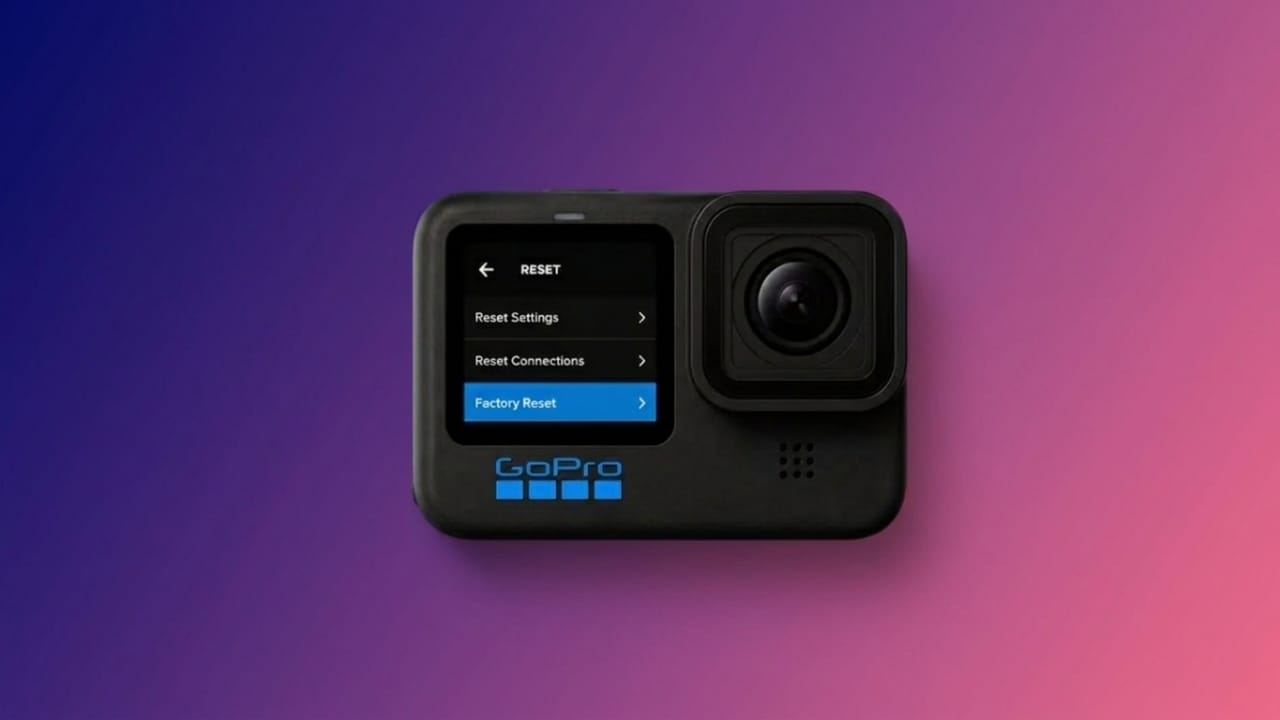
If your GoPro camera is freezing, not responding, or having connection problems, resetting it can often solve the issue. A reset refreshes the camera’s system and clears temporary software errors without requiring repairs in many cases.
Advertisements
The reset method depends on your GoPro model, so it’s important to follow the correct steps. Before you begin, make sure to back up your photos and videos to avoid losing important memories.
Also read: NoVolume App Review: Give Your Phone a Fresh Volume Control Experience
Why You Might Need to Reset Your GoPro
Like any electronic device, a GoPro camera can occasionally experience software glitches. A reset is one of the easiest ways to restore normal performance.
You may want to reset your camera if you notice any of these problems:
- The camera freezes while recording or navigating menus.
- Buttons stop responding.
- The touchscreen does not react properly.
- Wi-Fi or Bluetooth fails to connect.
- The battery drains much faster than expected.
- The camera turns off by itself.
- It won’t power on even after pressing the power button.
- The menus become slow or unresponsive.
In many situations, a simple reset fixes these issues without needing professional support.
Perform a Soft Reset First
A soft reset restarts the camera without deleting your settings or media files. It should always be the first troubleshooting step.
HERO9, HERO8, HERO7, and HERO6
- Press and hold the Mode button for about 10 seconds.
- Wait until the camera switches off.
- Turn it back on normally.
HERO5 and HERO4
- Hold the Power or Mode button for 4 to 8 seconds.
- Allow the camera to restart.
- Power it on again if needed.
HERO3 and HERO3+
- Remove the battery.
- Wait around 30 seconds.
- Reinsert the battery.
- Turn the camera back on.
How to Factory Reset a GoPro Camera
If a soft reset doesn’t solve the problem, you can perform a factory reset. This restores the camera’s settings to their original defaults. In most cases, your photos and videos remain on the memory card, but creating a backup is still recommended.
HERO9, HERO8, and HERO7
- Open Preferences.
- Select Reset.
- Choose Factory Reset.
- Confirm the action.
HERO5 and HERO4
- Open the Setup menu.
- Tap Reset.
- Select Factory Reset.
- Confirm your choice.
HERO3 and HERO3+
- Press and hold the Settings button.
- While holding it, press the Power/Mode button.
- Follow the instructions shown on the camera display.
Detailed Reset Steps for HERO4
If you need a complete reset on a HERO4, follow these steps:
- Turn on the camera.
- Press the Mode button to open the menu.
- Select the Setup (gear) icon.
- Press the Shutter button.
- Choose Reset Cam.
- Confirm the reset to restore the default settings.
Reset the Wi-Fi Password
Connection problems are sometimes caused by incorrect Wi-Fi settings rather than camera software.
HERO4
- Turn on the camera.
- Hold the Settings button for a few seconds.
- Press and release the Power button.
- Select Reset Wi-Fi Settings.
- Confirm the reset.
HERO3
If the camera has never been paired, use the default Wi-Fi password provided with your device.
If it has been paired before, update the Wi-Fi settings by using the official GoPro update tool, enter your camera’s serial number, create a new password, and complete the setup process.
Protect Your Data Before Resetting
Resetting your camera is generally safe, but it’s always a good idea to back up your files first.
For better protection:
- Copy photos and videos to your computer.
- Store important files in cloud storage.
- Make sure the battery is charged above 50%.
- Keep the camera firmware updated.
- Try a soft reset before choosing a factory reset.
What to Do If Resetting Doesn’t Fix the Problem
If your GoPro still isn’t working correctly after a reset, try these additional checks:
- Remove and reinsert the microSD card.
- Test the camera with a different, compatible memory card.
- Install the latest firmware update.
- Inspect the battery for damage or charging issues.
- Contact GoPro Support if the problem continues.
If files are accidentally lost, reliable data recovery software may help recover content from the memory card, although successful recovery cannot be guaranteed.
Also read: Gesture Lock Screen: A Different Way to Secure Your Android Phone
Final Thoughts
Resetting a GoPro camera is a simple way to solve many common software-related issues, including freezing, connection errors, and slow performance. Start with a soft reset, and only use a factory reset if the problem remains.
Keeping regular backups, using a quality microSD card, and installing firmware updates can help your GoPro continue working smoothly and reliably.

Abhi Rajput, founder of EarnAbhi.in, is a tech lover with 6+ years of experience in SEO, digital tools, and smartphone troubleshooting. He writes simple, clear, and useful guides to help people solve real tech problems.
Advertisements