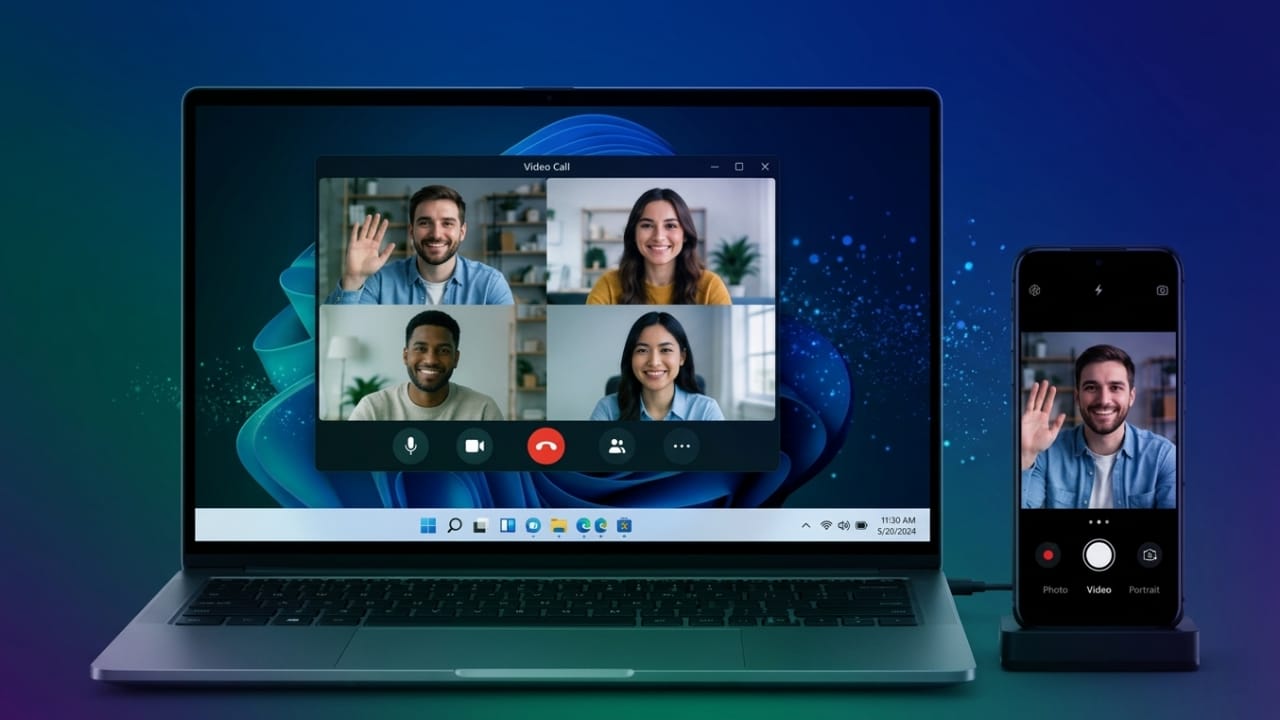
If your laptop’s webcam is blurry or your desktop doesn’t have one, your Android phone can be a great alternative. Most modern smartphones have excellent cameras that can deliver much better video quality than standard webcams.
Advertisements
There are several ways to use an Android phone as a webcam on a Windows computer. Some methods work wirelessly, while others require a USB cable for a more stable connection. Depending on your phone model and Windows version, you can choose the option that works best for you.
Also read: How to Reset Your GoPro Camera: Complete Guide for HERO, Fusion, and Session Models
Quick Overview
- Windows 11 supports wireless webcam connections with compatible Android phones.
- Google Pixel phones include a built-in USB webcam feature.
- Apps such as DroidCam and Camo work with a wide range of Android devices.
- USB connections usually provide a smoother and more reliable video experience.
Method 1: Use Windows 11 Wireless Webcam Feature
Windows 11 includes a built-in feature that allows supported Android phones to work as wireless webcams.
To get started, open Settings on your Windows PC and go to Bluetooth & devices. Open Mobile devices and enable access if it is turned off. Then select Manage devices and connect your Android phone.
Install the Link to Windows app on your phone if it is not already installed. Sign in with the same Microsoft account on both devices. Once the phone is connected, enable the camera option.
When you open a video calling app or the Windows Camera app, your phone should appear as an available camera. The phone may ask for permission to share the camera. Simply allow the request to complete the setup.
If the connection fails, disconnect the devices and connect them again. In many cases, reconnecting solves the problem.
Why Choose This Method?
- No USB cable is needed.
- Uses Windows’ built-in features.
- Quick and easy setup.
- Great for everyday video calls and online meetings.
Method 2: Use a Google Pixel Phone as a Webcam
If you own a recent Google Pixel phone, turning it into a webcam is very simple. No additional software is required.
Compatible Pixel Models
- Pixel 6 Series
- Pixel 7 Series
- Pixel 8 Series
- Pixel 9 Series
- Newer supported Pixel devices
Connect your Pixel phone to the computer using a USB cable that supports data transfer. Tap the USB notification on your phone and select Webcam from the available options.
Your computer will recognize the phone as a webcam. Open your preferred video conferencing app and select your Pixel phone as the camera.
You can also switch between different camera lenses, use the front camera, and adjust video quality directly from your phone. Keep in mind that using higher video quality for long periods may cause the phone to become warm.
Method 3: Use Third-Party Webcam Apps
If your phone doesn’t support built-in webcam features, third-party apps are an excellent alternative.
DroidCam
DroidCam is one of the most popular webcam apps for Android. It supports both Wi-Fi and USB connections and offers a free version with useful features.
To use DroidCam, install the app on your Android phone and the companion software on your Windows PC. Connect both devices through the same Wi-Fi network or a USB cable, then follow the setup instructions to start using your phone as a webcam.
Benefits of DroidCam
- Free version available.
- Supports wireless and USB connections.
- Works with Windows and Linux.
- Premium version removes ads and adds extra features.
Camo
Camo is another reliable option for using your Android phone as a webcam. It supports both Windows and Mac computers and provides several camera controls.
You can connect your phone using a QR code or a USB cable. Depending on your device, USB debugging may be required for the initial setup.
Camo allows you to adjust video quality, zoom, and other camera settings. Some advanced features are available with the premium version.
Motorola and Samsung Webcam Features
Some Motorola phones include Smart Connect, making it easy to use the phone as a webcam.
To set it up, install the Smart Connect application, pair your devices using the provided QR code, and install any required drivers on your computer.
Features Available
- Automatic subject tracking.
- Lens switching.
- Background blur.
- Flashlight mode for better lighting.
Samsung also offers camera-sharing features on certain devices. However, support depends on the phone and compatible Samsung laptops, so availability may vary.
An Easy Alternative
If you only need your phone camera for a meeting and don’t want to spend time setting everything up, you can simply join the meeting directly from your smartphone.
Popular apps like Zoom, Google Meet, and Microsoft Teams work well on Android devices. This is often the fastest solution when you’re short on time.
For better video quality, place your phone on a small tripod or stable surface and make sure the room has good lighting.
Also read: NoVolume App Review: Give Your Phone a Fresh Volume Control Experience
Final Thoughts
Using your Android phone as a webcam is an easy way to improve video quality for online meetings, virtual classes, and video calls.
Windows 11 users can enjoy wireless webcam support, while Google Pixel owners have a simple USB option built into the phone. If your device doesn’t include these features, apps like DroidCam and Camo provide flexible alternatives that work with many Android phones.
Choose the method that matches your phone and computer, and you’ll be ready for clearer, more professional-looking video calls.

Abhi Rajput, founder of EarnAbhi.in, is a tech lover with 6+ years of experience in SEO, digital tools, and smartphone troubleshooting. He writes simple, clear, and useful guides to help people solve real tech problems.
Advertisements